
Joining a high-availability cluster
This page covers the high-availability (HA) path of the wizard, the path you follow when you chose "Add this node to another Syncplify Server! node to achieve high-availability (HA)" on the setup type step. On this path the wizard does not create a local SuperAdmin; instead it joins this node to an existing cluster by authenticating against a SuperAdmin that already runs on a remote node.
The HA path is a three step flow: the setup type, the node ID, and then the two screens documented below. The step indicator reads Step 2 of 3 and Step 3 of 3 on these screens.
Step 2 of 3: the remote node address
The heading reads "Join existing node". The introduction asks you to enter the host name or IP address and the port of a remote, existing Syncplify Server! node that you want this local node to join in a high-availability (HA) set.
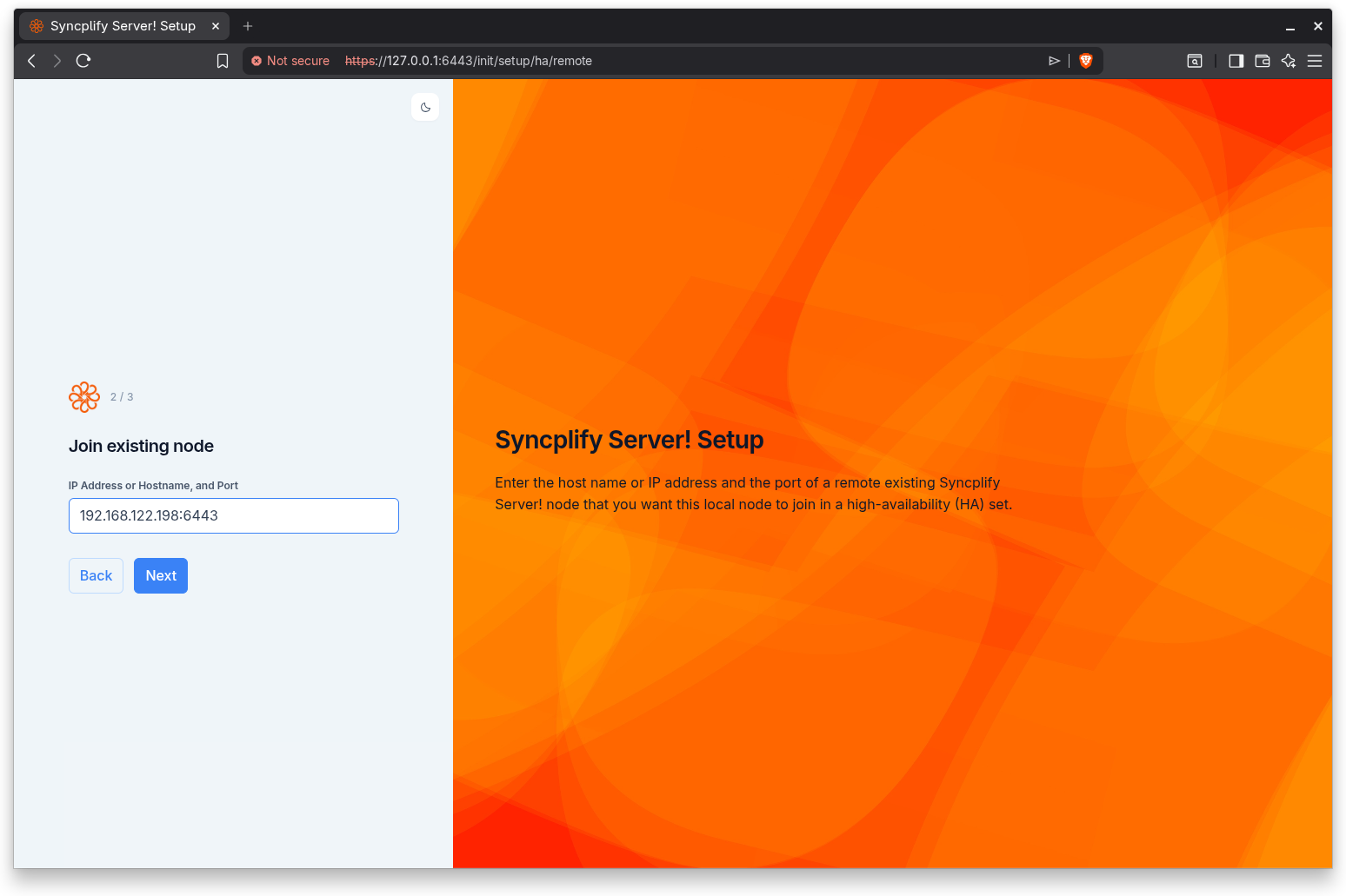
Enter the address of the existing node in the IP Address or Hostname, and Port field, in the form host:port. The wizard validates the format:
- "An IP address or hostname with port is required" appears when the field is empty.
- "Enter a valid address in the format host:port (port must be between 1 and 65535)" appears when the value is not a valid host and port pair.
Click Back to return to the node ID step, or Next to continue to authorization.
Step 3 of 3: authorization
The heading reads "Authorization". The introduction asks you to prove that you are a SuperAdmin on the remote node you are trying to join.
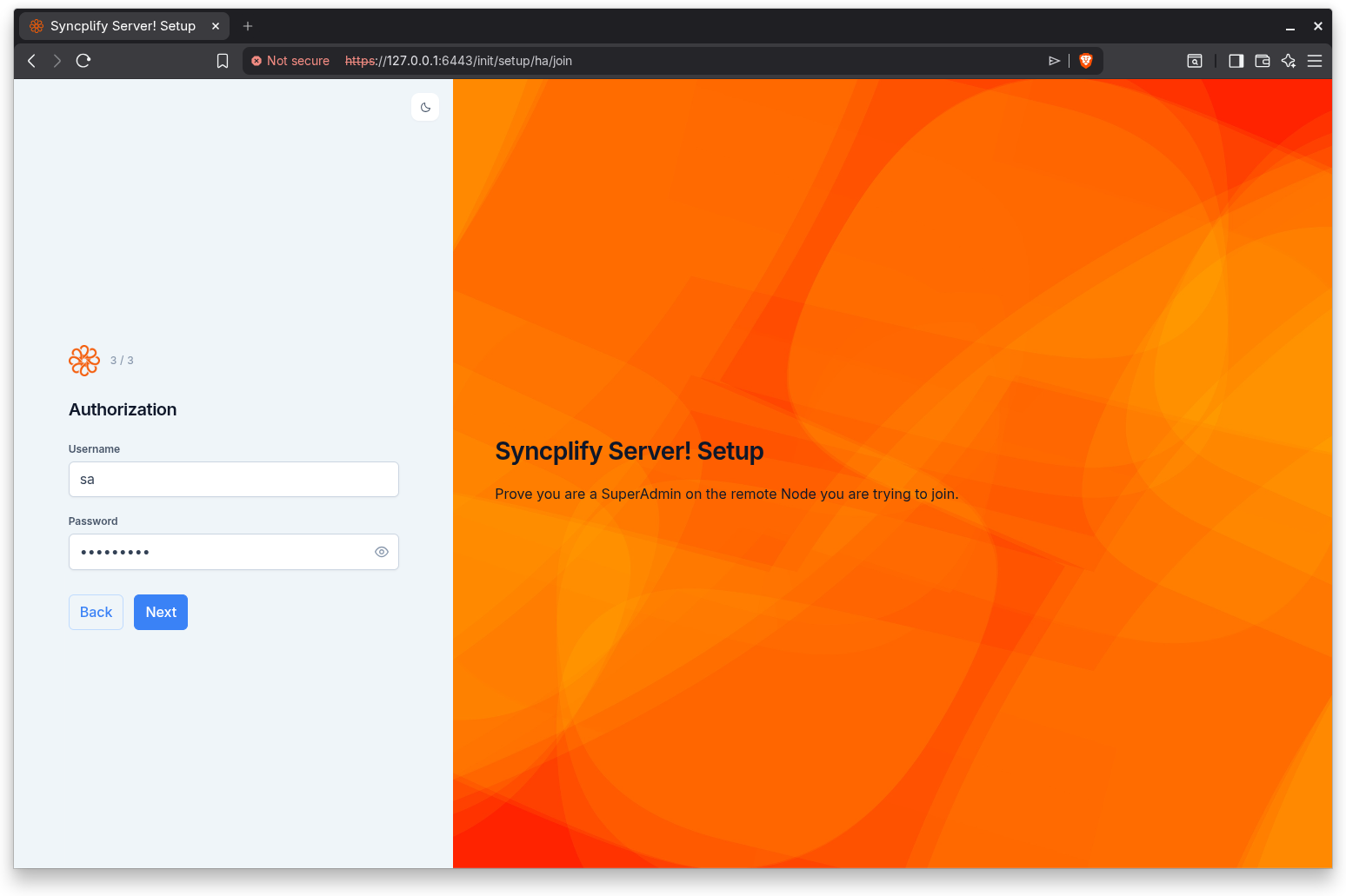
Provide the credentials of a SuperAdmin that exists on the remote node:
- Username. The SuperAdmin username on the remote node. A username is required.
- Password. That SuperAdmin's password. A password is required.
- OTP. A one-time code from the remote SuperAdmin's authenticator app. This field appears only when the remote SuperAdmin has two-factor authentication enabled. If your first attempt indicates that an OTP is needed, the field becomes visible and you can retry with the code included.
When you click Next, the wizard contacts the remote node and attempts to join the cluster. This operation can take several minutes; while it runs, the screen shows a "Joining the cluster..." progress indicator and asks you to wait patiently and not close the page. On success, the remote node owns the cluster, and this node hands off to the SuperAdmin interface, where you can sign in and view the cluster.
After a successful join, this node has joined your high-availability (HA) deployment. In some cases the join completes but the cluster status cannot be verified immediately; this is normal when the remote node holds a large amount of data, and you can check the Nodes page in the SuperAdmin interface for status updates.
Common errors
If the join cannot complete, the wizard reports a specific error so you can correct the underlying problem:
- Unreachable. The remote node could not be reached at the address you entered. Verify the address and make sure the remote node is running, then try again.
- Conflict (node already exists). A node with this ID already exists in the cluster. The wizard returns you to the node ID step so you can choose a different node ID.
- Version mismatch. The remote node is running an incompatible software version. Make sure both nodes are running the same version of Syncplify Server! before retrying.
- Clock drift. A clock skew was detected between this node and the remote node. Synchronize both machines' clocks via NTP and retry.
For broader background on planning and operating HA clusters, see the HA Cluster Setup installation guide.