
Cluster
The Cluster area monitors and manages the nodes of a high availability cluster. It adapts to the deployment: a clustered server shows the full cluster console, while a standalone server shows an informational page about this single node. The page is a live status surface and refreshes automatically.
Standalone server
On a standalone server the page explains that all configuration and data live on this single node, and that there are no peers to monitor or manage.
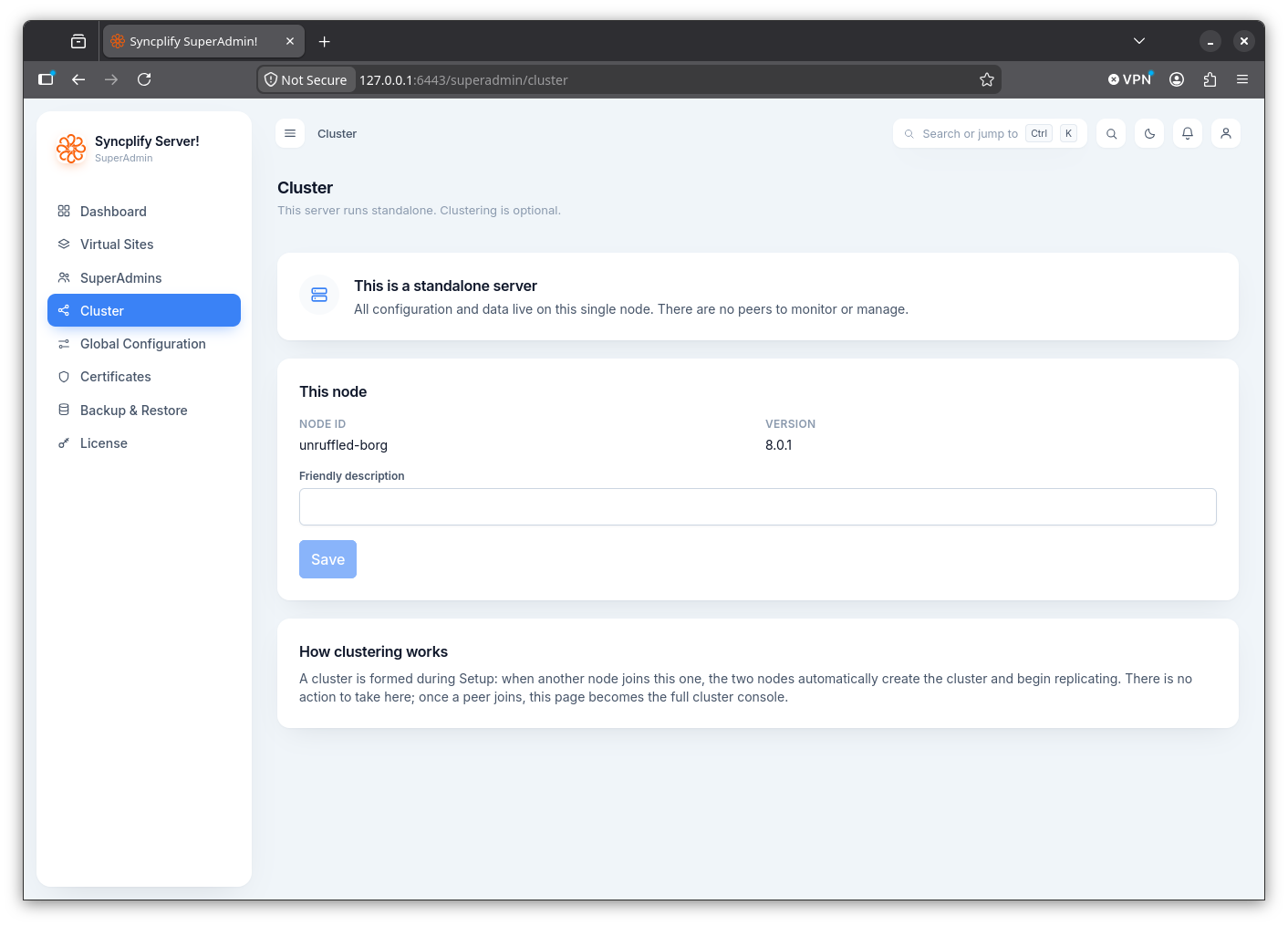
It shows this node's ID and version, and lets you set a friendly description for the node. A short explanation describes how clustering works: a cluster is formed during setup, and when another node joins, the two nodes automatically create the cluster and begin replicating; once a peer joins, this page becomes the full cluster console.
NOTE
High availability clustering may require a higher license edition. When it is not licensed, a notice explains the limit.
Clustered server
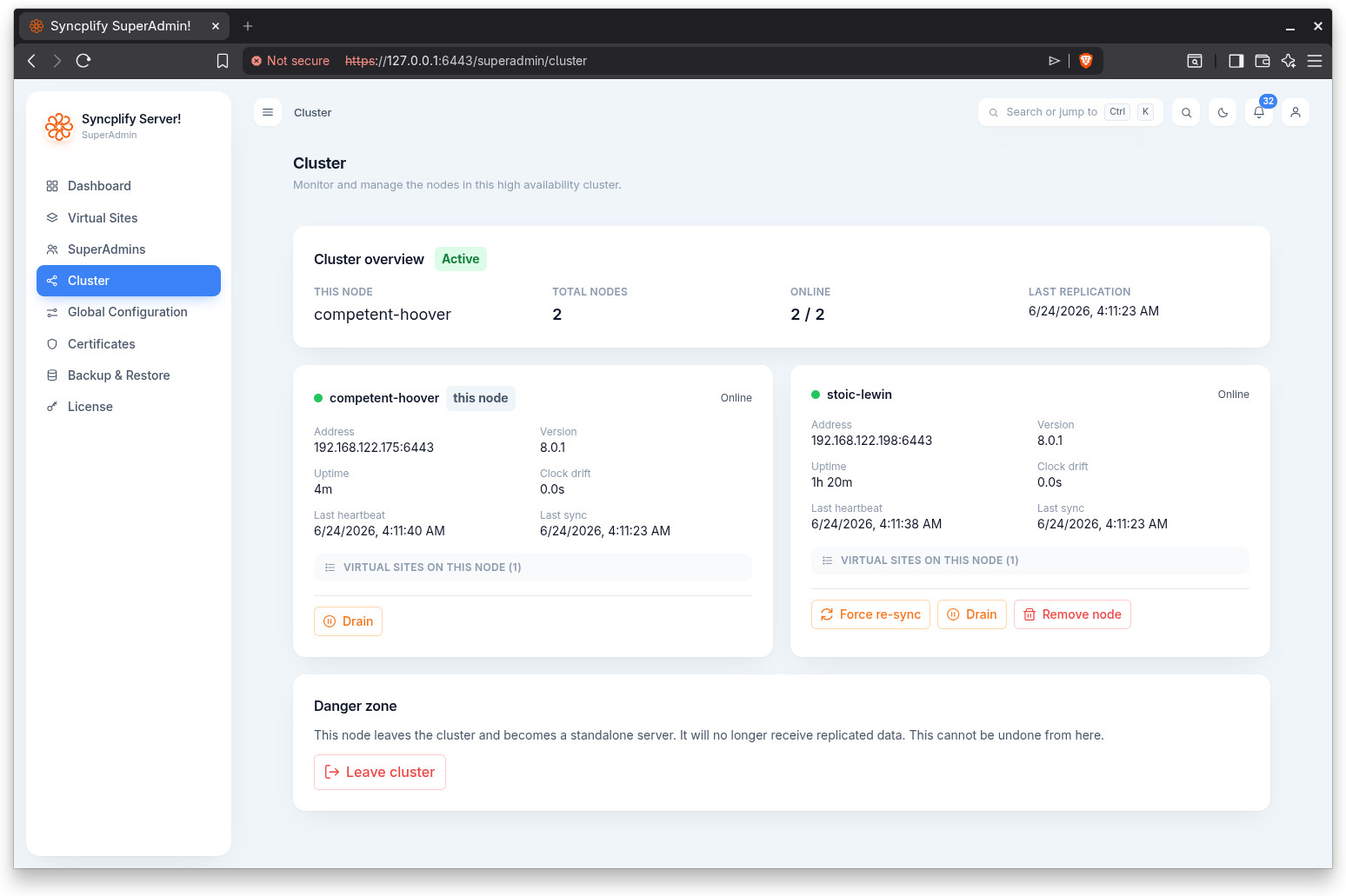
In a cluster the page opens with an overview showing this node, the total number of nodes, how many are online, the last replication time, and an overall cluster state (Active, Degraded, or Standalone). A software updates strip below it says whether all nodes are current, an update is available, versions are mixed, or a cluster update is in progress (which node, and how far along), and which node holds the update lease.
Per node cards
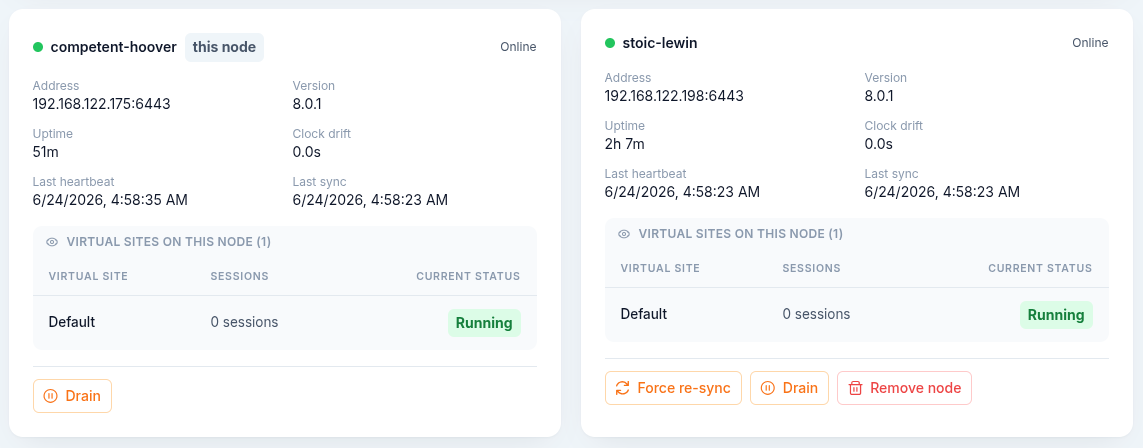
Each node is shown as a card with a status indicator and the node ID (your own node is tagged), plus address, version, uptime, clock drift, last heartbeat, and last sync. A draining or partially draining node is tagged accordingly. An Update cell shows the node's update standing: up to date, the version available to it, waiting for an idle moment, updating (with the phase), or the outcome of its last update.
Each card can expand to list the virtual sites running on that node, with their live session counts and current status.
Node actions
Depending on the node and its state, a card offers:
- Force re-sync: forces a full re-sync of all data from a peer node to this node. Use it only when replication has fallen out of sync. This is a disruptive action and asks for confirmation.
- Drain: drains the node so its virtual sites stop accepting new connections while existing sessions finish. A confirmation dialog lists the affected virtual sites and their live session counts.
- Undrain: resumes accepting new connections on the node. This runs immediately.
- Trust current key: offered on a node whose requests this node refuses because they are signed with an identity key other than the one recorded when it joined. It shows the fingerprint recorded here and the one the node proves right now, and records the current key after confirmation. See Identity key mismatch.
- Remove node: removes the node from the cluster. This is a disruptive action and asks for confirmation.
- Apply when idle and Apply now: when a newer version is available to the node, update it, with the same confirmations as on the Updates page. Cancel waiting update undrains a node whose update is waiting for an idle moment.
Updating the cluster
Nodes are always updated one at a time, so the cluster stays up throughout an update. Update cluster in the updates strip starts a rolling pass: peers first, in node ID order, this node last, each node passing its health check before the next one starts. The pass refuses to start while a member is offline, mid update or failed, and stops at the first failure. The rules, the update lease and the automatic mode are described in Keeping the server current; the console side is on the Updates page.
Danger zone
A Leave cluster action makes this node leave the cluster and become a standalone server. It will no longer receive replicated data, and this cannot be undone from here. It asks for confirmation.
Identity key mismatch
Every node signs its cluster requests with an identity key pair, and every peer verifies them against the public half it recorded when the node joined. A peer never accepts a replacement key that merely arrives over the network, because that is how an attacker able to answer for a node would take its place. The price of that rule is paid when a node's key pair really does change, which happens when its node record is recreated, restored or reconfigured: the node keeps signing with a key no peer holds, every peer refuses it, and the symptoms are easy to misread as a network problem.
- On the node whose key changed, the Cluster page shows every other node as Refuses this node and the cluster as degraded, while the network is fine. Its log carries the event
ClusterPeerRefusesThisNodeonce per peer, and each refused request is answered with a 401 that says the signature does not verify with the identity key recorded for this node. - On every other node, the Cluster page shows that node as Identity key mismatch, a notification explains it, and the log carries
ClusterPeerKeyMismatchonce. The node is online from there: its heartbeats are answered, only its own requests are refused.
The repair is made on each refusing node, never on the node whose key changed:
- Open the Cluster page of a node that shows Identity key mismatch and choose Trust current key on the card of the affected node.
- The dialog shows the fingerprint of the key recorded here and the fingerprint the node proves on the inter node channel right now. Compare the latter with what
ss-webrest ha identityprints on the affected node, then confirm. The key is recorded only when the node proved possession of it on the channel and the fingerprint you confirmed is the one it proved. - Replication resumes at the next heartbeat, with no restart. Repeat on every node that shows the tag.
When the console cannot ask the node for its key, for example because it runs an older build, the same repair is made from the command line: run ss-webrest ha identity --out key.pem on the affected node, copy the file to the refusing node and run ss-webrest ha trust NODEID --key-file key.pem there. The running service adopts the key at the next request from that node. The commands are described under ha.
NOTE
A node whose key pair changed without anybody restoring or reconfiguring it is a node to investigate before trusting. Recording a key makes every request signed with it acceptable from then on.
Data encryption key
Every credential a Syncplify Server! installation stores, from LDAP and SMTP passwords to storage credentials and authenticator seeds, is encrypted at rest with a key unique to that installation. The key is generated on first start and kept in a file beside the database. It is never stored in the database itself, so a copied database, a disk image or a backup archive does not decrypt on its own.
In a cluster all nodes share one key, because they all replicate the same records. Nothing needs to be done to arrange this:
- A node joining a cluster receives the cluster's key as part of joining. If the joining node runs an older version that cannot accept it, the join is refused and the node must be updated first.
- A cluster that has been updated from a version that predates per installation keys receives one automatically, once every member is online and running the new version. Until that happens, the cluster keeps using the previous encryption scheme, exactly as it did before the update, and nothing is degraded while it waits.
NOTE
If cluster members are reported as using different encryption keys, a notification is raised and no automatic change is made. That situation needs support; do not remove or rejoin nodes first, because doing so can make records unreadable.
A node that leaves a cluster keeps the key, so its data stays readable.
Converting existing data
A newly generated key protects everything written from that point on. Records saved earlier remain encrypted with the previous scheme until they are rewritten. To convert them all at once, run on one node:
ss-webrest reencryptSecrets already encrypted with the current key are left alone, so the command is safe to repeat and an interrupted run can simply be started again. On a cluster, run it on a single node: the rewritten records replicate to the others normally. Because it rewrites every record that holds a credential, prefer a quiet period on a large installation.