
LDAP / OIDC
The LDAP / OIDC section gathers the external identity sources that accounts authenticate against. Both LDAP directory servers and user facing OIDC providers live here because both delegate authentication to a system outside the virtual site.
The page is organized into two tabs:
- LDAP servers
- OIDC providers
You can move between the tabs with the mouse, or with the keyboard arrow keys when the tab strip has focus (Home and End jump to the first and last tab).
Both LDAP and OIDC identity sources are license gated. When the current license does not include the relevant capability, the Add button is disabled and an inline notice explains why.
LDAP servers
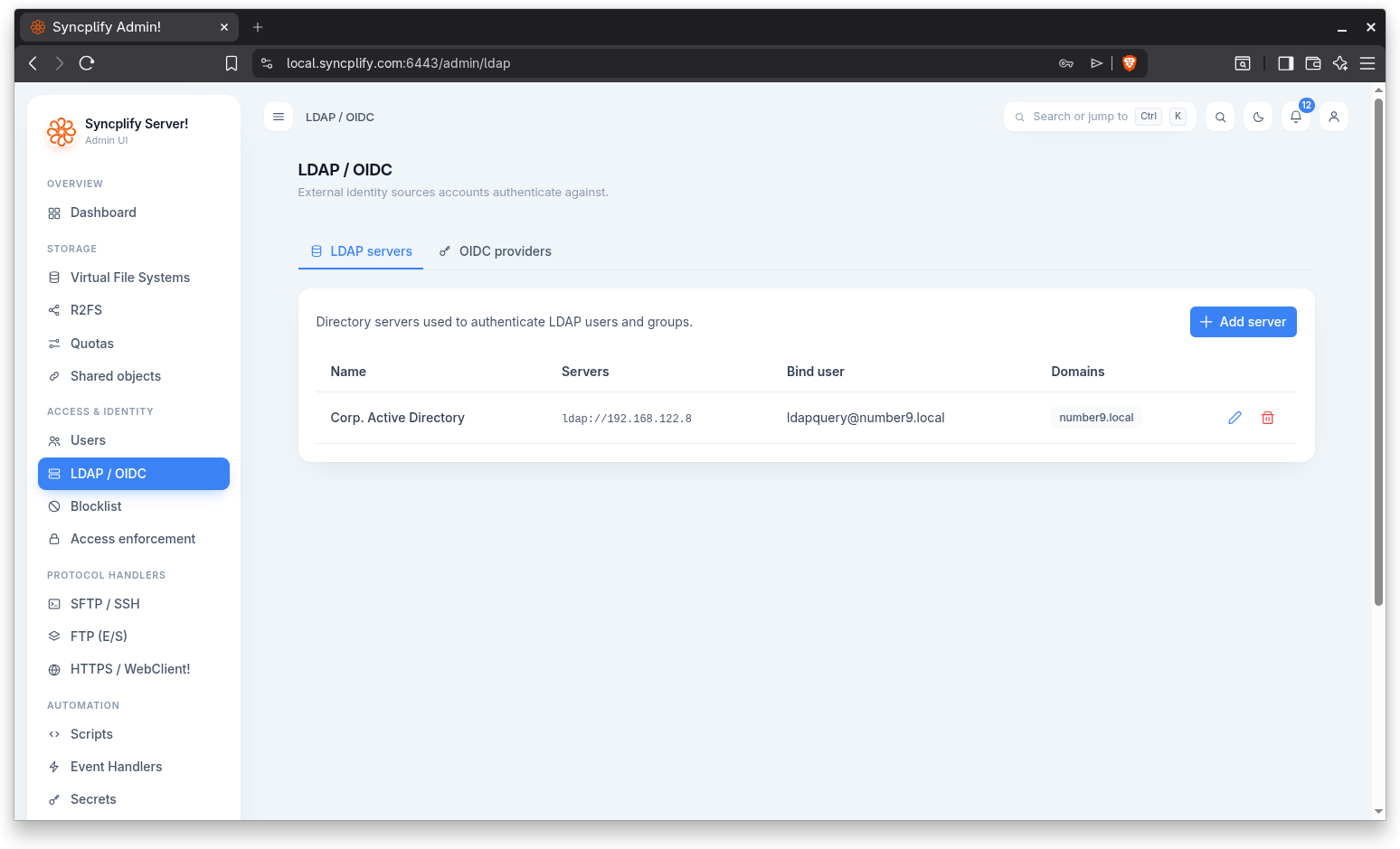
This tab lists the directory servers used to authenticate LDAP users and groups. The table shows the following columns:
- Name (the friendly name)
- Servers (the configured server URLs)
- Bind user
- Domains
Each row offers actions to edit or delete the server. Use the Add server button above the table to create a new entry.
Adding or editing an LDAP server
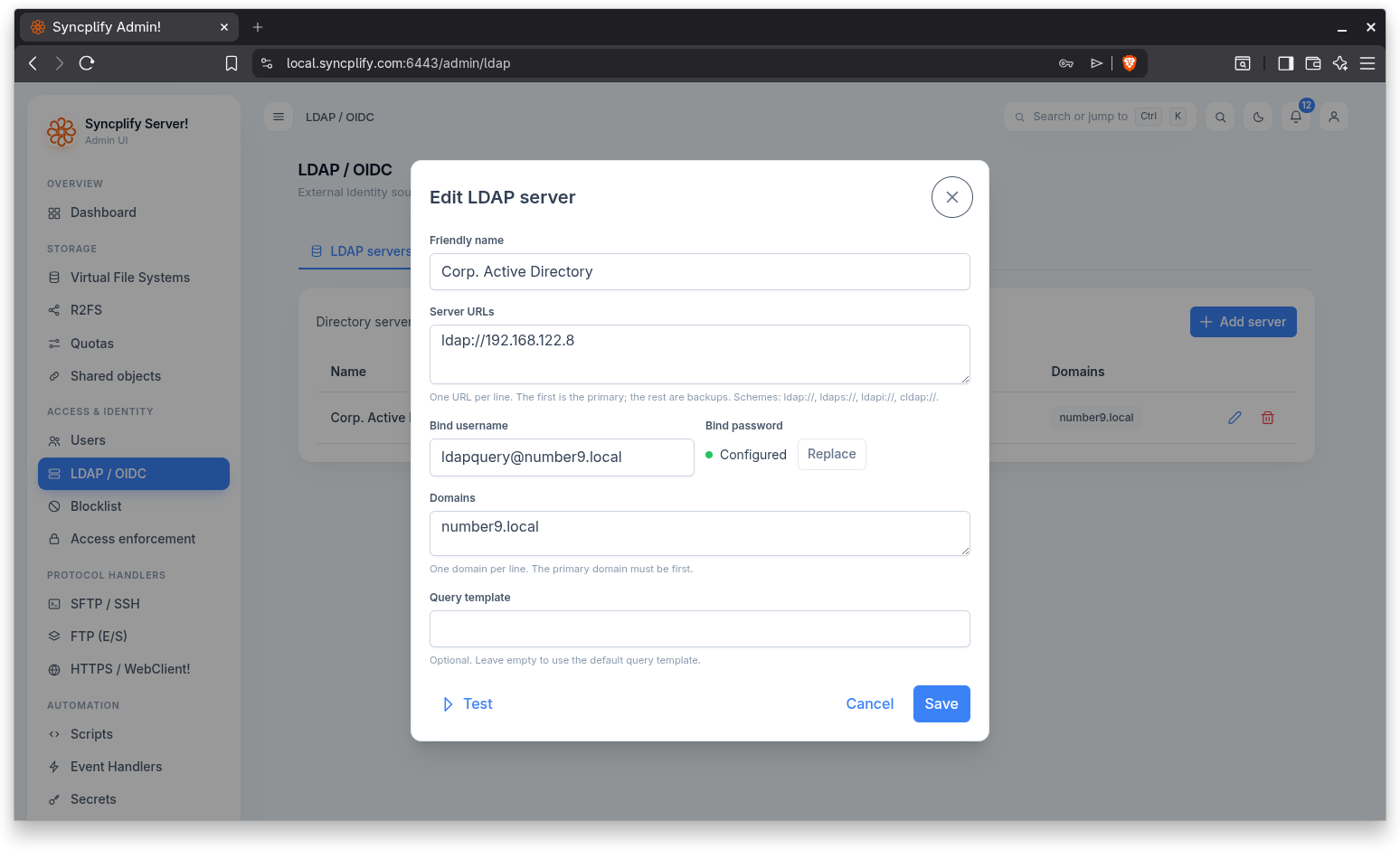
Adding or editing a server opens a dialog with the following fields:
- Friendly name: a label that identifies this server in the list. Required.
- Server URLs: one URL per line. The first URL is the primary; the rest are backups. The supported schemes are
ldap://,ldaps://,ldapi://, andcldap://. At least one URL is required. See important note below. - Bind username: the account used to bind to the directory. Required.
- Bind password: the password for the bind account, stored as an encrypted secret. On edit, an existing password is preserved unless you replace it.
- Domains: one domain per line. The primary domain must be first.
- Query template: optional. Leave it empty to use the default query template, which is
(&(objectClass=user)(|(sAMAccountName=)(userPrincipalName=))).
IMPORTANT
Syncplify Server! supports both standard LDAP and secure LDAPS connections. For secure connections, ensure your LDAP/AD server is configured with a valid SSL/TLS certificate, and that the Syncplify Server! host trusts the certificate authority (CA) that issued it. Alternatively, you may add the insecure=true query parameter to the LDAP URL (ex: ldaps://ldap.example.com:636?insecure=true) to bypass certificate validation. Use this option if you are using self-signed certificates or if you have deployed your own internal CA which root certificate is not counter-signed by a public CA (typical scenario in Windows environments).
Testing the connection
The dialog includes a Test button that validates the current settings against the directory server before you save. The fields are checked first (friendly name, at least one server URL, and a bind username must be present); if they are valid, the server settings are sent to the directory for verification. A success toast confirms that the directory server accepted the settings.
Deleting a server
Deleting a server asks for confirmation, naming the server, before it is removed.
OIDC providers
TIP
Everything about OIDC single sign on, including how the flow works, what every setting means, and step by step configuration for Google and Microsoft Entra ID, is covered in the dedicated Single Sign On (OIDC) guide. Read it first if this is your first provider.
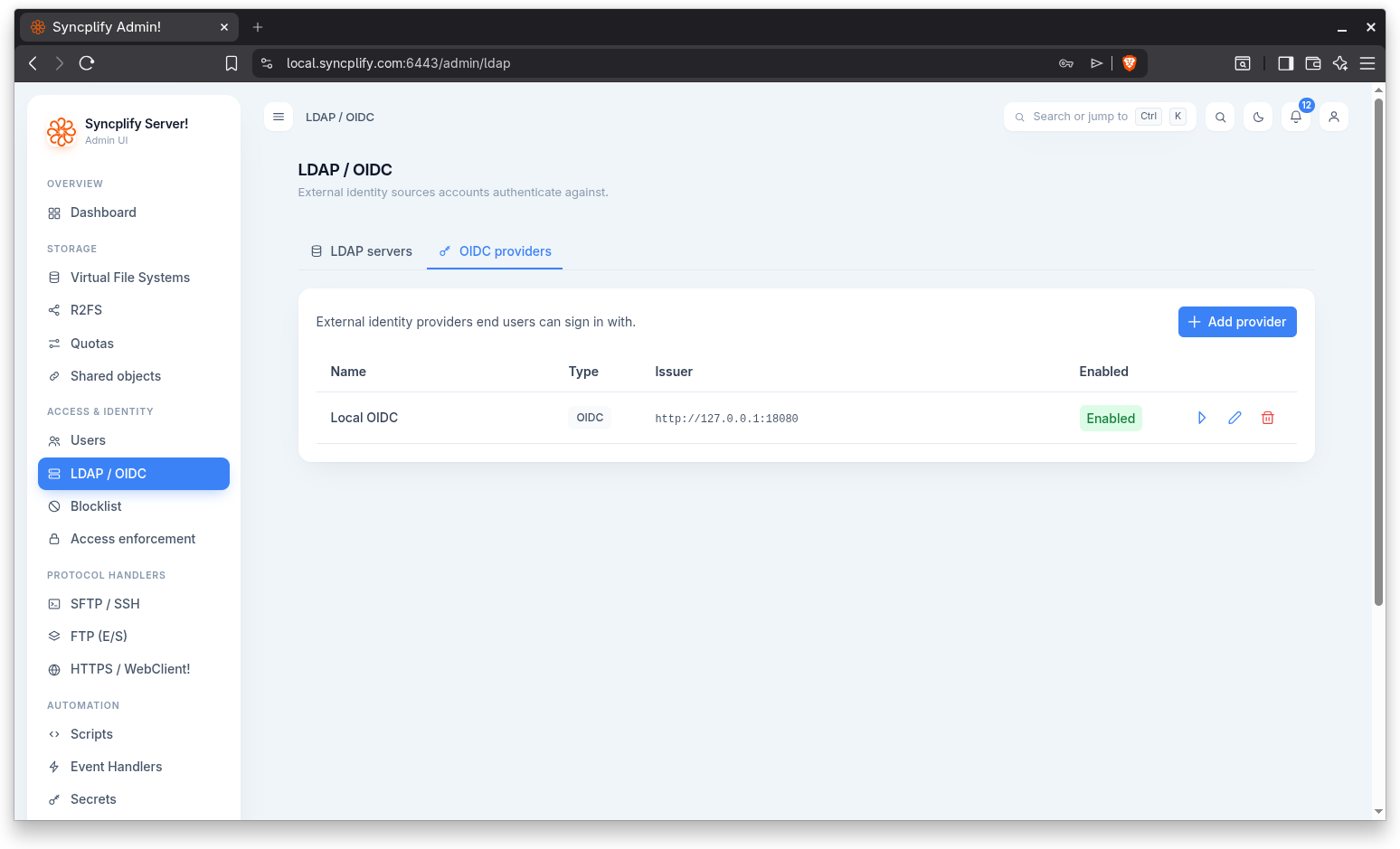
This tab lists the external identity providers that end users can sign in with. The table shows the following columns:
- Name (the display name)
- Type (the provider kind, for example OIDC)
- Issuer (the issuer URL)
- Enabled (Enabled or Disabled)
Each row offers actions to test, edit, or delete the provider. Use the Add provider button above the table to create a new entry.
Adding or editing an OIDC provider
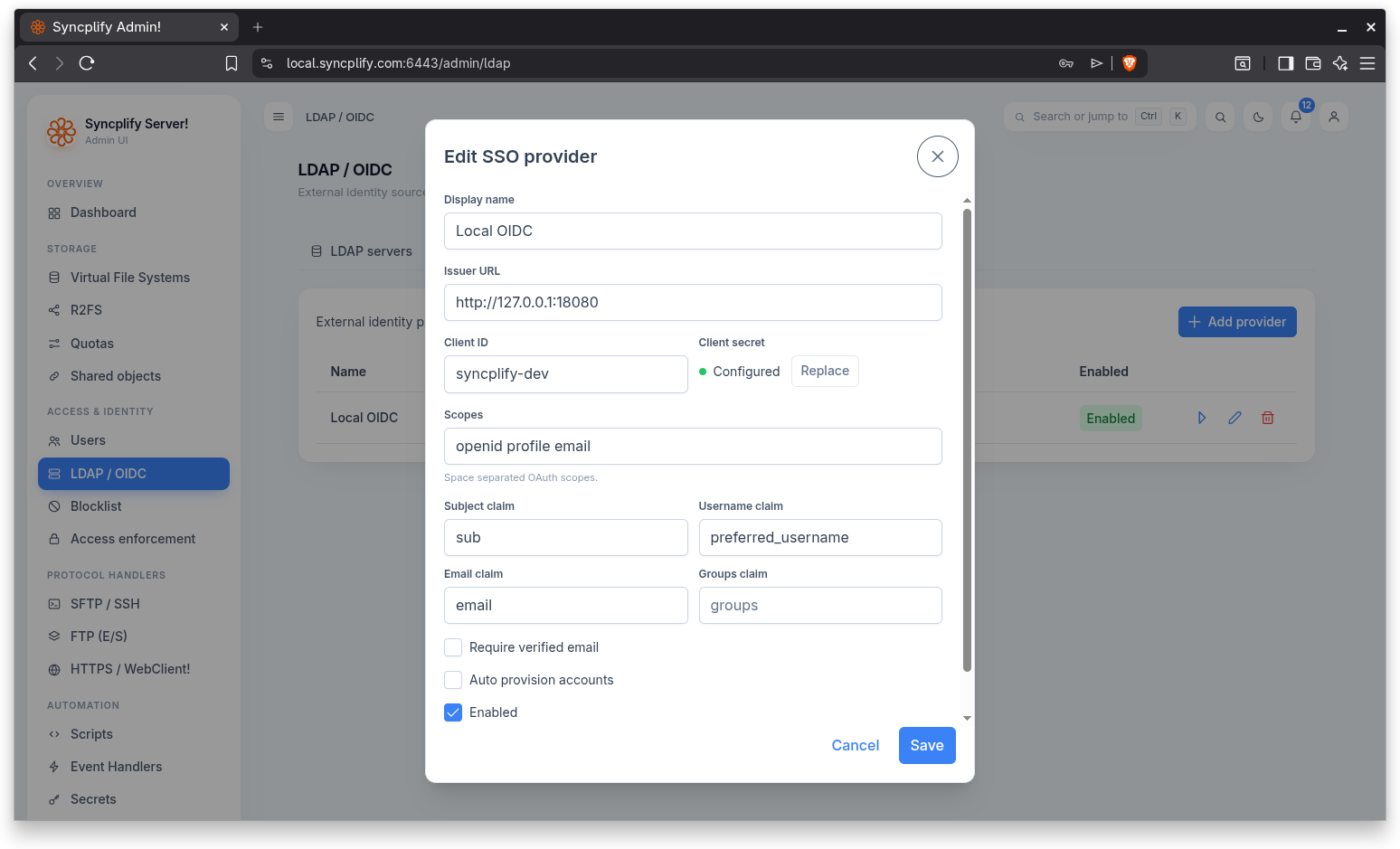
Adding or editing a provider opens a dialog with the following fields:
- Display name: a label that identifies the provider. Required.
- Issuer URL: the OIDC issuer base URL, for example
https://idp.example.com. Required. - Client ID: the OAuth client identifier issued by the provider. Required.
- Client secret: the OAuth client secret, stored as an encrypted secret. It is required when creating a provider. On edit, the stored secret is preserved unless you replace it.
- Scopes: space separated OAuth scopes, for example
openid profile email. - Microsoft tenant: only for Microsoft Entra ID;
common,organizations,consumers, or a specific tenant ID. - Token endpoint authentication: whether the client secret is sent in the POST body (the default) or in a Basic auth header.
- Redirect URL: an explicit callback URL override; leave blank to derive it from the request host. When set, it must match the redirect URI registered at the identity provider.
- Endpoint overrides: optional authorization endpoint, token endpoint, UserInfo endpoint, and JWKS URI. Values set here take precedence over OIDC discovery; setting the authorization endpoint, the token endpoint, and the JWKS URI skips discovery entirely.
- Subject claim: the claim used as the stable subject, for example
sub. - Username claim: the claim mapped to the username, for example
preferred_username. - Email claim: the claim mapped to the email address, for example
email. - Groups claim: the claim that carries group membership, for example
groups. - Require verified email: only accept the identity when the email is marked verified by the provider. Leave this off for Microsoft Entra ID, which never asserts email verification.
- Link account on first login: when an account's SSO binding has no subject yet, match it by the provider's link claim and capture the subject on the first successful sign in.
- Auto provision accounts: reserved for a future release; it has no effect yet.
- Enabled: whether the provider is active. New providers default to enabled.
- Allow insecure HTTP issuer: permit an issuer URL served over plain HTTP. Leave this off in production.
All the settings are explained in depth, with recommended values for Google and Microsoft Entra ID, in the Single Sign On (OIDC) guide.
Testing the provider
Each saved provider has a Test action that resolves the provider's effective endpoints (running OIDC discovery when applicable). A success toast confirms that the provider responded correctly.
Deleting a provider
Deleting a provider asks for confirmation, naming the provider, before it is removed.