
HTTPS / WebClient!
This page configures the HTTPS service together with the appearance, limits, and security of the WebClient!, the browser based interface your users log into. All settings live on a single virtual site configuration and are persisted with one Save in the page header.
The configuration is organized into seven tabs, in this order: Appearance, Operational, TLS, Security, Sessions, CORS, and Advanced. Several tabs note that their settings are read when the virtual site starts, so a restart is needed for those changes to take effect.
Appearance
The Appearance tab covers everything visual: branding shown on the WebClient login and upload pages, colors, logos, wallpapers, the page title, and the disclaimers.
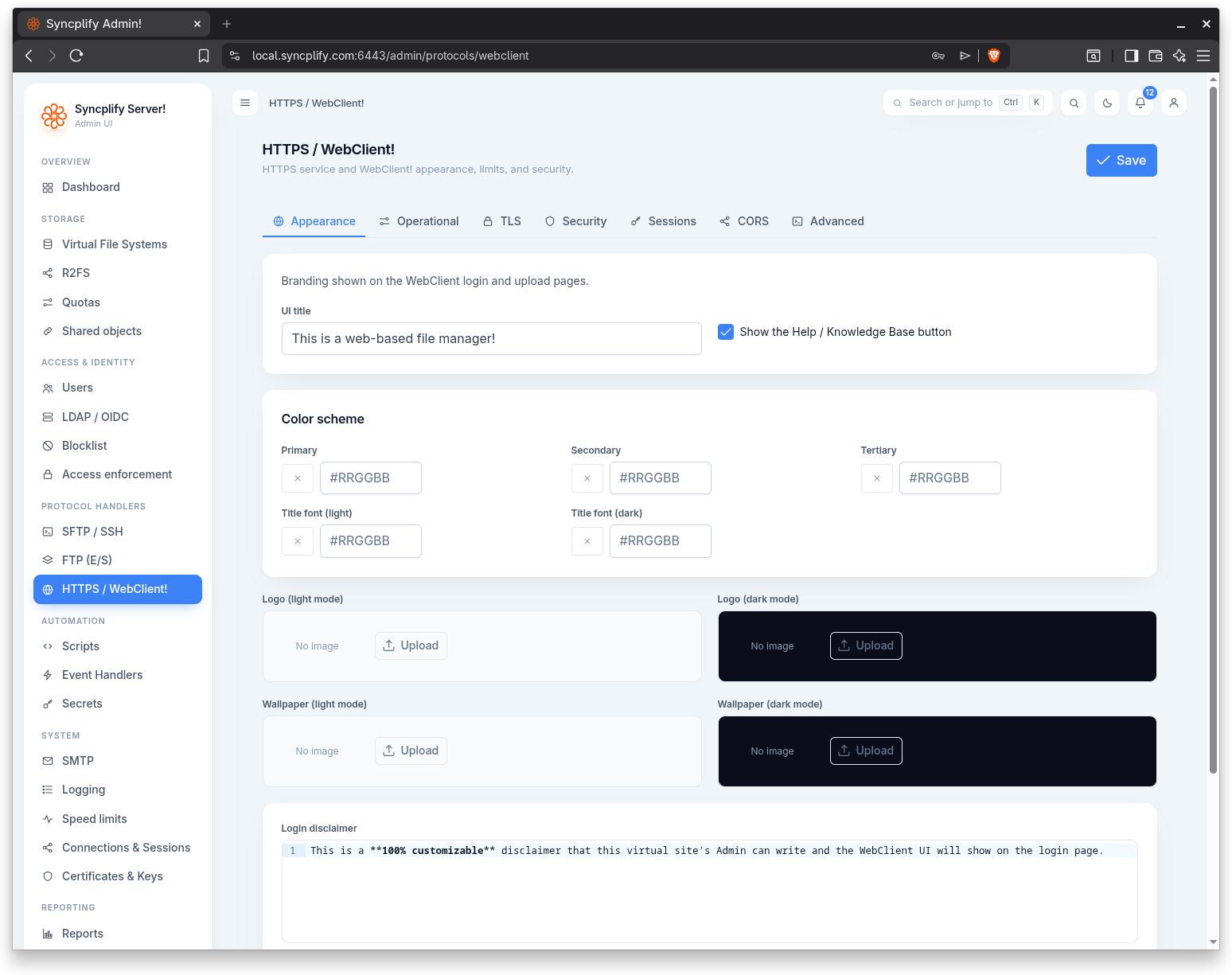
UI title and Help button
- UI title: the title text shown in the WebClient interface.
- Show the Help / Knowledge Base button: a toggle that controls whether the Help and Knowledge Base button is visible to users.
Color scheme
The Color scheme section provides color pickers for the main brand colors and the title fonts.
- Primary, Secondary, and Tertiary: the three brand colors used across the interface.
- Title font (light) and Title font (dark): the title font colors for light mode and dark mode respectively.
Logos and wallpapers
Each image is uploaded through an image field, with separate variants for light and dark mode.
- Logo (light mode) and Logo (dark mode).
- Wallpaper (light mode) and Wallpaper (dark mode).
Disclaimers
Two disclaimer fields let you present text to users; both support Markdown and are edited in a code editor.
- Login disclaimer: shown on the login page.
- Upload disclaimer: shown on the upload page.
Operational
The Operational tab holds transfer limits and behavior, plus the shared object password rules.
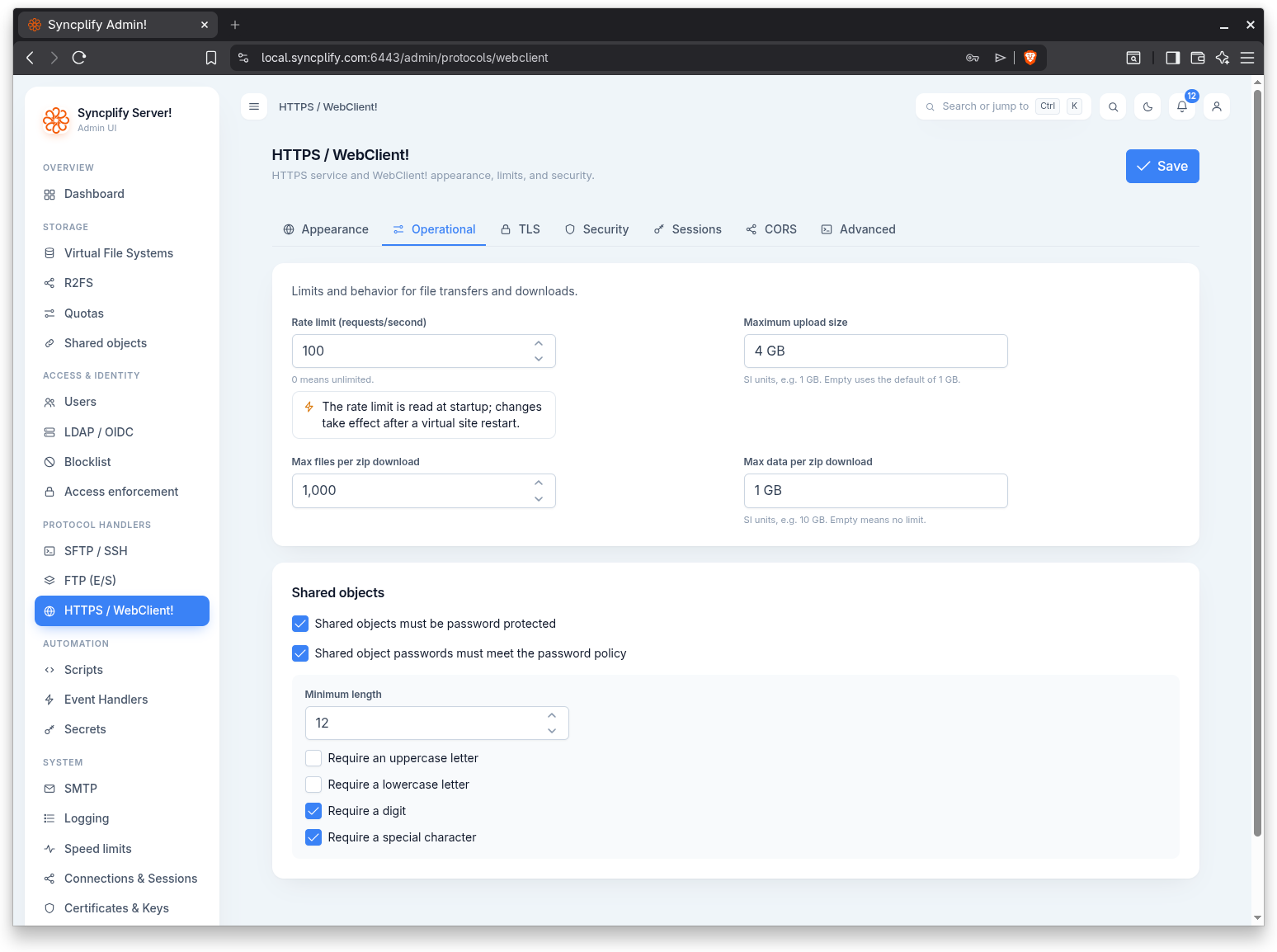
Limits
- Rate limit (requests/second): caps the request rate; 0 means unlimited. The rate limit is read at startup, so a change takes effect after a virtual site restart, and the field shows a restart notice.
- Maximum upload size: the largest upload the WebClient will accept, expressed in SI units (for example 1 GB). Empty uses the default of 1 GB.
- Max files per zip download: the maximum number of files a single zip download may contain.
- Max data per zip download: the maximum total size of a zip download, in SI units (for example 10 GB). Empty means no limit.
Shared objects
This section governs the passwords on shared objects (the links your users create to share files and folders).
- Shared objects must be password protected: requires every shared object to carry a password.
- Shared object passwords must meet the password policy: enforces a password policy on shared object passwords. When enabled, an inline policy panel appears with the rules:
- Minimum length.
- Require an uppercase letter.
- Require a lowercase letter.
- Require a digit.
- Require a special character.
TLS
The TLS tab controls how the HTTPS service secures connections. Its settings are read at startup, so the tab shows a restart notice.
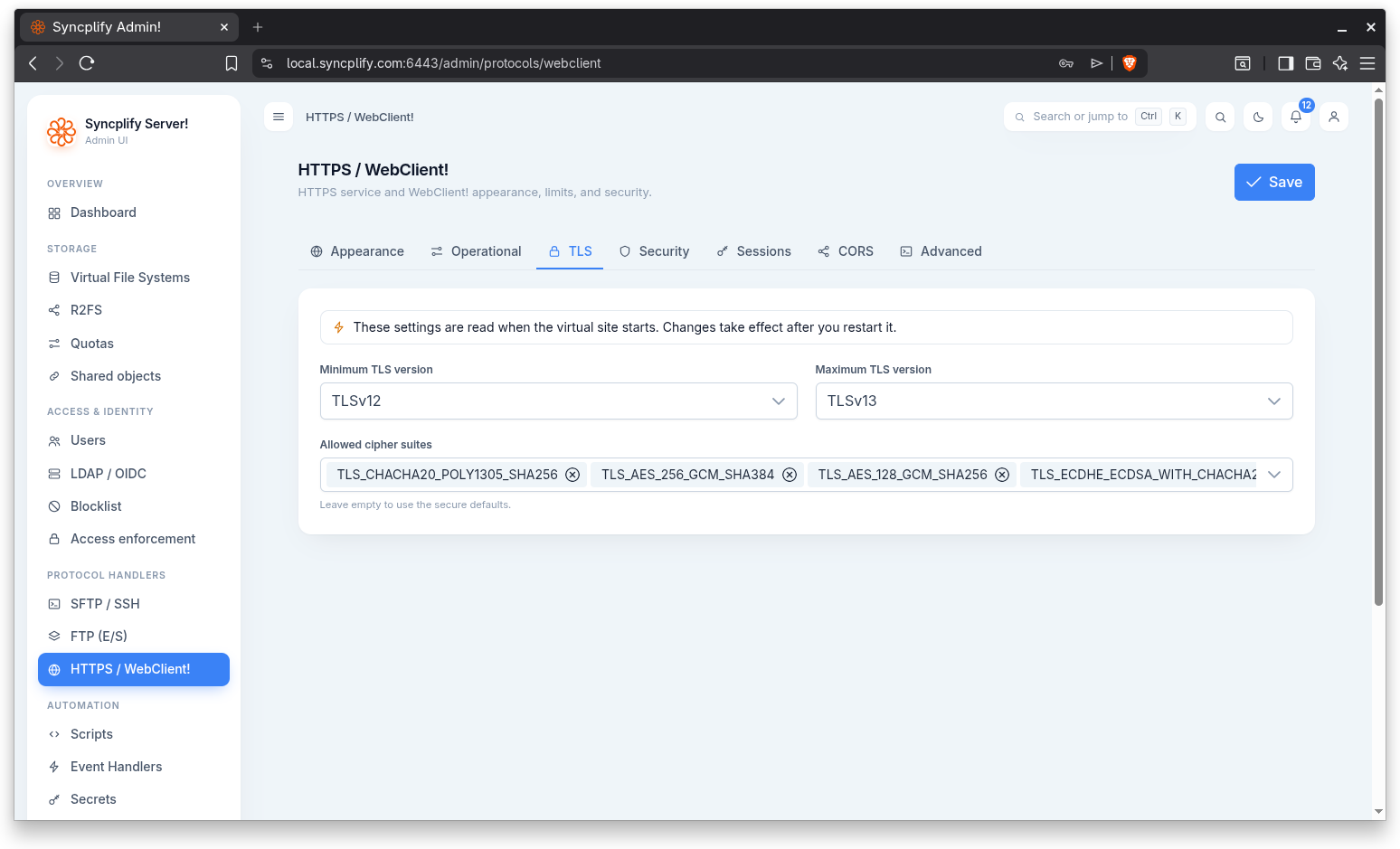
- Minimum TLS version: the lowest TLS version the service will accept.
- Maximum TLS version: the highest TLS version the service will negotiate.
- Allowed cipher suites: the cipher suites the service may use, chosen from a filterable list and shown as chips. Leave this empty to use the secure defaults.
Security
The Security tab provides HTTP response hardening through the security middleware. Most deployments behind a reverse proxy that already sets these headers can leave the middleware off.
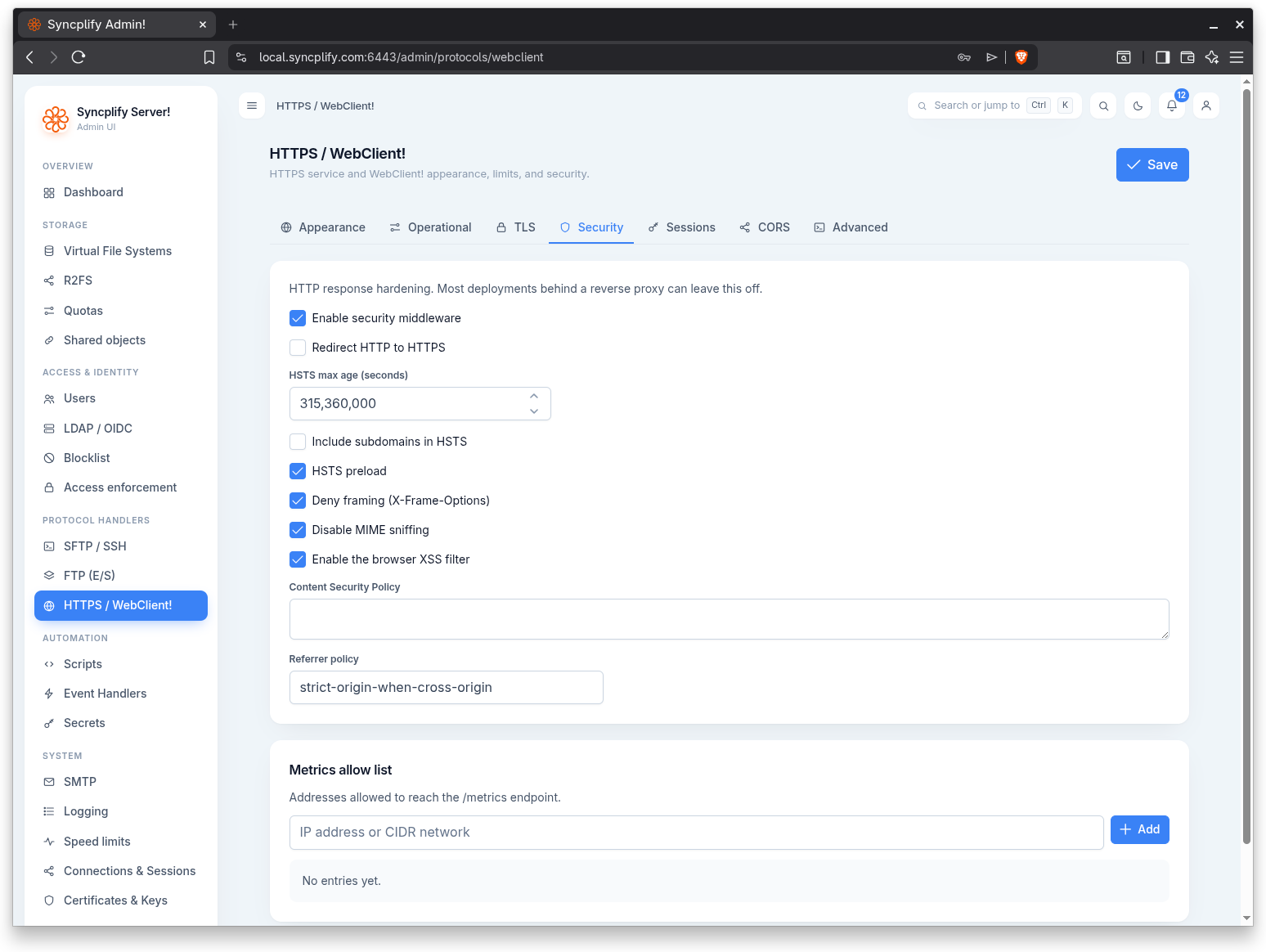
Security middleware
The Enable security middleware toggle reveals the hardening options. Virtual sites created from version 8.3.1 on start with the middleware enabled, framing denied, MIME sniffing disabled, the referrer policy set to strict-origin-when-cross-origin and a Content Security Policy that allows the WebClient to load only its own scripts, styles, fonts and API. Sites created earlier keep whatever they had.
Two things to know before changing these:
- HSTS is never enabled by default, and the suggested defaults do not propose it. A browser refuses to bypass a certificate error on a host that sent
Strict-Transport-Security, so an HSTS policy on a self signed certificate locks everyone out of the WebClient until the policy expires. Set a max age only once the site serves a certificate issued by a CA the clients trust. - Embedding the WebClient in another site takes two changes: turn "Deny framing" off and remove
frame-ancestors 'none'from the Content Security Policy (or replace it with the embedding site). Either one alone leaves the frame blocked.
The options are:
- Redirect HTTP to HTTPS: sends plain HTTP requests to the HTTPS endpoint.
- HSTS max age (seconds): the lifetime of the HTTP Strict Transport Security policy.
- Include subdomains in HSTS: extends the HSTS policy to subdomains.
- HSTS preload: marks the site for inclusion in browser HSTS preload lists.
- Deny framing (X-Frame-Options): prevents the WebClient from being embedded in a frame.
- Disable MIME sniffing: instructs browsers not to guess content types.
- Enable the browser XSS filter: turns on the browser's built in cross site scripting filter.
- Content Security Policy: the CSP header value, edited in a multi line field.
- Referrer policy: the Referrer-Policy header value (for example strict-origin-when-cross-origin).
Metrics allow list
A separate section, "Metrics allow list", lists the addresses allowed to reach the /metrics endpoint. Entries are given as IP addresses or CIDR ranges.
Sessions
The Sessions tab governs the JSON Web Tokens that authenticate WebClient and shared object sessions. Its settings are read at startup, so the tab shows a restart notice.
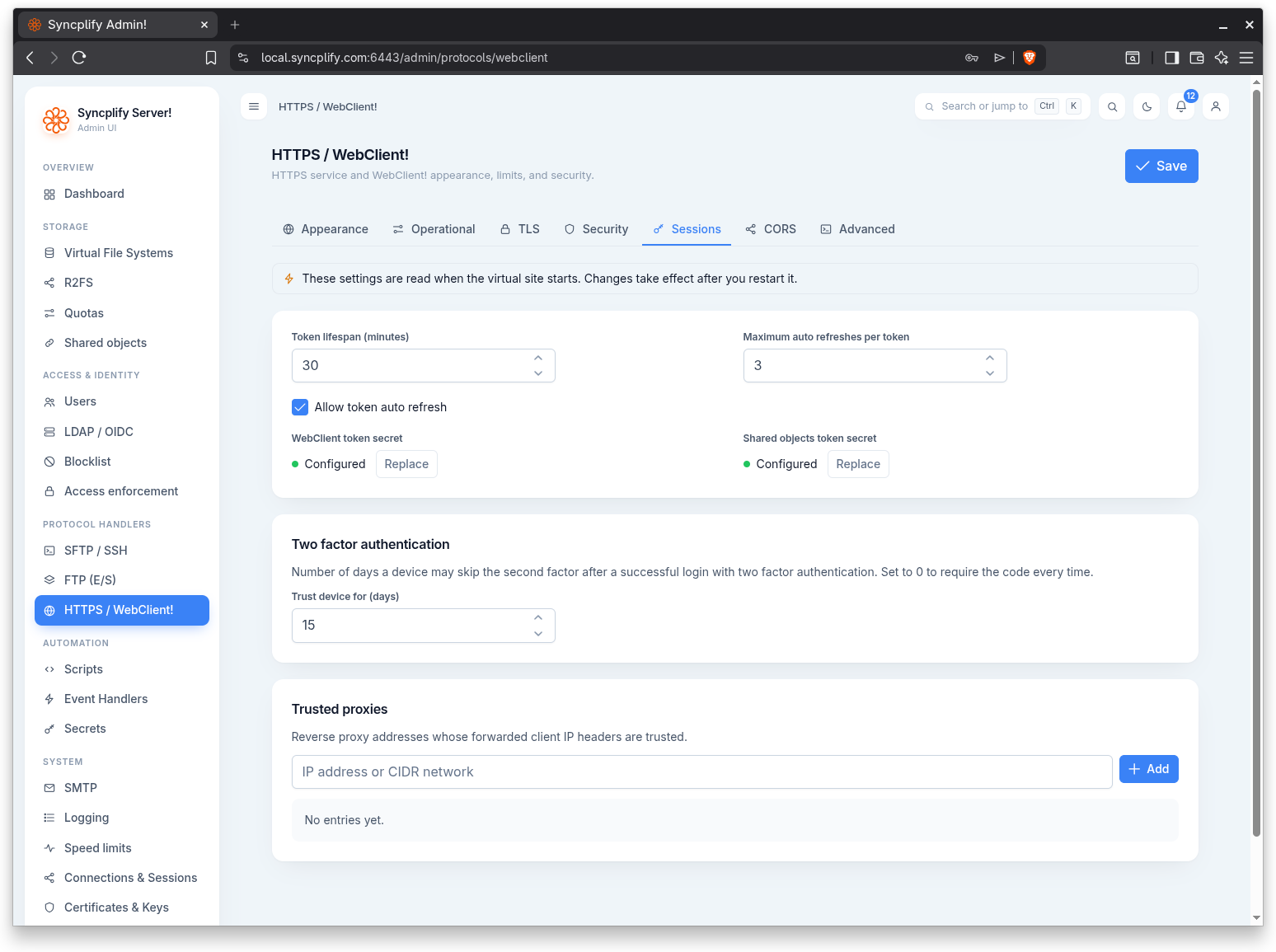
- Token lifespan (minutes): how long an issued token remains valid.
- Maximum auto refreshes per token: the cap on how many times a token may be automatically refreshed.
- Allow token auto refresh: enables automatic refresh of tokens before they expire.
- WebClient token secret: the signing secret for WebClient session tokens. This is a secret field; it is only sent to the server when you actually replace it, so leaving it untouched keeps the stored value.
- Shared objects token secret: the signing secret for shared object tokens, with the same replace only behavior.
Trusted proxies
A separate section, "Trusted proxies", lists the reverse proxy addresses whose forwarded client IP headers are trusted. Entries are IP addresses or CIDR ranges. Set these when the WebClient runs behind a proxy so the real client IP is honored.
CORS
The CORS tab configures cross origin resource sharing for the WebClient API.
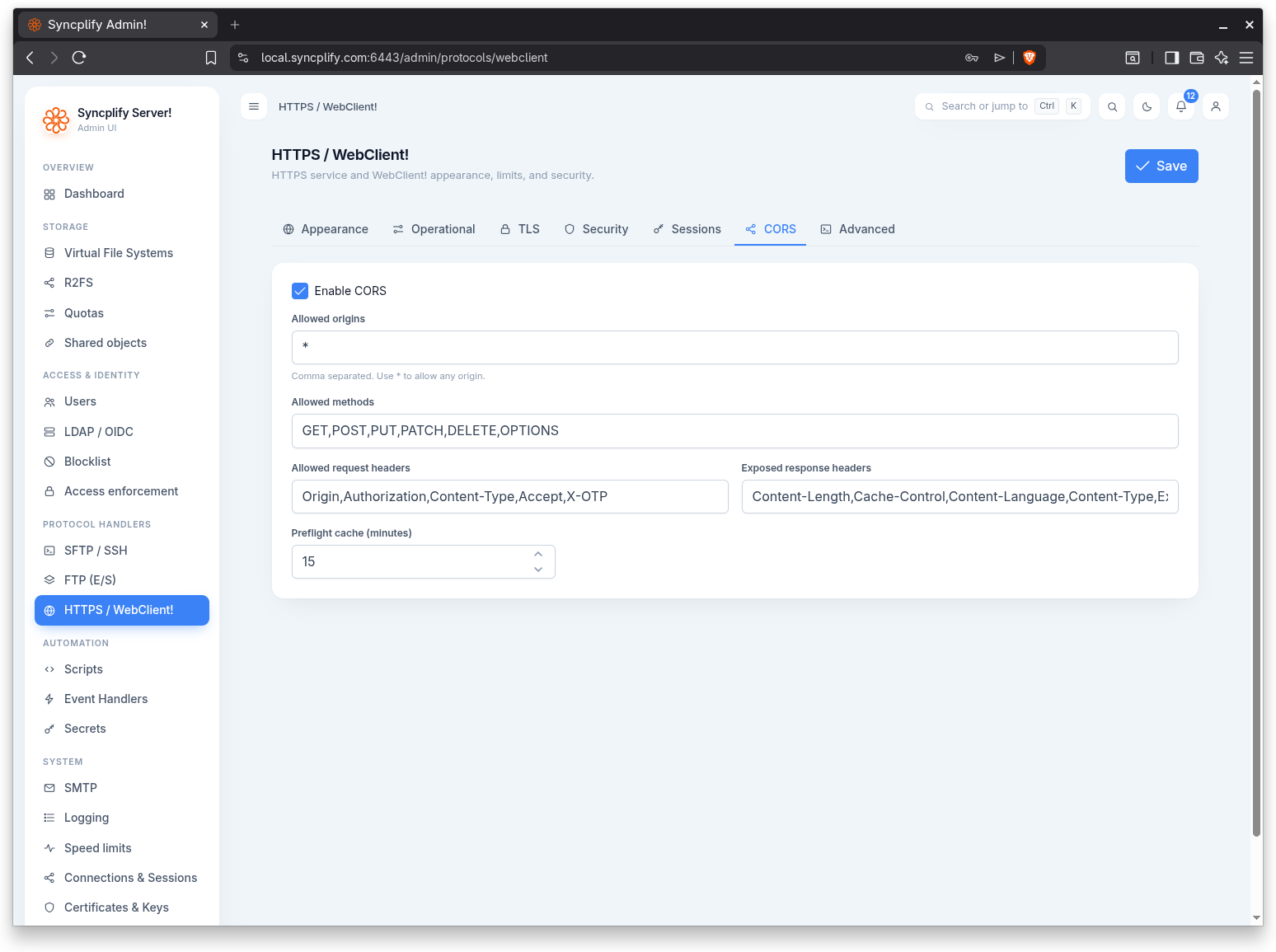
The Enable CORS toggle reveals the options:
- Allowed origins: a comma separated list of origins; use * to allow any origin.
- Allowed methods: the HTTP methods permitted (for example GET, POST, PATCH, DELETE, OPTIONS).
- Allowed request headers: the request headers clients may send.
- Exposed response headers: the response headers exposed to clients.
- Preflight cache (minutes): how long browsers may cache the result of a preflight request.
Advanced
The Advanced tab covers custom response headers and custom email templates.
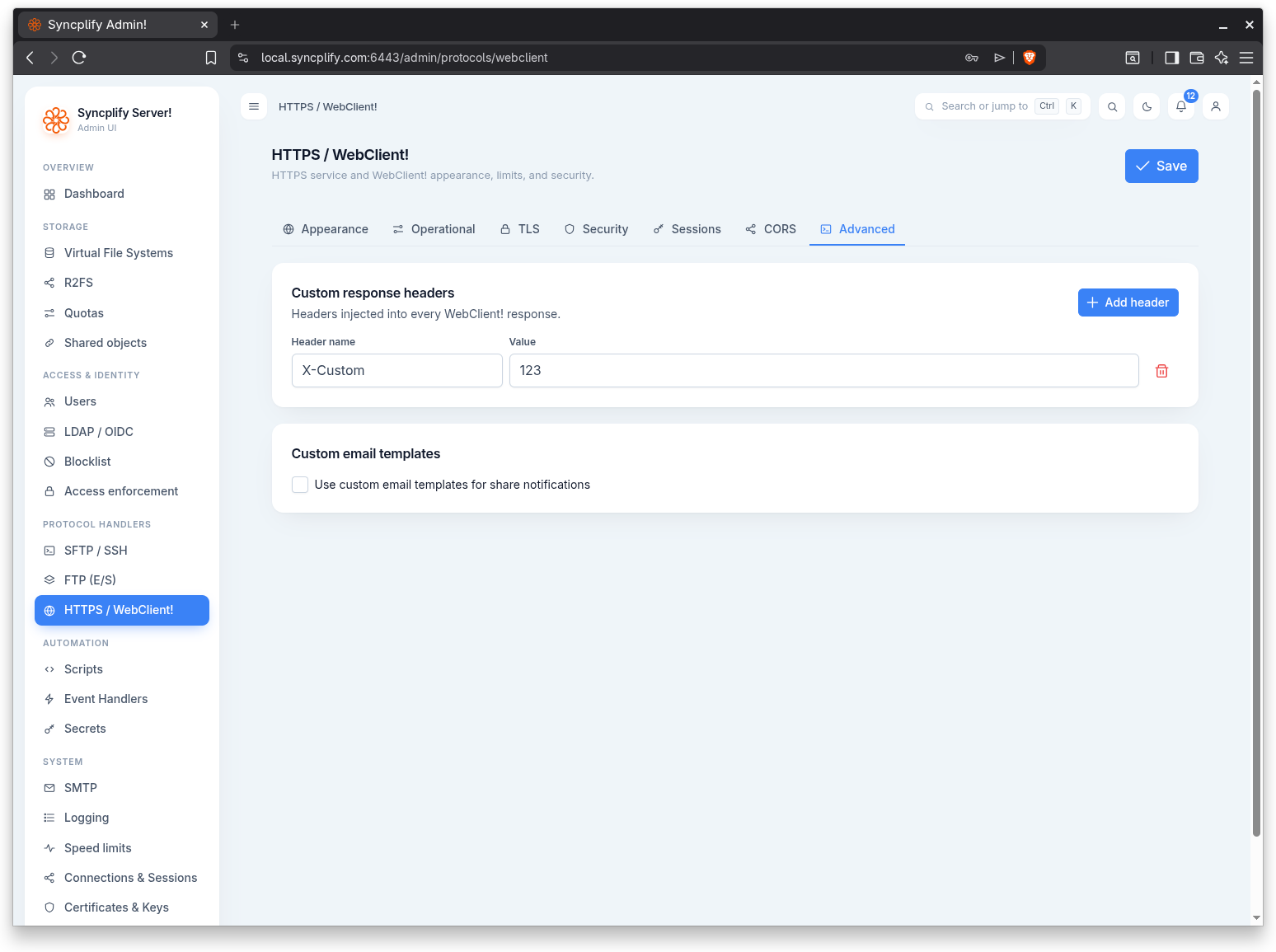
Custom response headers
Headers injected into every WebClient! response. Use Add header to append a row, then fill in the Header name and Value. Each row has a delete button to remove it. When there are no rows, the panel shows a placeholder noting that no custom headers are defined.
Custom email templates
The Use custom email templates for share notifications toggle reveals two editors for the messages sent when a user shares an object:
- HTML template: edited in a code editor with HTML syntax support.
- Plain text template: edited in a multi line field.