
Certificates & Keys
The Certificates & Keys page manages the TLS certificates, certificate signing requests, and SSH host keys the virtual site presents to clients. The page is organized into three tabs: Certificates, Signing requests, and SSH host keys. The action buttons in the page header change to match the active tab.
Certificates
The Certificates tab lists the TLS certificates installed on the virtual site.
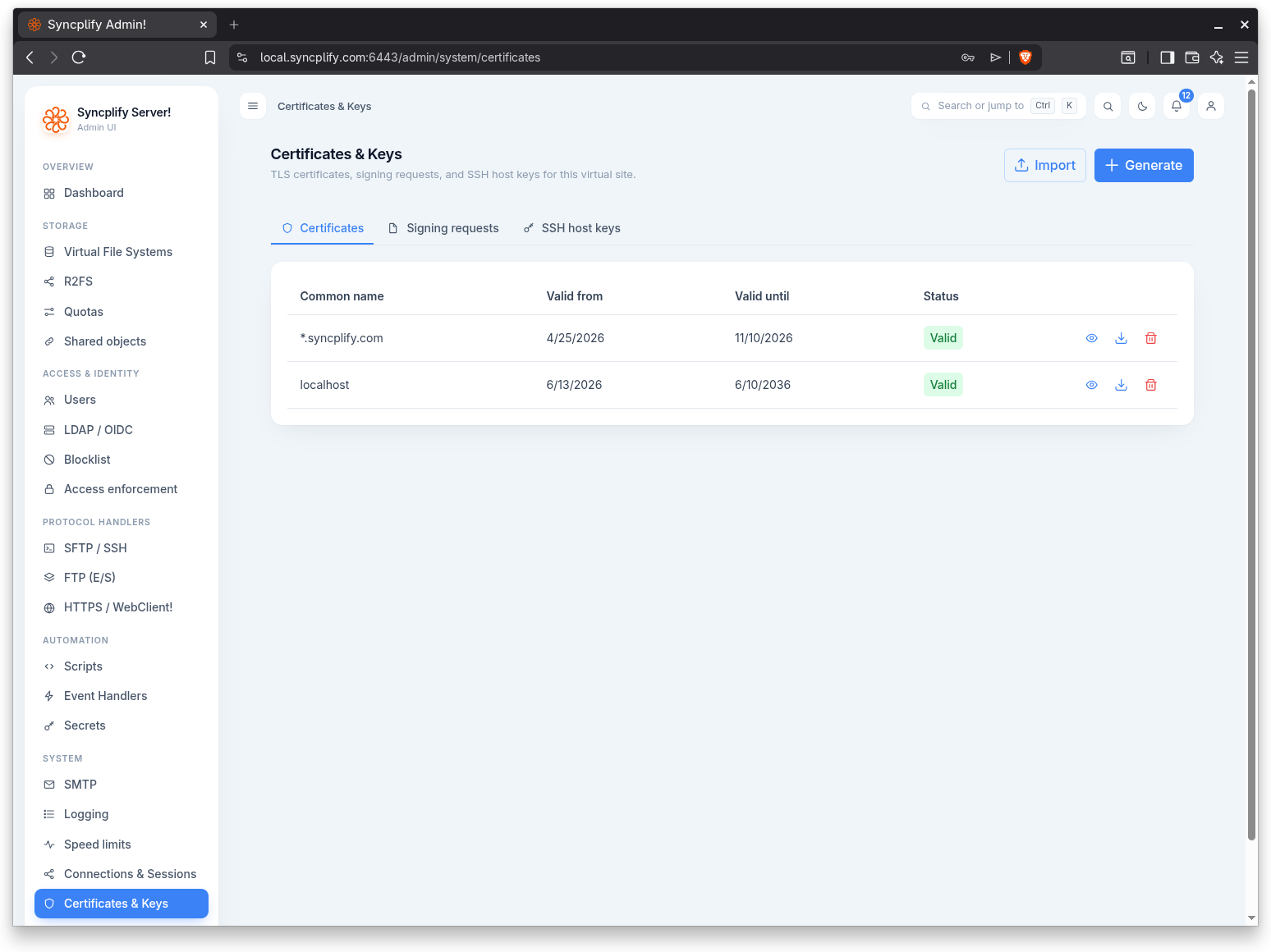
The list has these columns:
- Common name: the common name of the certificate.
- Valid from: the start of the validity window.
- Valid until: the end of the validity window.
- Status: a colored tag reading Valid, Expiring soon, or Expired. A certificate within thirty days of expiry is shown as Expiring soon.
Each row offers actions to view, download, and, when you have edit rights, delete the certificate. Deleting prompts for confirmation and names the certificate.
Generate a certificate
Use the Generate button to create a self signed certificate.
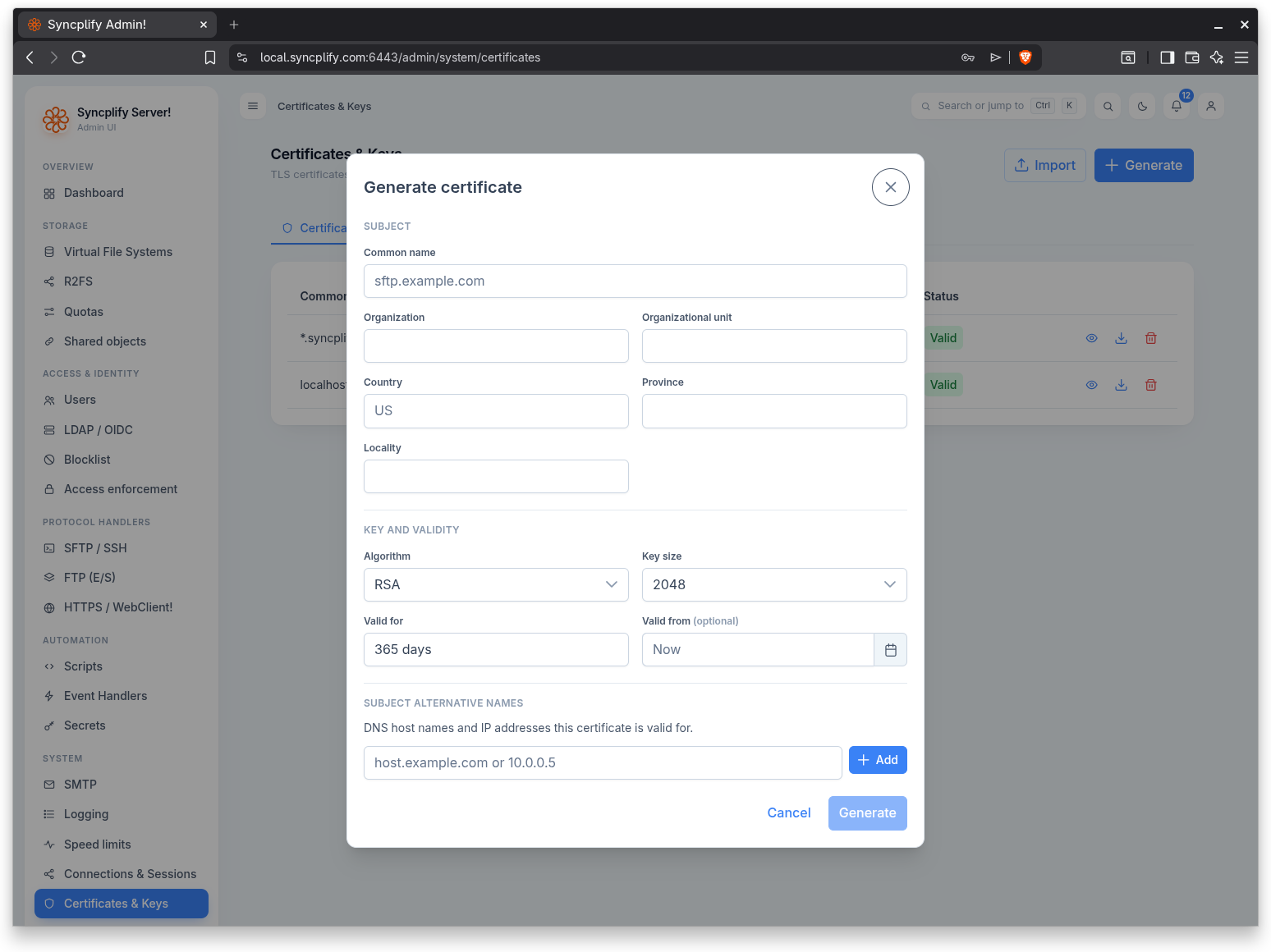
The dialog is grouped into sections. Under Subject you supply the Common name (required) and the optional Organization, Organizational unit, Country, Province, and Locality. Under Key and validity you choose the Algorithm (RSA, ECDSA P256, ECDSA P384, ECDSA P521, or Ed25519), the Key size when RSA is selected (2048, 3072, or 4096), how long the certificate is Valid for in days, and an optional Valid from date that defaults to now. Under Subject alternative names you list the DNS host names and IP addresses the certificate is valid for.
Import a certificate
Use the Import button to install a certificate issued elsewhere.
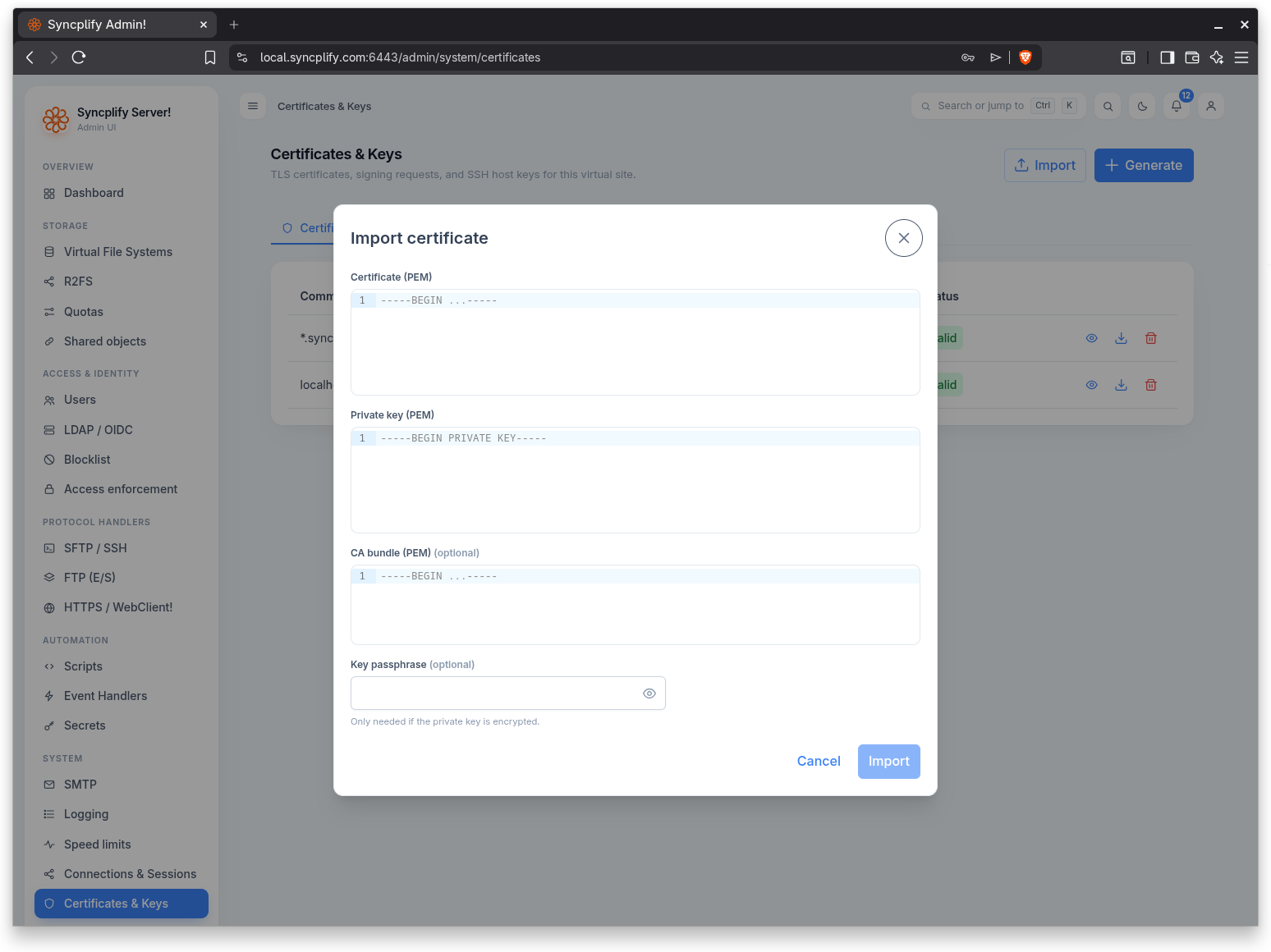
The dialog accepts the Certificate (PEM) and the matching Private key (PEM), both required, an optional CA bundle (PEM) for intermediate certificates, and an optional Key passphrase that is only needed when the private key is encrypted.
View, download, and copy
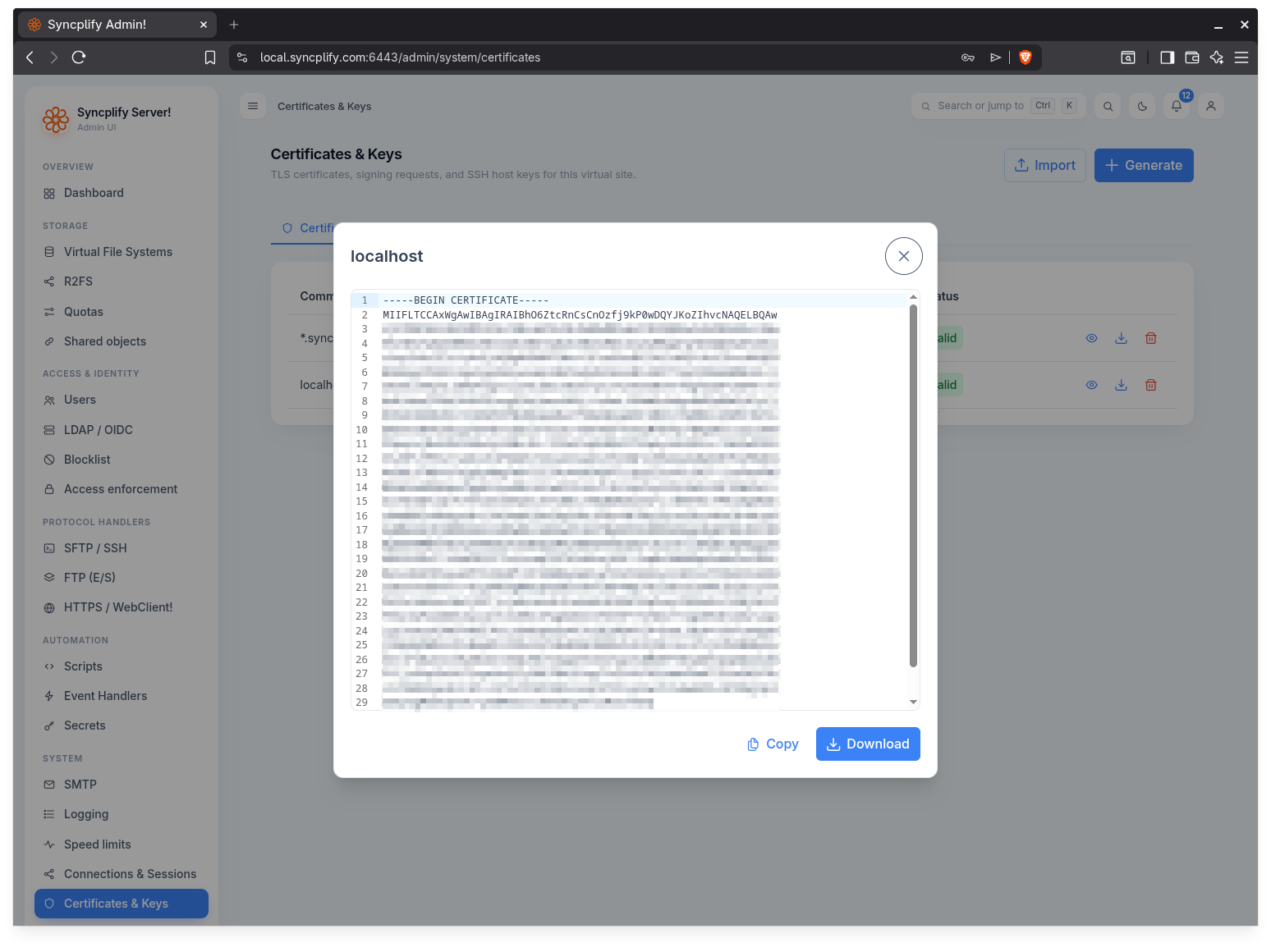
The view action opens a read only viewer that shows the certificate in PEM form. From the viewer you can copy the PEM to the clipboard or download it as a file. The download action on a row downloads the certificate directly without opening the viewer.
Signing requests
The Signing requests tab manages certificate signing requests you send to an external certificate authority.
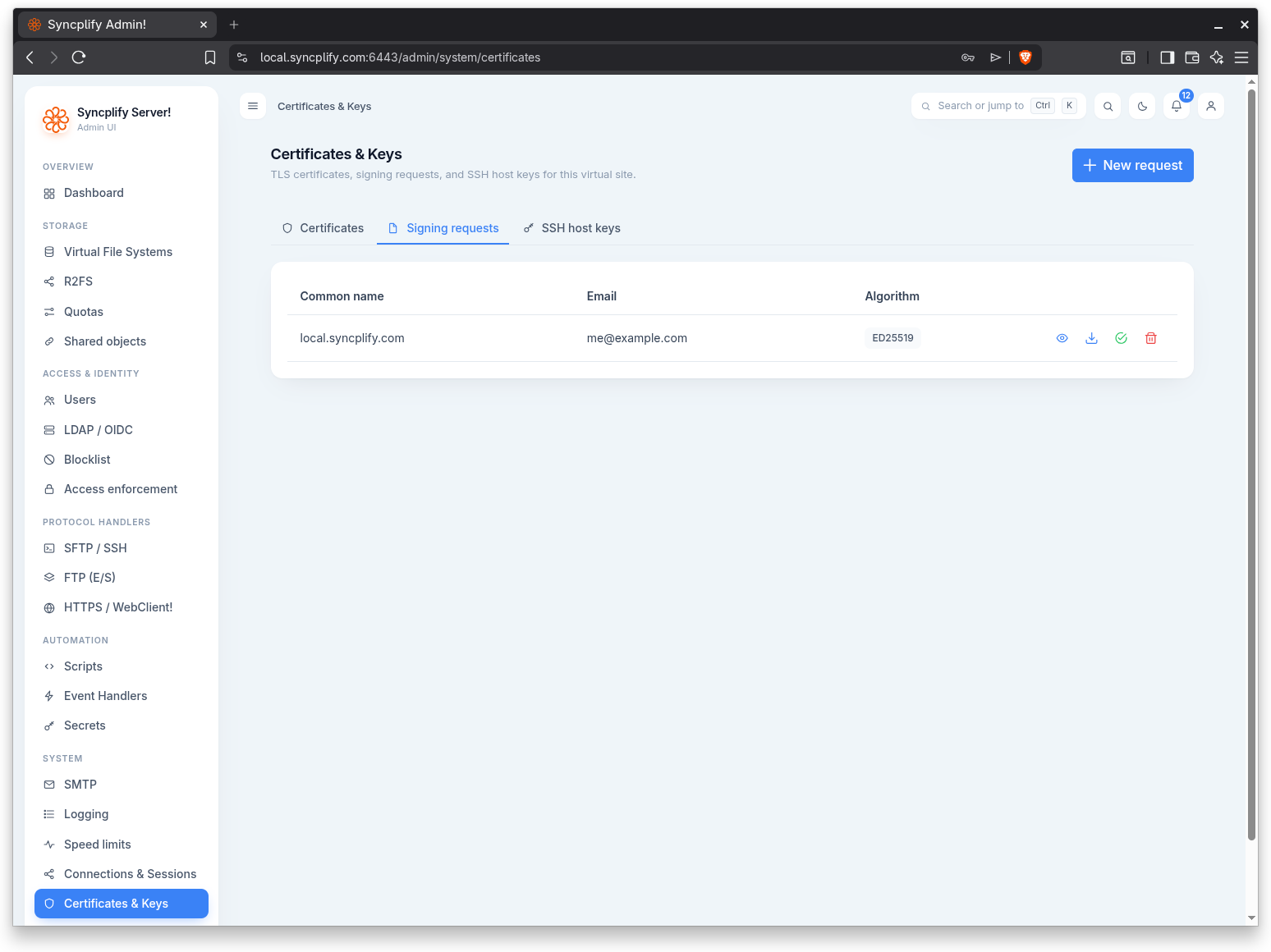
The list shows the Common name, the Email, and the Algorithm of each request. Each row offers actions to view, download, upload the signed certificate, and delete the request.
Create a request
Use the New request button to create a signing request.
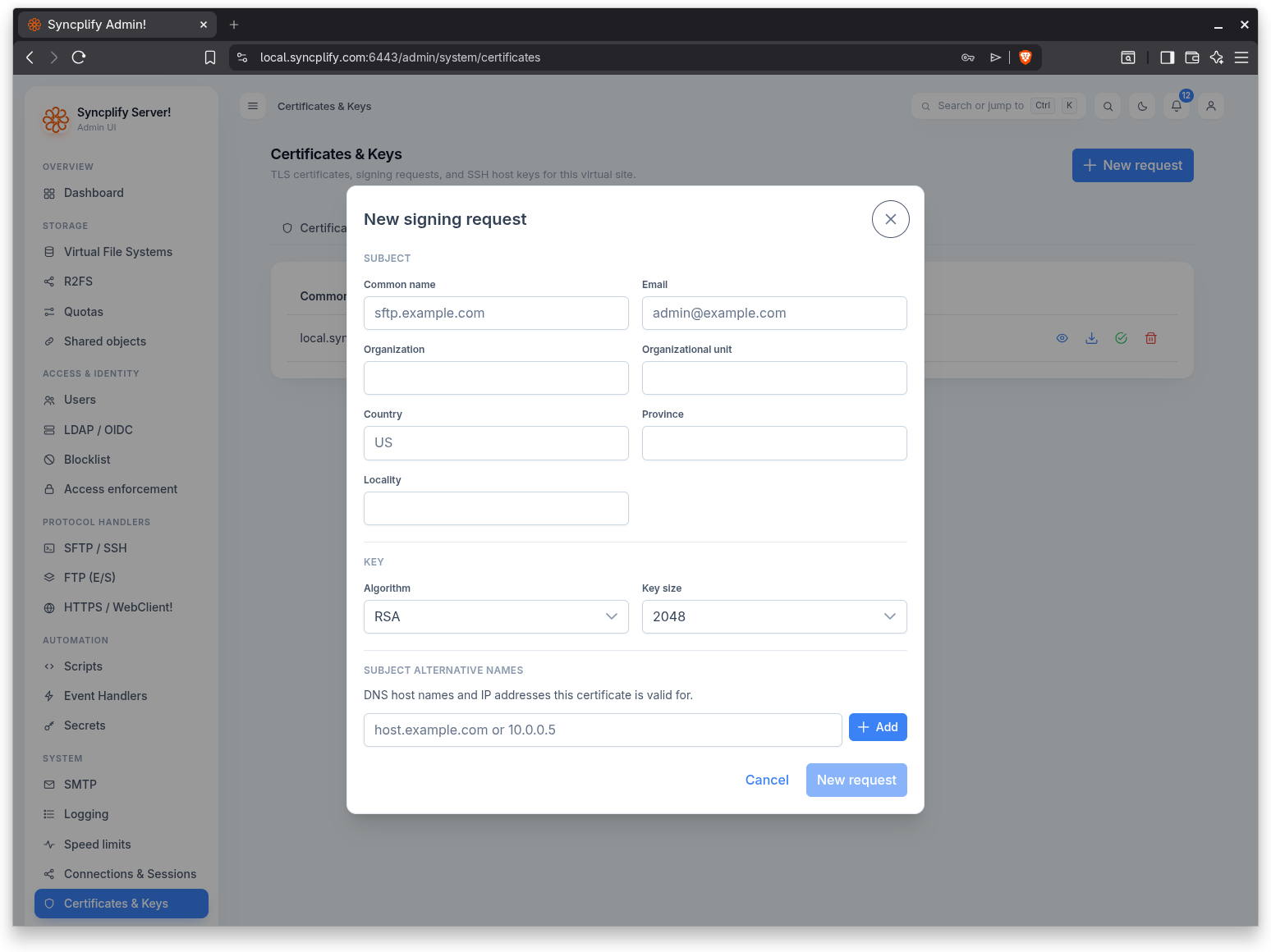
Under Subject you supply the Common name and Email, both required, along with the optional Organization, Organizational unit, Country, Province, and Locality. Under Key you choose the Algorithm (RSA, ECDSA P256, ECDSA P384, ECDSA P521, or Ed25519) and, for RSA, the Key size (2048, 3072, or 4096). Under Subject alternative names you list the DNS host names and IP addresses the eventual certificate should cover.
After creating a request, download it and send it to your certificate authority.
Upload the signed certificate
When the certificate authority returns the signed certificate, use the upload action on the request's row to complete it.
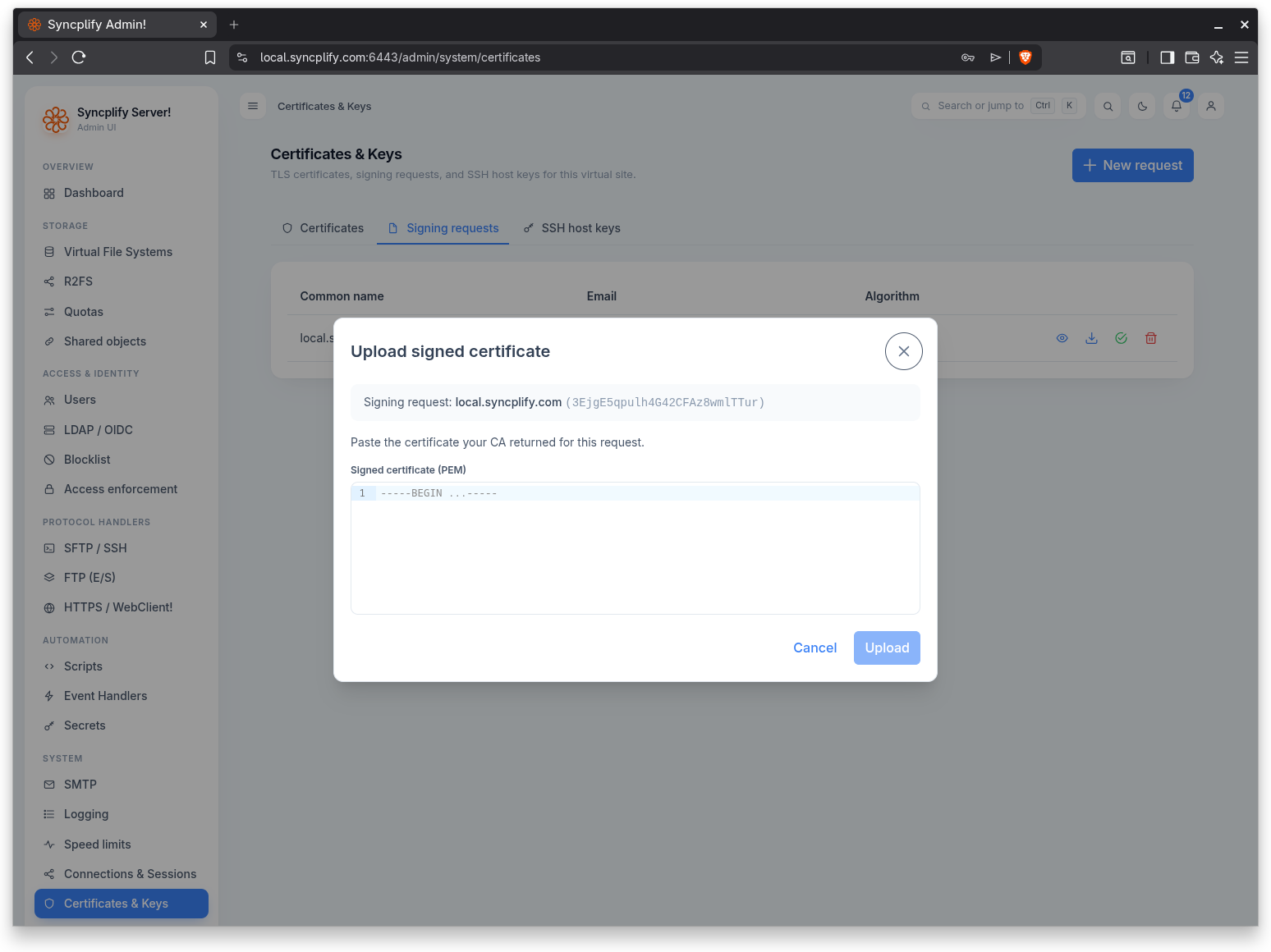
The dialog identifies which request you are completing, then asks you to paste the Signed certificate (PEM) the CA returned. Uploading pairs the signed certificate with the private key generated for the request.
SSH host keys
The SSH host keys tab manages the host keys that SFTP and SSH present to clients.
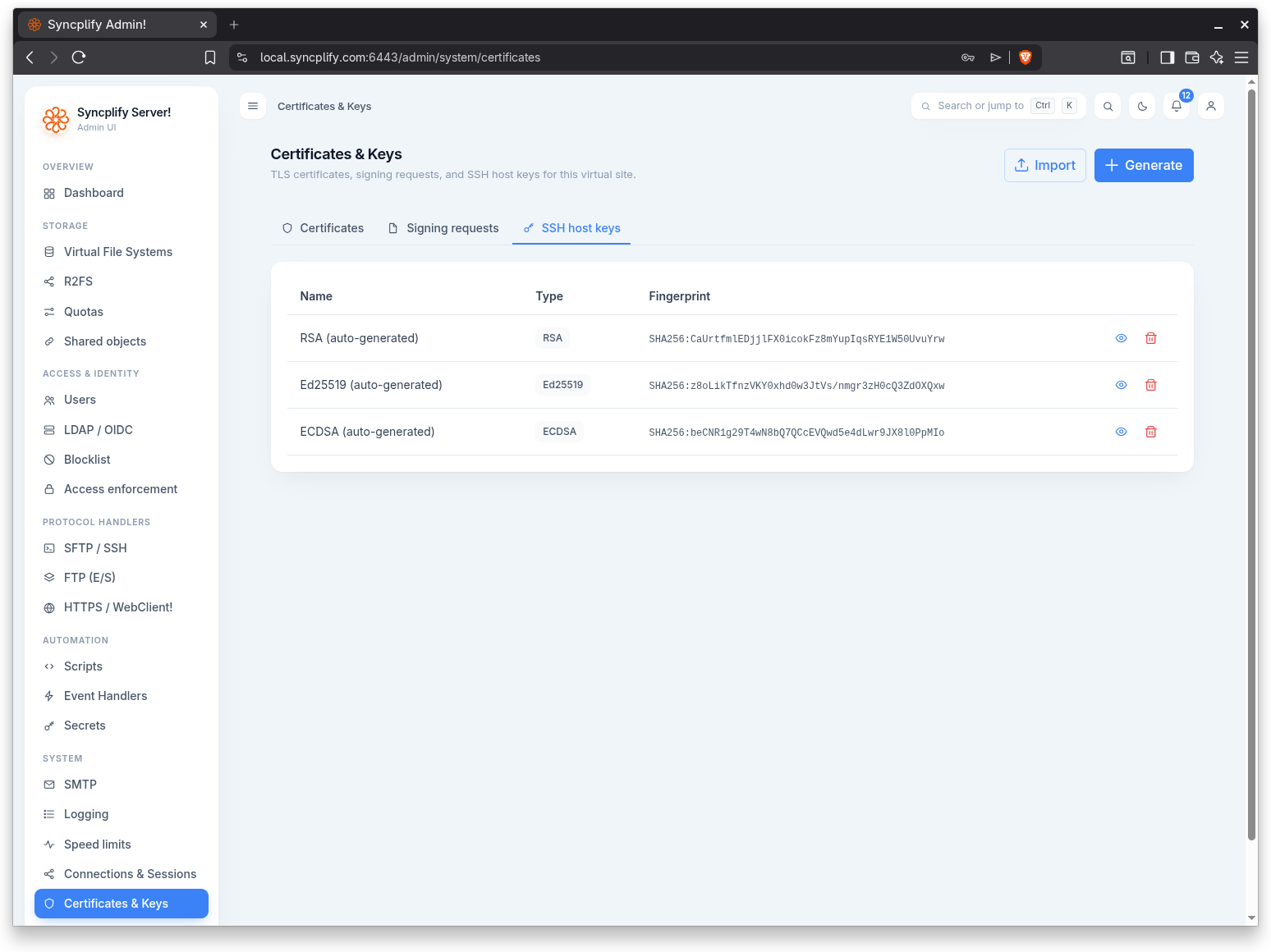
The list shows the Name, the Type, and the Fingerprint of each host key. Each row offers a view action and, when you have edit rights, a delete action.
Generate a host key
Use the Generate button to create a new host key.
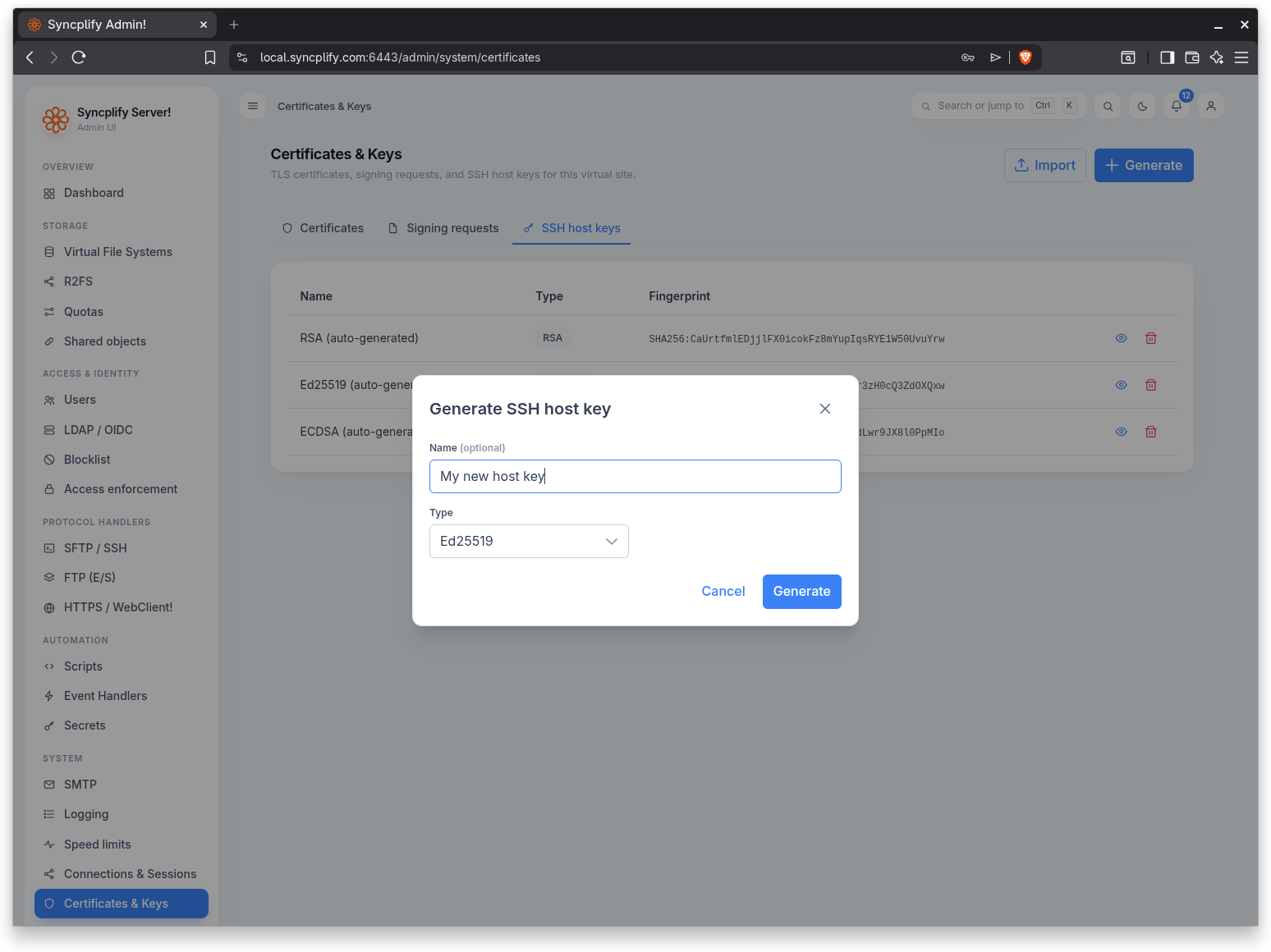
The dialog accepts an optional Name, a Type (RSA, ECDSA, or Ed25519), and a Key size for the RSA and ECDSA types. RSA offers 2048, 3072, and 4096; ECDSA offers 256, 384, and 521. Ed25519 has no key size.
Import a host key
Use the Import button to install an existing host key.
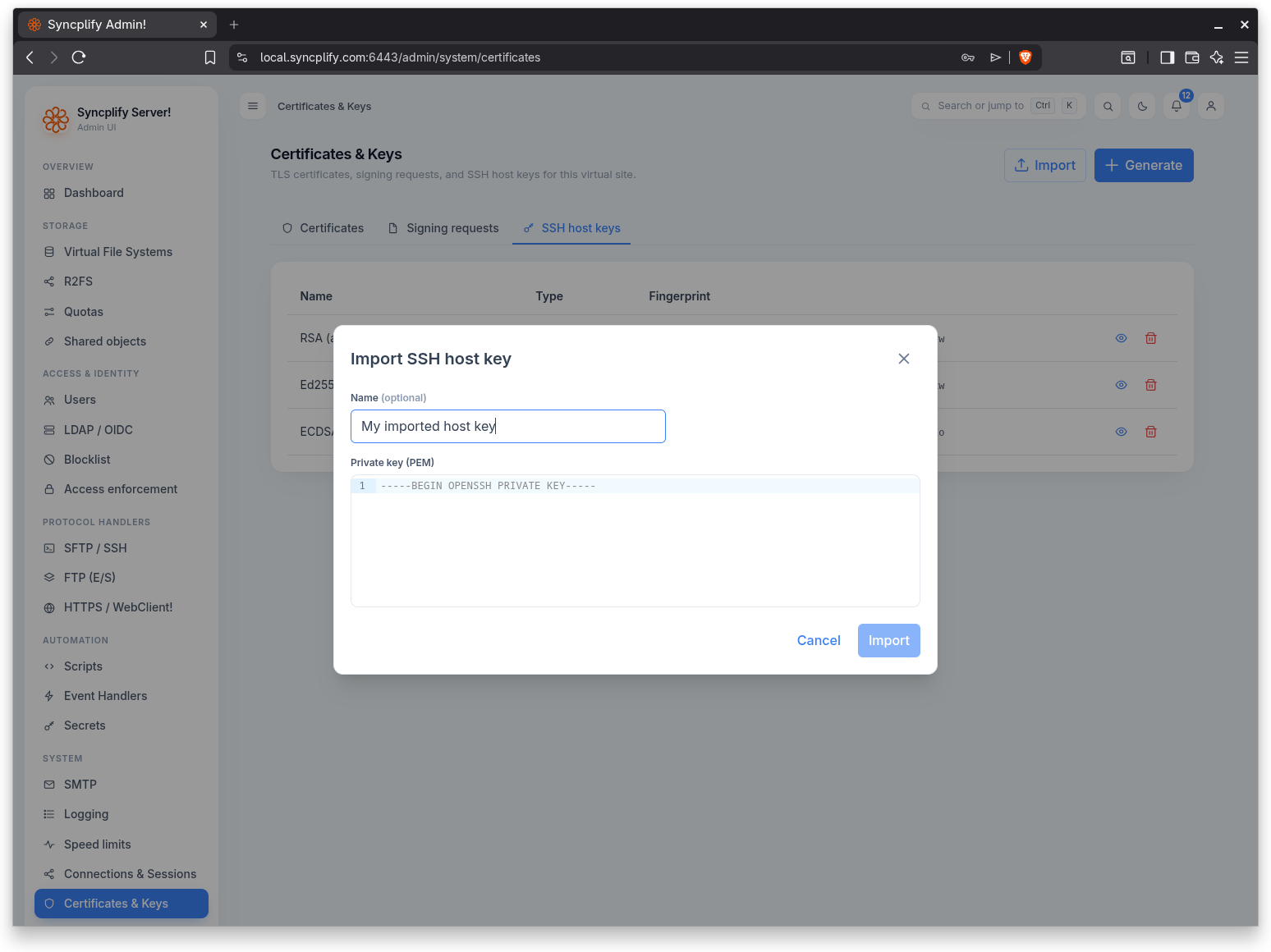
The dialog accepts an optional Name and the Private key (PEM) to import.
Deleting a host key
Deleting a host key prompts for confirmation and warns that clients which pinned the key will warn on their next connection.