
Users
The Users section manages the accounts and groups that can connect to this virtual site. It has three surfaces: the user list, the read only user detail, and the user editor.
The user list
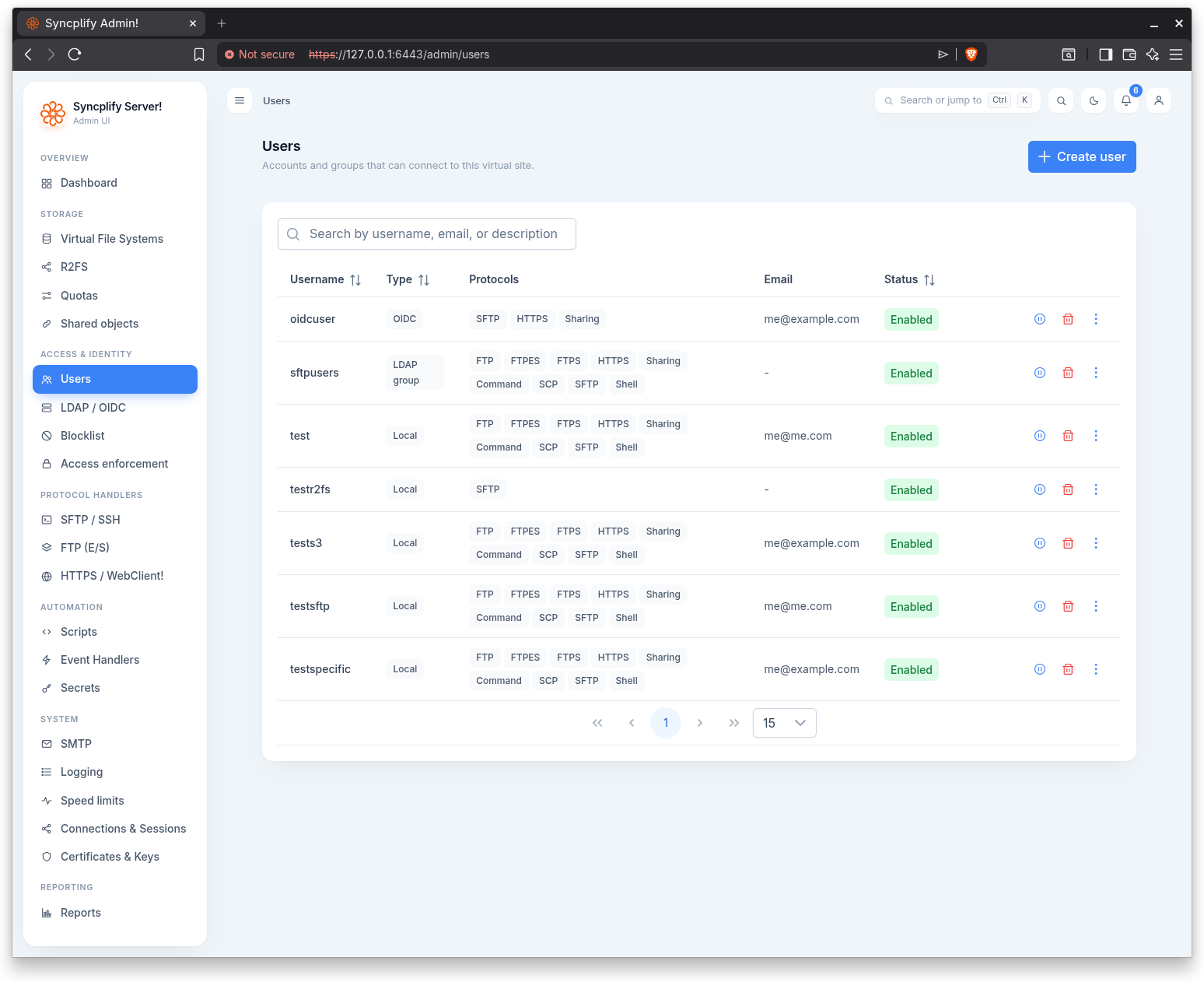
The list shows every account with its username, type, allowed protocols, status, and email. A search box filters by username, email, or description.
Account types are:
- Local: a normal account that authenticates against the server.
- LDAP user and LDAP group: accounts backed by an LDAP directory.
- OIDC: accounts that authenticate through an OIDC identity provider.
LDAP and OIDC account types are license gated. When the license does not cover them, those types cannot be selected when creating an account.
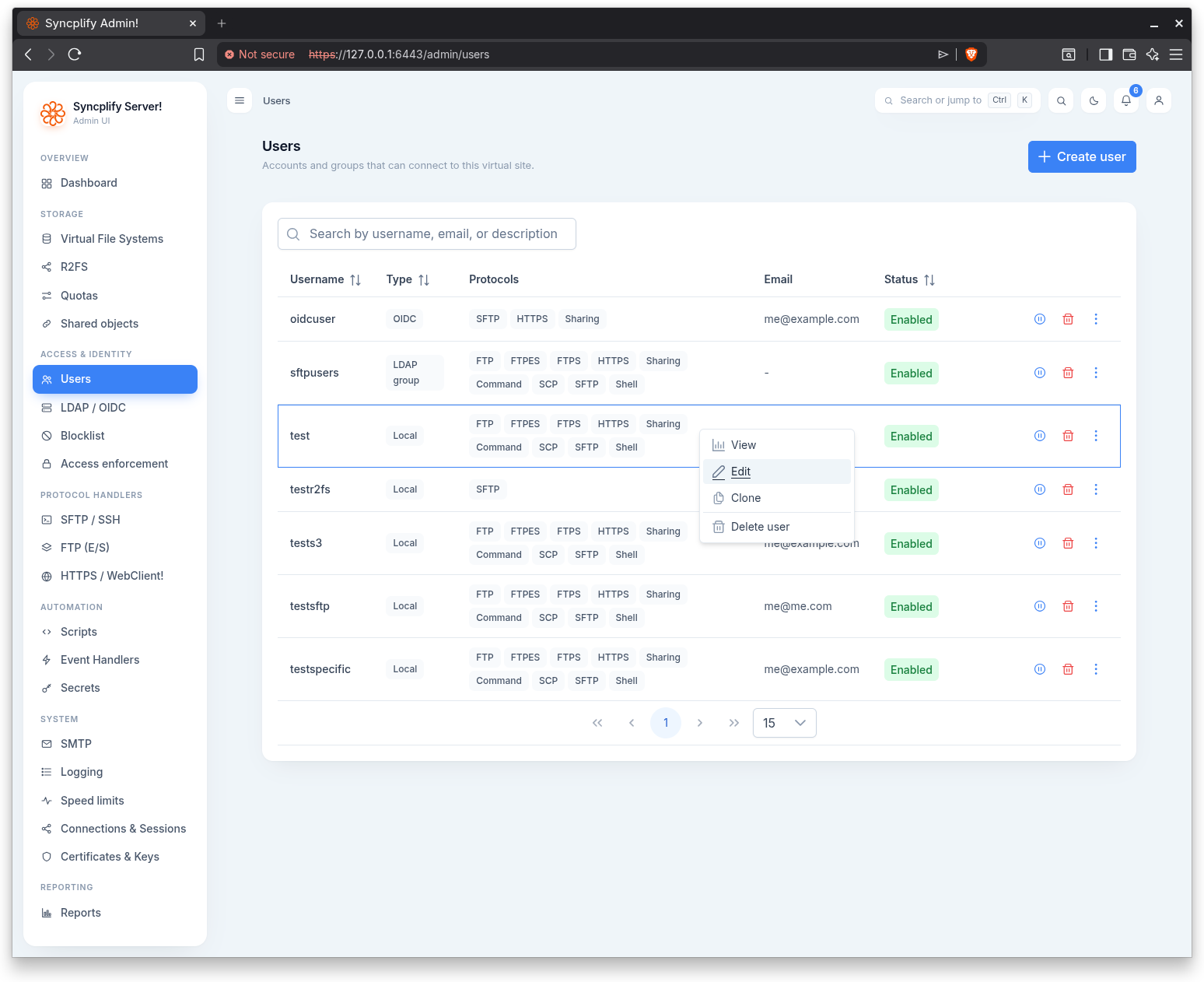
Select Create user to add an account. Right click a row (or use the actions menu) for per user actions:
- View opens the read only detail.
- Edit opens the editor.
- Clone creates a new account that copies every setting from the original; only the username differs. You provide a new username, which must differ from the source.
- Enable or Disable toggles the account. Disabled accounts cannot connect.
- Delete removes the account. This cannot be undone.
User detail
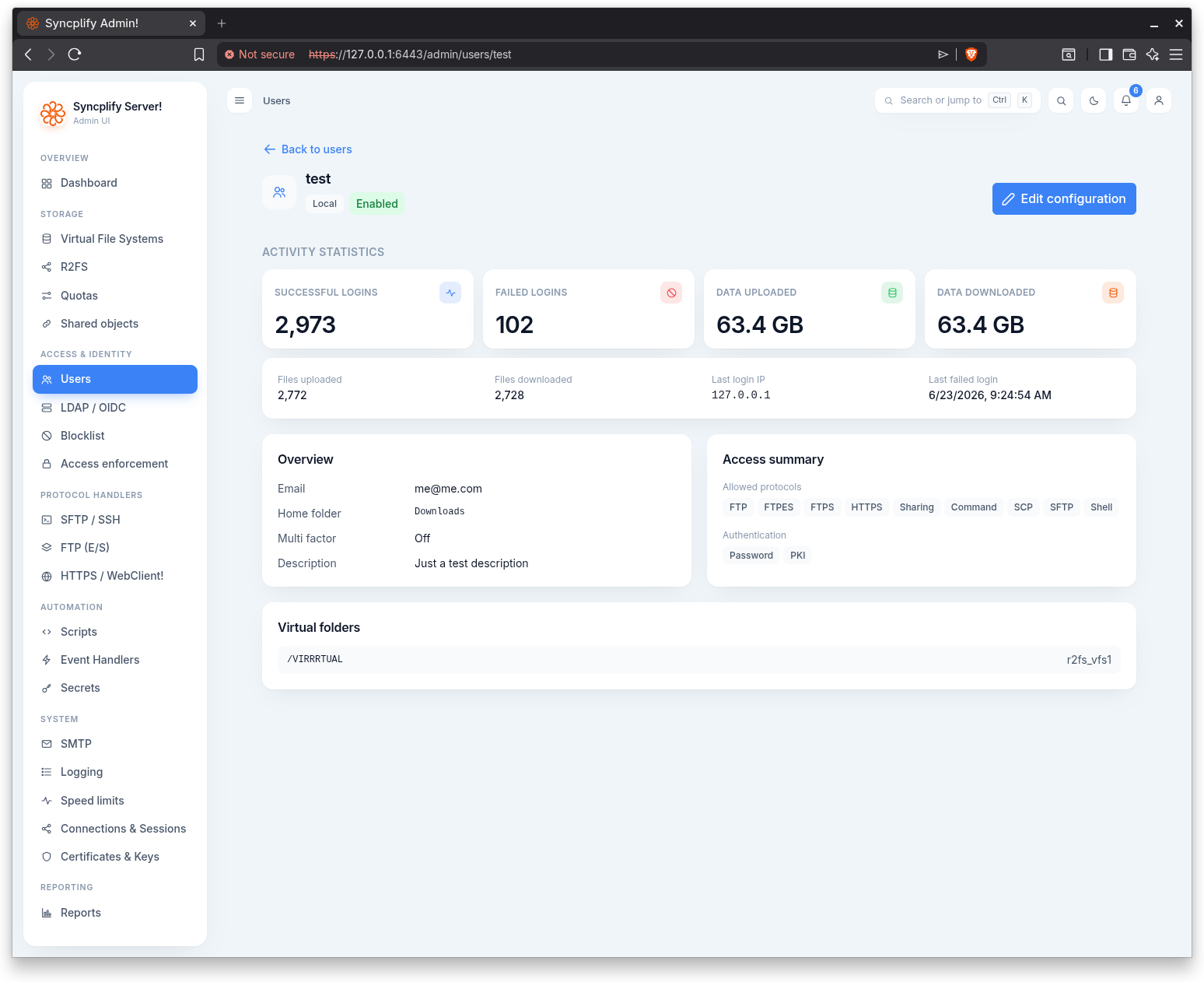
The detail page is a read only summary of an account, available to anyone who can view users. It opens with the username, the account type, and an enabled or disabled status tag.
It presents:
- Activity statistics: successful and failed logins, data uploaded and downloaded, files uploaded and downloaded, the last login IP, and the last failed login. These are shown even to administrators who cannot edit the user.
- Overview: email, home folder, multi factor status, number of enrolled passkeys, and description.
- Access summary: the allowed protocols and the accepted authentication methods.
- Virtual folders: any additional virtual file systems mounted into the account.
- App passwords: for OIDC accounts, the app passwords with their active or revoked status.
An Edit configuration button opens the editor (only for administrators with edit permission on users).
The user editor
The editor creates and edits accounts. It is organized into tabs along the top. The available tabs depend on the account type. Saving an existing account sends only the fields that actually changed.
Main
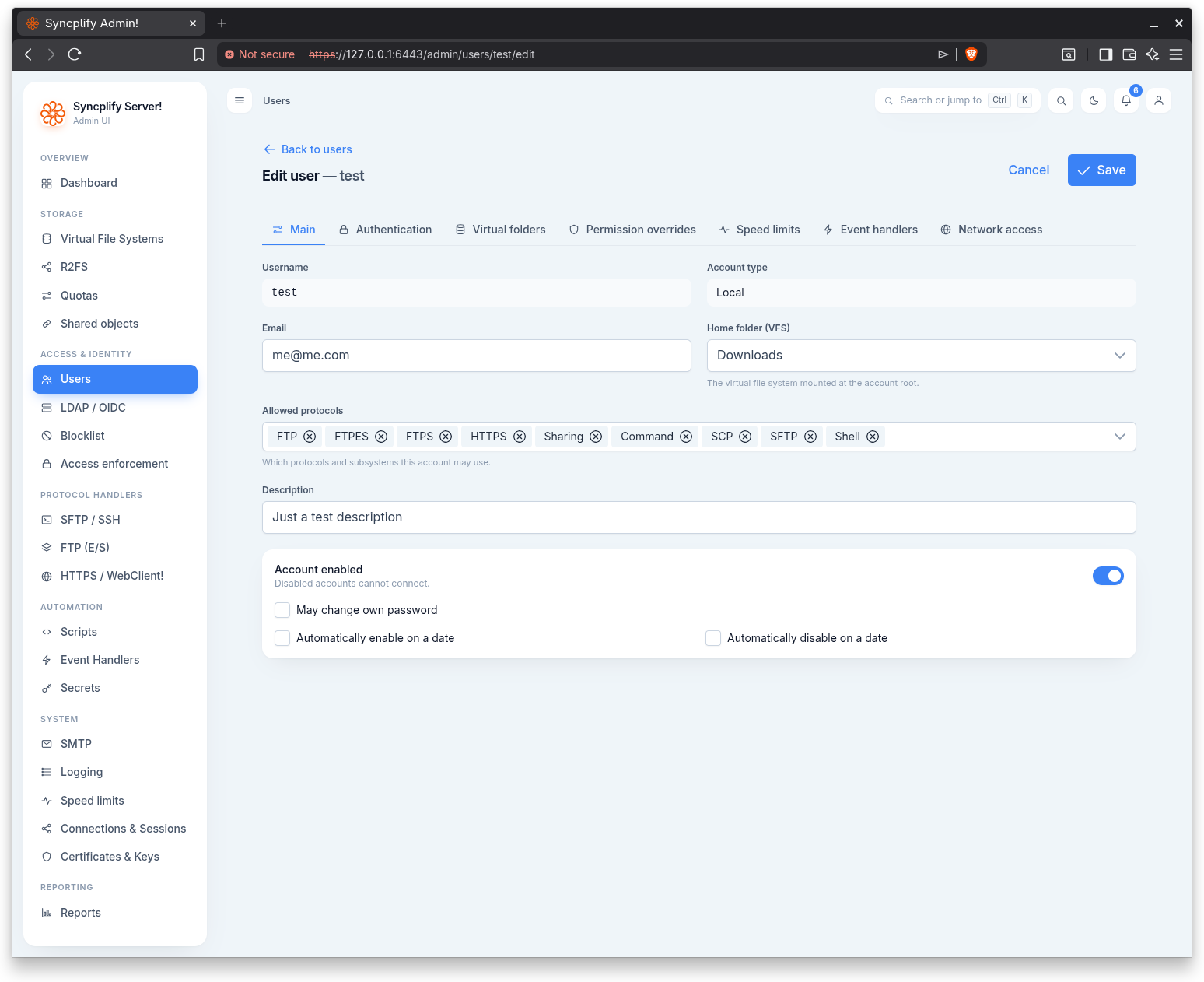
The Main tab holds the core identity and account settings:
- Username: the login name. It cannot be changed after the account is created.
- Account type: Local, OIDC, LDAP user, or LDAP group. The type can only be chosen at creation, and license gated types are disabled when unlicensed.
- Email and Description.
- Home folder (VFS): the virtual file system mounted at the account root.
- Allowed protocols: which protocols and subsystems the account may use.
- Account enabled and May change own password.
- Automatically enable on a date and Automatically disable on a date: schedule the account to switch state at a chosen date and time.
For LDAP accounts, the Main tab also asks for the LDAP server. For OIDC accounts it asks for the SSO provider, the SSO subject (the value of the external subject claim that maps to this account, not the name of a claim; leave it empty to have the account linked on the first sign in, when the provider allows it) and, while the subject is empty, the Link value the provider's link claim must present, and an option to Require local MFA after SSO login. See the Single Sign On (OIDC) guide for how identities are matched to accounts.
Authentication
The Authentication tab applies to Local accounts only. LDAP accounts authenticate against their directory and OIDC accounts through SSO, so the tab is hidden for those types.
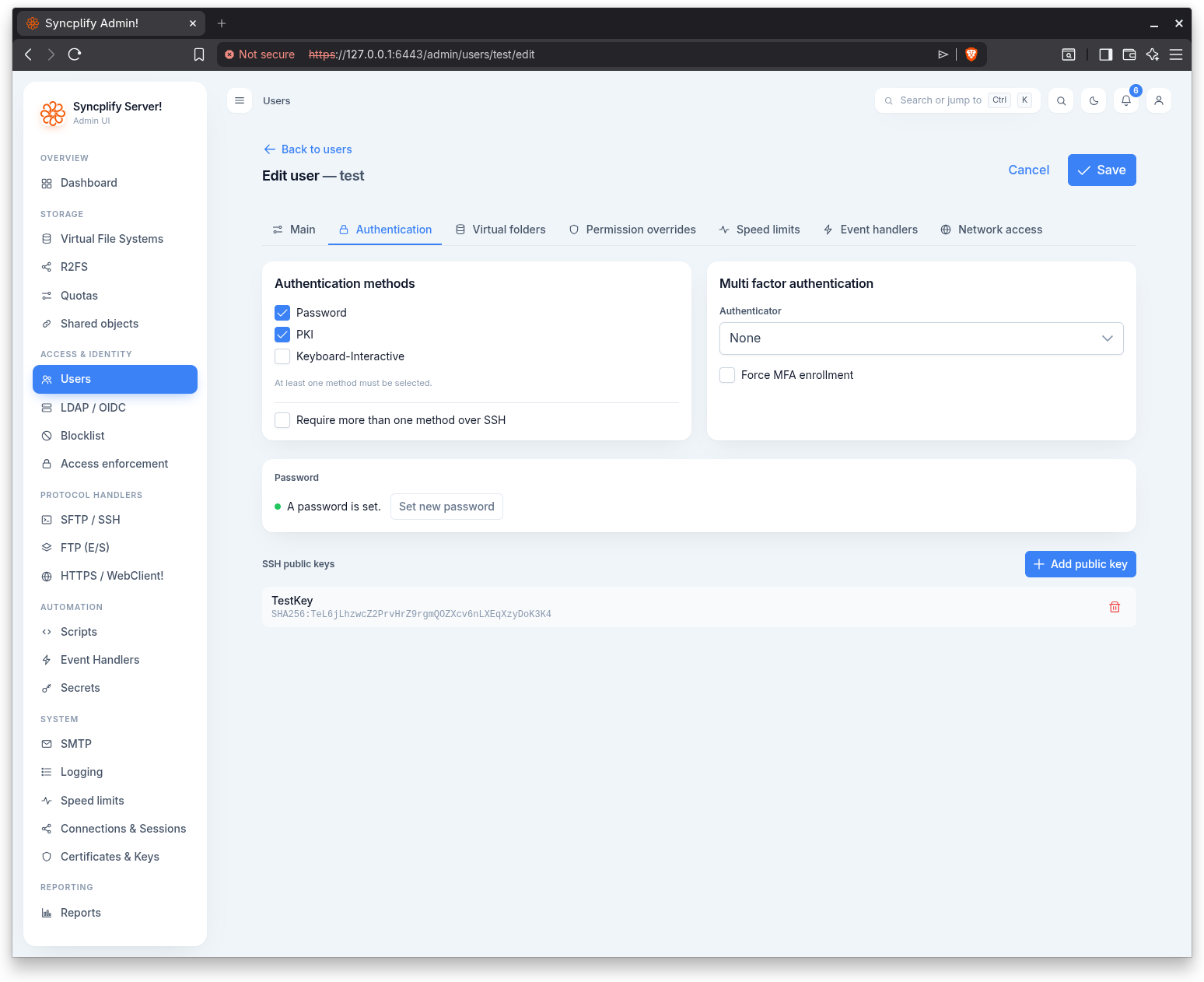
It covers:
- Authentication methods: the accepted methods (at least one must be selected), plus Require more than one method over SSH for multi factor over SSH.
- Multi factor authentication: the authenticator type (None or an authenticator app using TOTP) and Force MFA enrollment.
- Password: when a password is already set, a marker says so and a button lets you set a new one. When setting a new password you can also force a change at next login. The editor also shows when the current password was chosen and, when a max age is set, when it expires.
- Password max age (days): how many days a password stays valid after it was chosen. 0, the default, means it never expires. The clock starts when the password is chosen. For an account that already had a password when a max age is first applied to it, the clock starts at the moment the account is saved with that setting, so nobody is locked out on the day it is turned on. The same applies to accounts restored from a backup taken before version 8.5.0.
- When the password expires: shown only when a max age is set. Strict means an expired password opens nothing but the WebClient, where it must be changed at once; SFTP and FTP logins with it are refused until then (an FTP client sees the reason in the login failure message, unless a custom login failure greeting without the error placeholder replaces it; an SFTP client only sees the authentication fail). Lax means SFTP and FTP logins keep working with the expired password, and only the next WebClient login forces the change; an account that never uses the WebClient is therefore never forced. In both modes the WebClient does not reach the files until the password has been changed, and an expired password may be changed there even when May change own password is off. Public key logins over SSH do not involve the password and are never affected. Refused logins with an expired password are not counted as brute force attempts by the Shield, since the password itself was correct.
- SSH public keys: add and remove public keys, each with a name and the key value.
Virtual folders
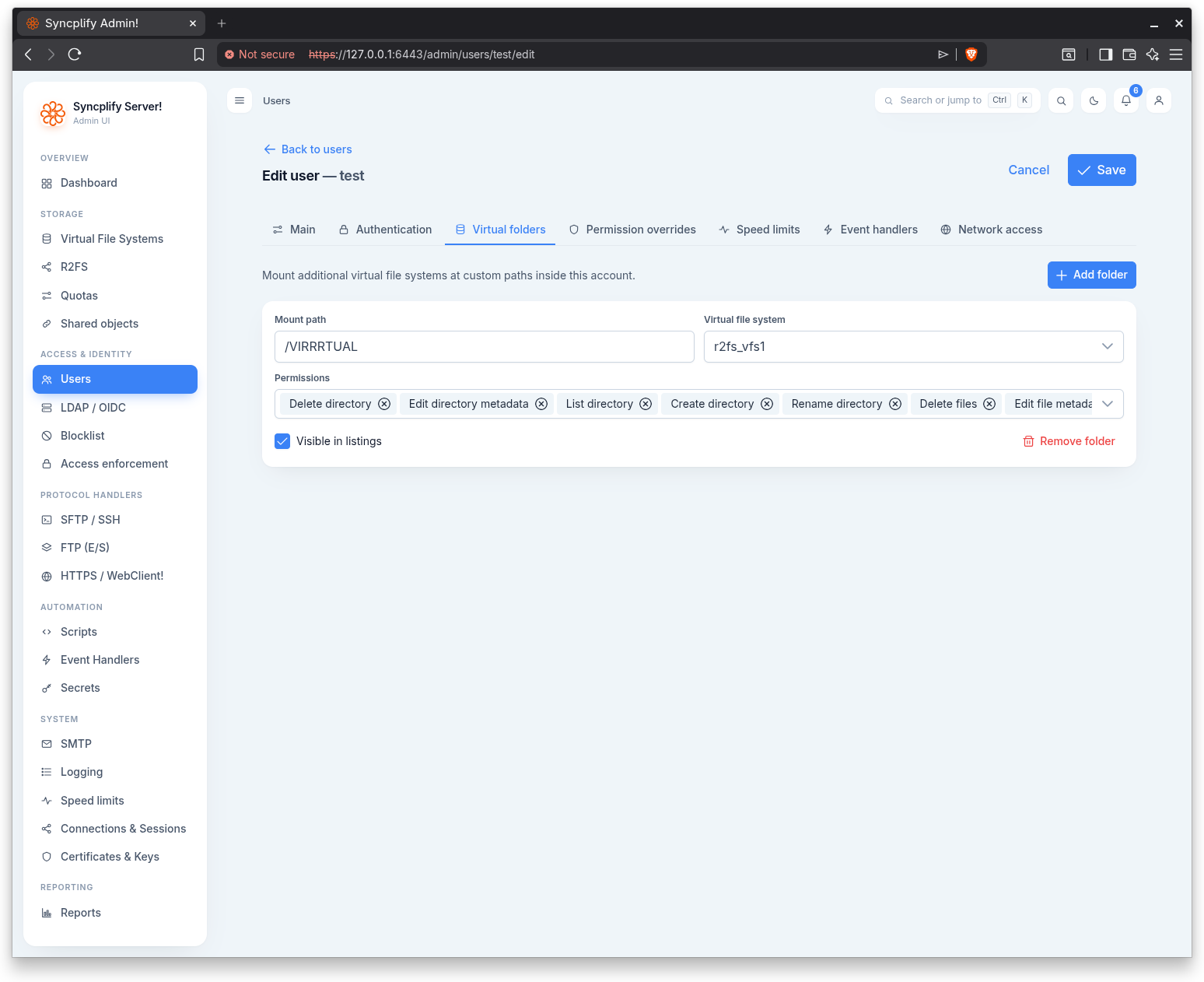
Mount additional virtual file systems at custom paths inside the account. Each entry has a mount path, the virtual file system to mount, its permissions, and whether it is visible in listings.
Permission overrides
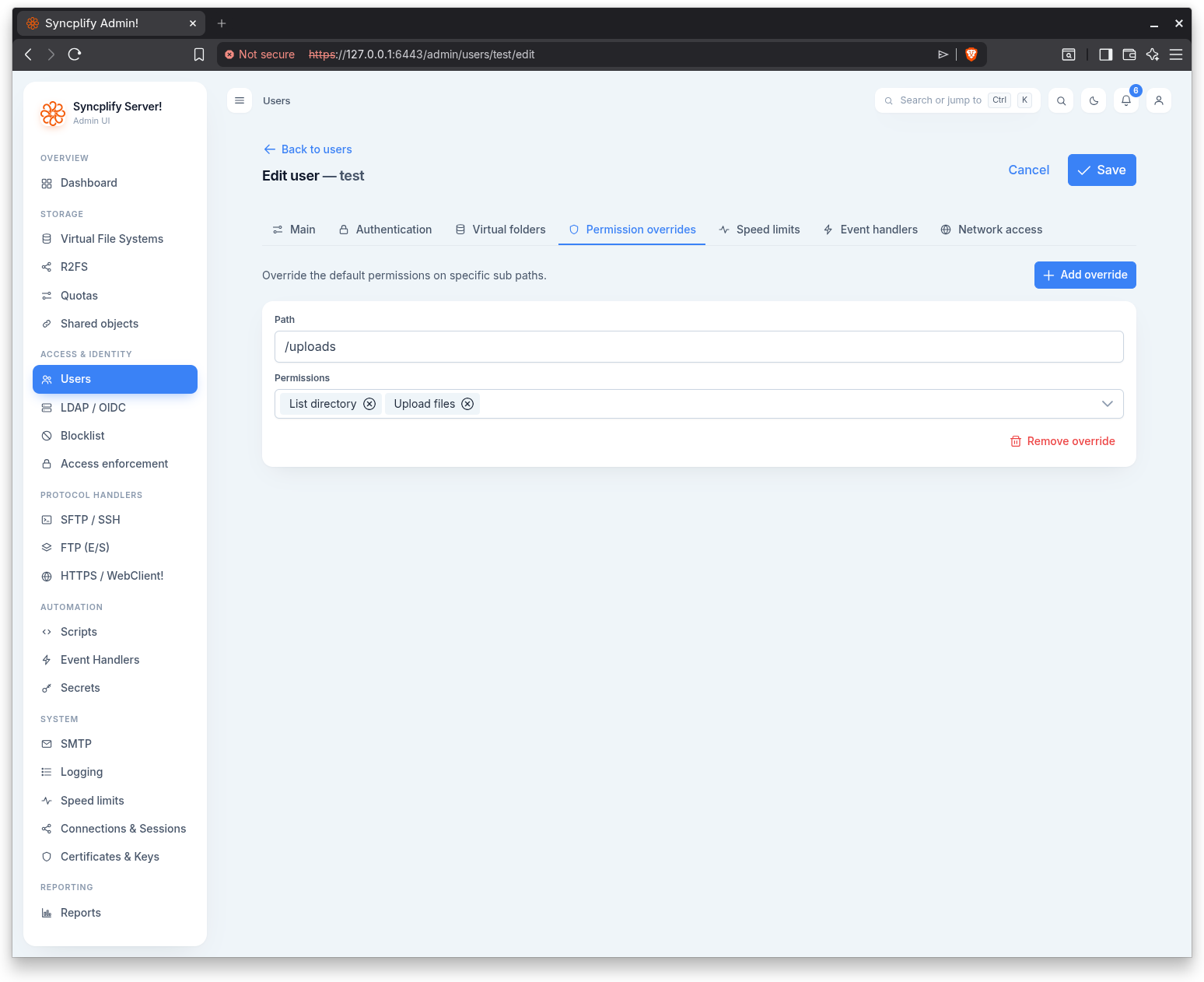
Override the default permissions on specific sub paths. Each override has a path and a permission set.
Speed limits
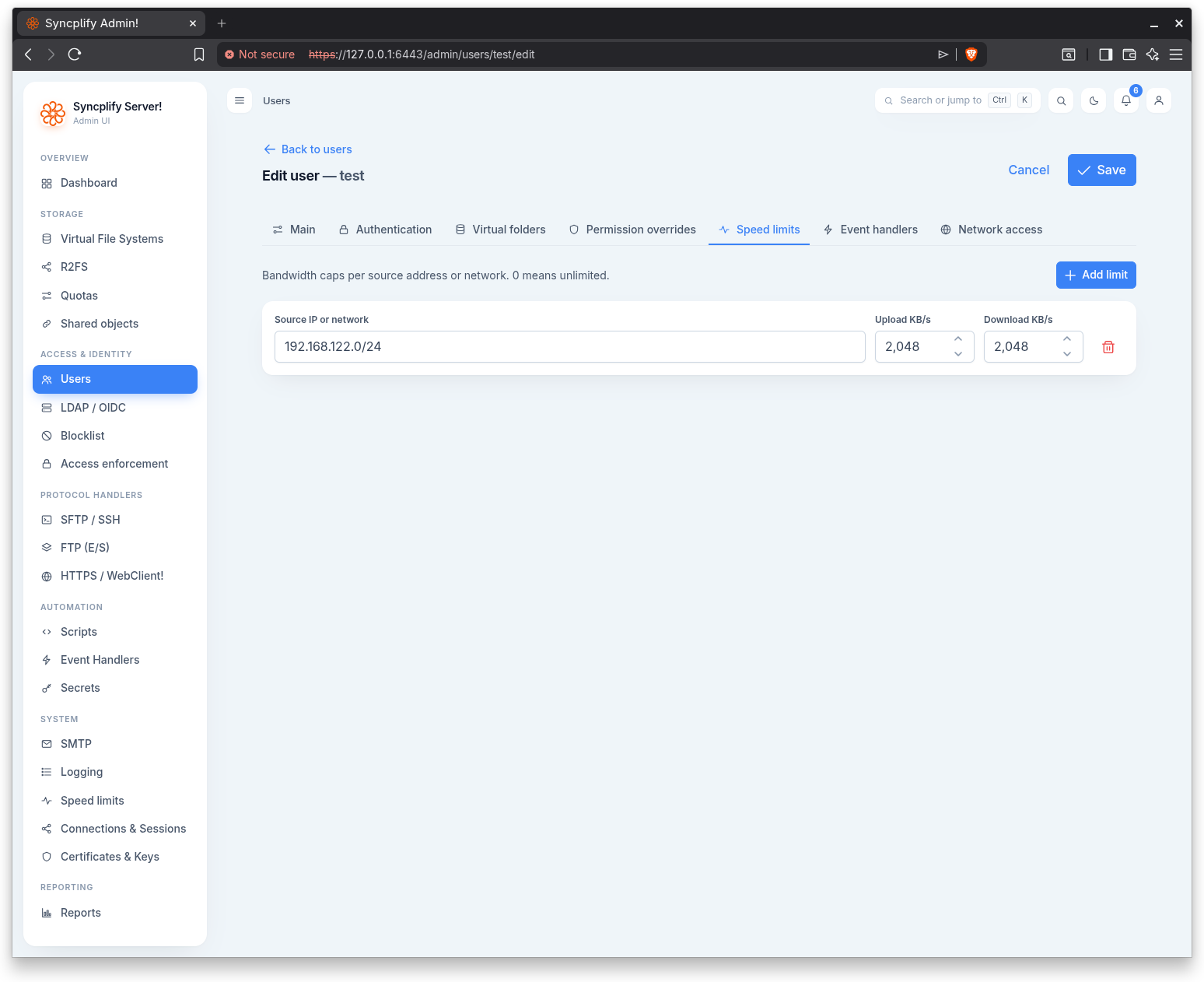
y Bandwidth caps per source address or network, with upload and download limits in KB/s. A value of 0 means unlimited.
Event handlers
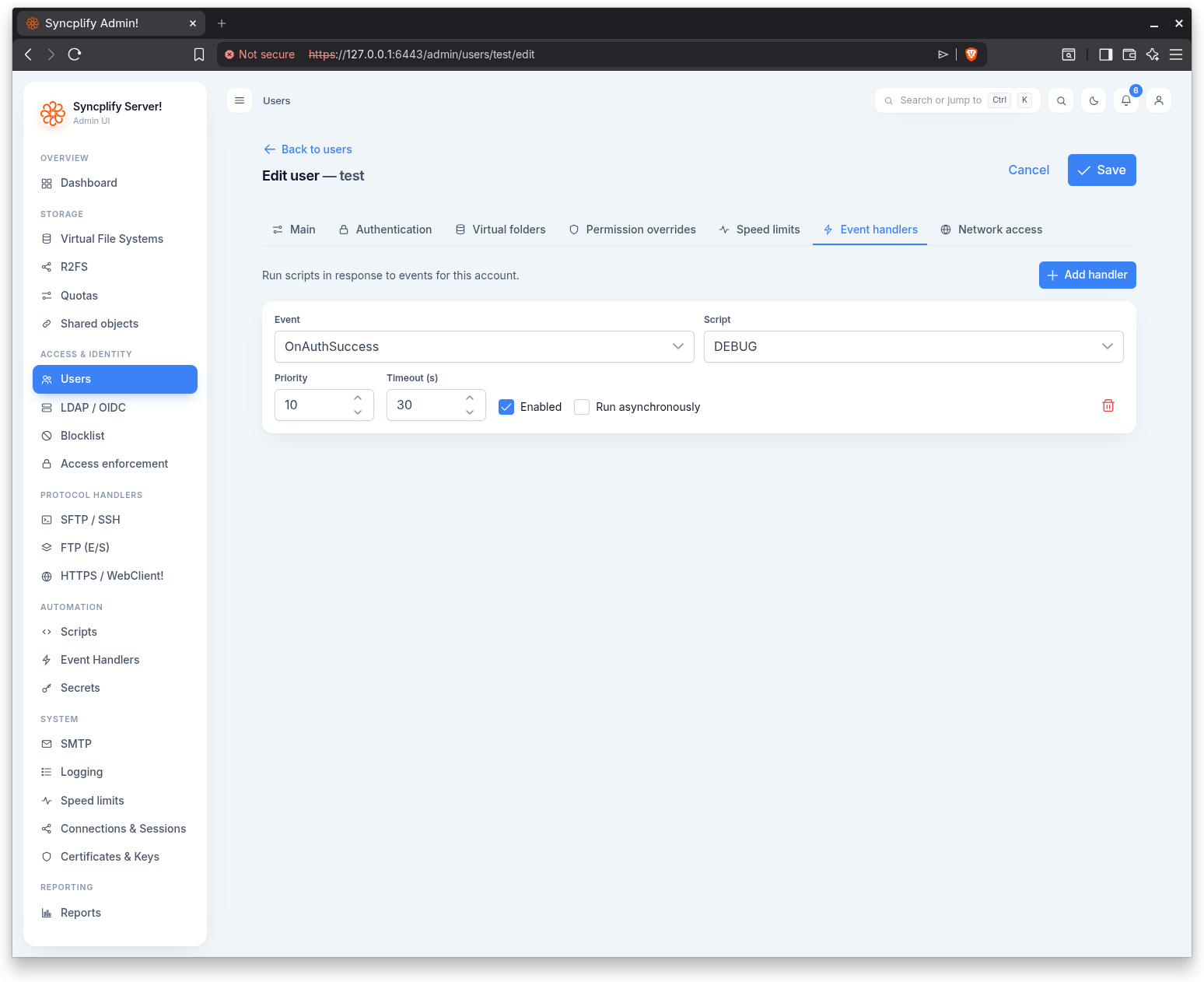
Run scripts in response to events for this account. Each handler binds an event to a script and carries a priority, a timeout in seconds, an enabled flag, and an option to run asynchronously.
Network access
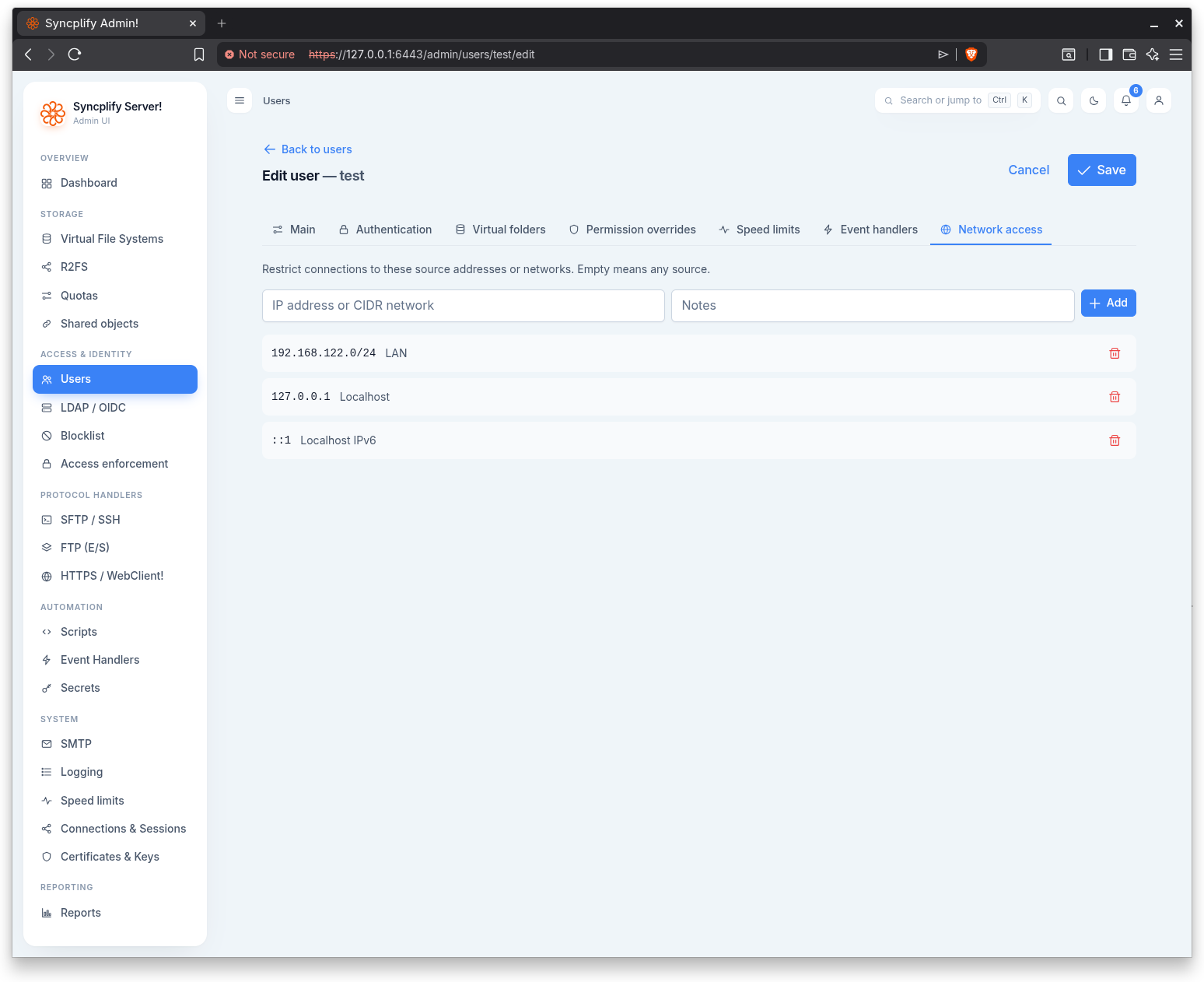
Restrict connections to specific source addresses or networks. Each entry accepts an IP address or CIDR network and optional notes. An empty list means any source is allowed.
App passwords
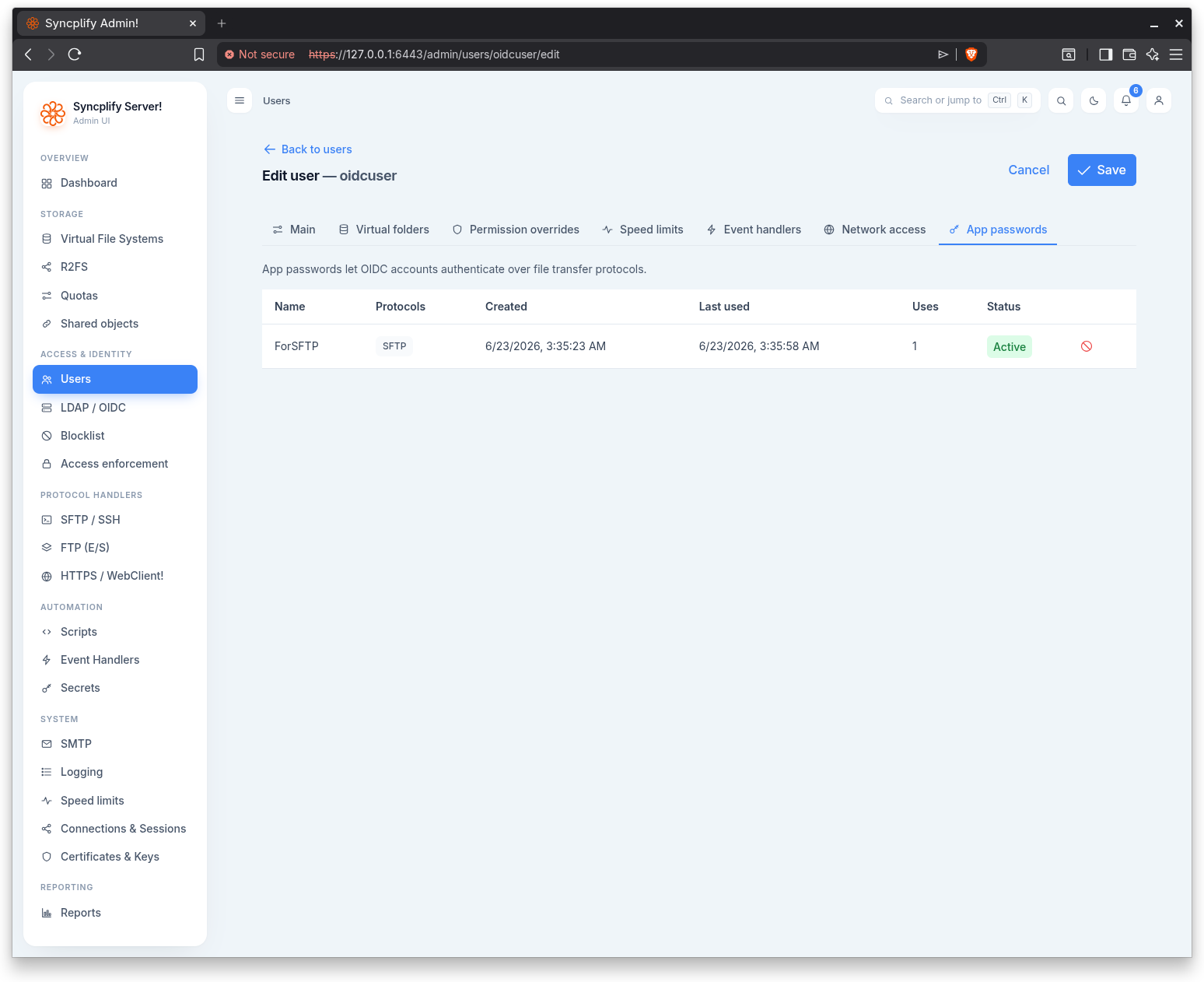
The App passwords tab appears only for OIDC accounts that already exist (at edit time, not at creation time). App passwords let OIDC accounts authenticate over the file transfer protocols, which cannot perform an interactive SSO flow. Each app password lists its name, protocols, created and last used dates, use count, expiry, and status, and can be revoked. App passwords are license gated.
Passkeys
The Passkeys tab appears for Local and OIDC accounts that already exist (at edit time, not at creation time). Passkeys are enrolled by the account holder in the WebClient; here the administrator can review them and revoke any of them. Each passkey lists its name, created and last used dates, use count, and the host name it is bound to. Revoking a passkey takes effect immediately: the user can no longer sign in with it, while password or SSO sign in keeps working. See the Passkeys (WebAuthn) guide for the full picture.