
Editing a virtual site
Selecting Edit on a virtual site opens its editor, organized into four tabs: General, Bindings, Administrators, and SSO Providers. Each tab saves independently.
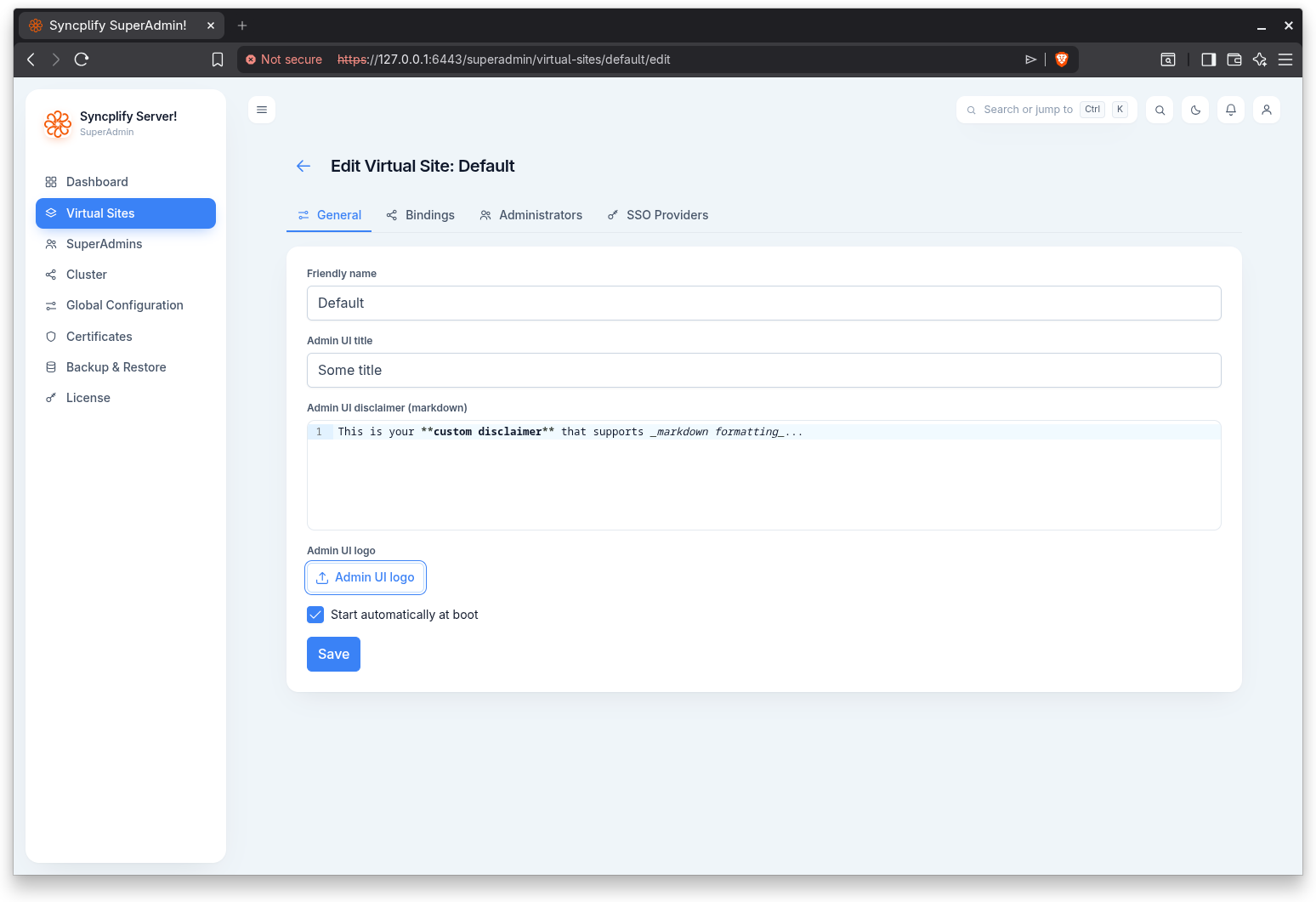
General
The General tab covers the site identity and the look of its Admin UI:
- Friendly name: the human readable name of the site.
- Admin UI title: a custom title shown in the site's Admin UI.
- Admin UI disclaimer (markdown): a disclaimer shown on the Admin UI, edited in a markdown code editor.
- Admin UI logo: a logo image uploaded for the site's Admin UI. You can upload a new image or remove the current one.
- Start automatically at boot: whether the site's services start when the server starts.
Select Save to apply the changes.
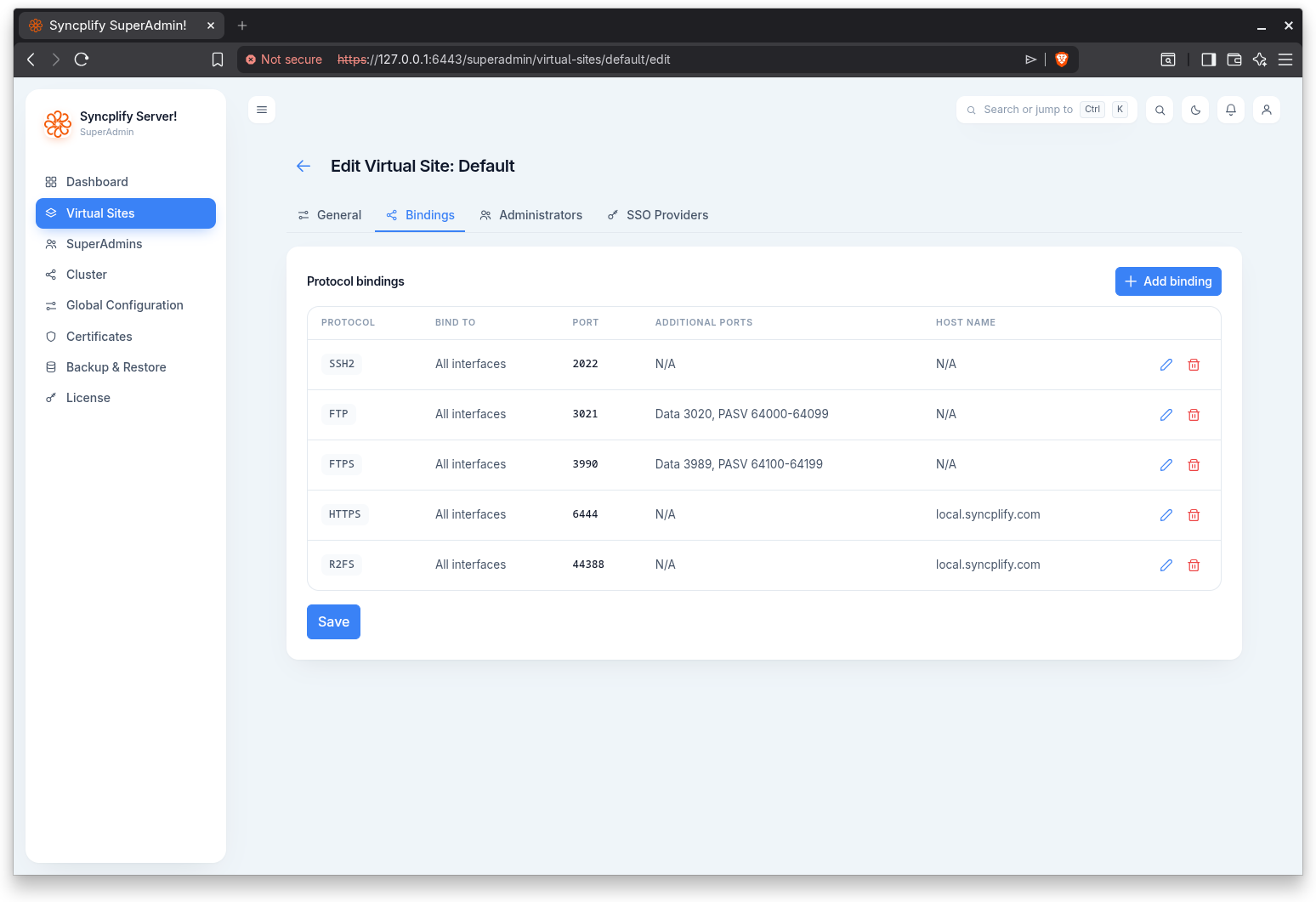
Bindings
The Bindings tab edits the protocol bindings for this node, using the same binding editor as the create flow. Add, edit, or remove bindings, then Save. Each binding pairs a protocol with an IP address (or all interfaces) and a port, plus protocol specific options such as the data port and passive port range for FTP, additional ports, host name, and the PROXY protocol option for sites behind a HAProxy.
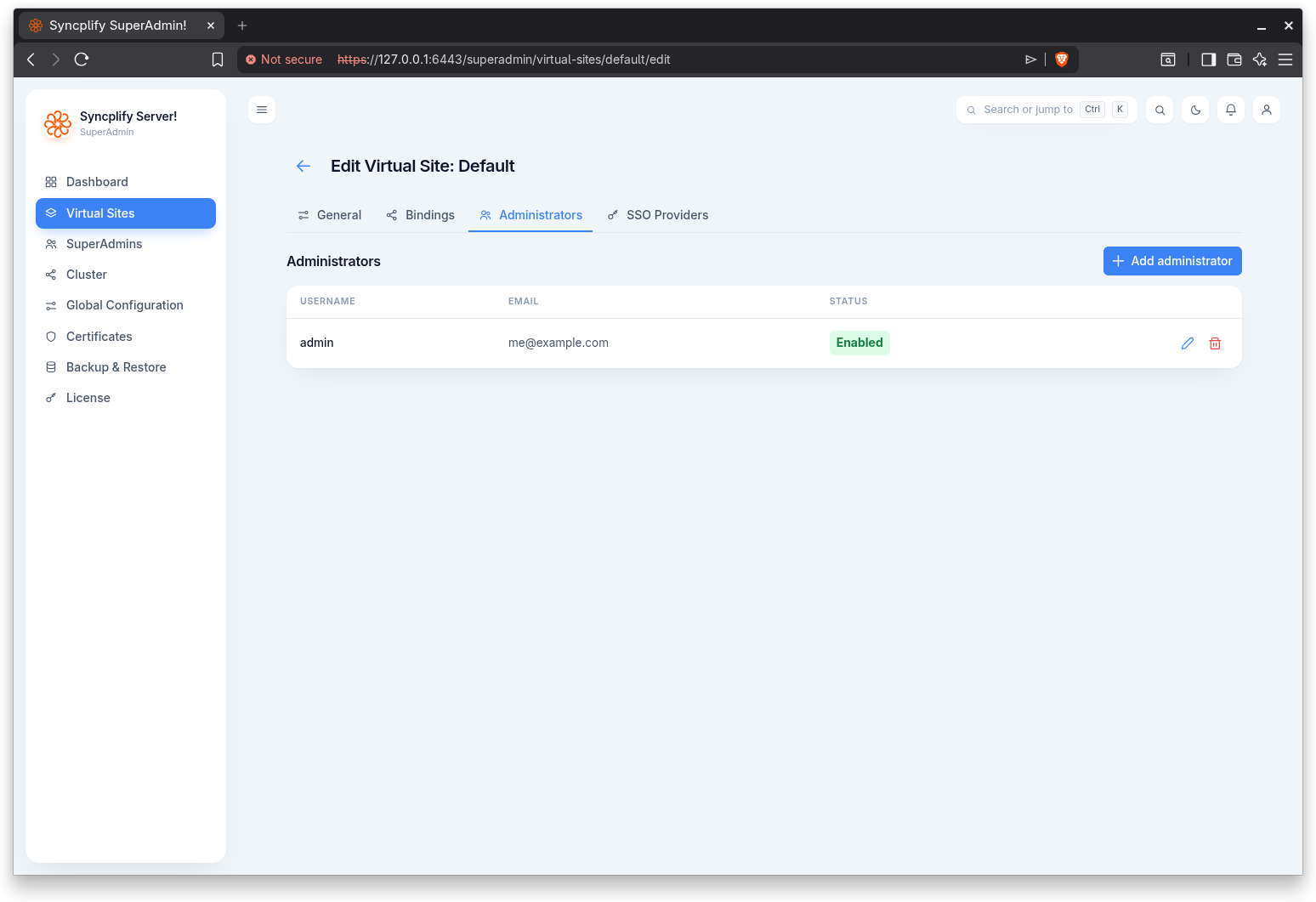
Administrators
The Administrators tab lists the administrator accounts that manage this virtual site, showing each one's username, email, and enabled or disabled status. Use Add administrator to create one, the edit action to change one, and the delete action to remove one.
An administrator has:
- Username and Email.
- Authentication: local password, single sign on, or both.
- Password (for local authentication).
- SSO provider and SSO subject, and an option to require local two factor after SSO (for SSO authentication).
- Permissions: the configuration objects this administrator can view and the ones it can manage. The objects are Dashboard, Shield, Virtual file systems, LDAP and OIDC, Event handlers, Scripts, Logging, Users, Reports, R2FS, Server configuration, Certificates and keys, and Secrets.
- Allowed IP addresses: when set, the administrator may sign in only from these addresses or networks.
- Account enabled toggle, and an option to reset two factor for an existing administrator.
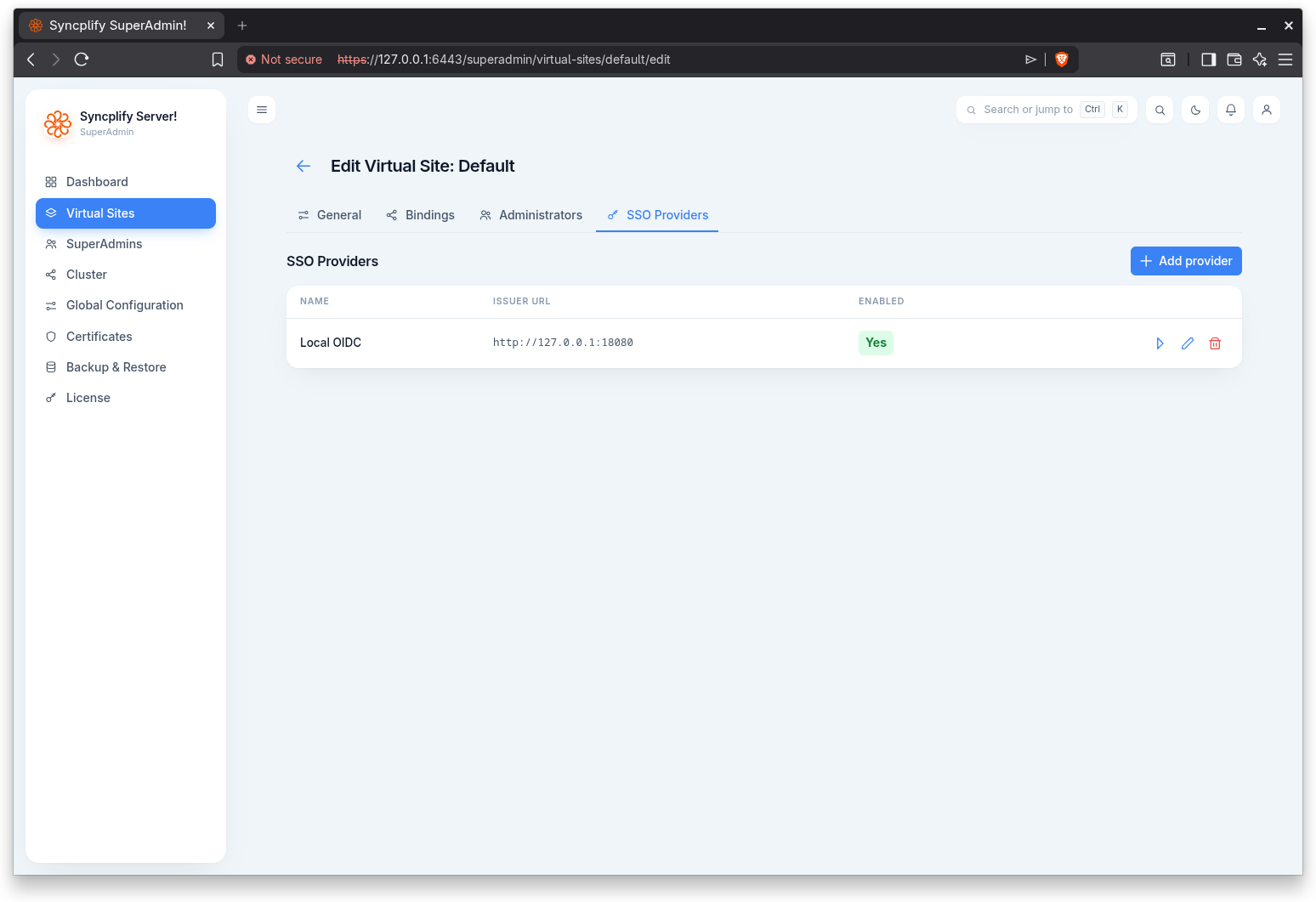
SSO Providers
The SSO Providers tab lists the OpenID Connect providers that administrators of this virtual site can use to sign in, showing each provider's name, issuer URL, and whether it is enabled. Use Add provider to create one, the test action to verify connectivity, the edit action to change one, and the delete action to remove one.
A provider has a name, issuer URL, client ID, client secret, and scopes, plus a Microsoft tenant, the token endpoint authentication method, an optional redirect URL override, optional endpoint overrides (authorization, token, UserInfo, JWKS), the subject, username, and email claims, an option to require a verified email claim, an option to link accounts by email on first login, an enabled toggle, and an option to allow an insecure HTTP issuer. When editing, leave the client secret blank to keep the current value.
TIP
Everything about OIDC single sign on, including how the flow works, what every setting means, and step by step configuration for Google and Microsoft Entra ID, is covered in the dedicated Single Sign On (OIDC) guide.
NOTE
SSO providers for virtual site administrators rely on OpenID Connect and may require a higher license edition. When the feature is not licensed, the Add provider button is disabled and a notice explains why.