
Single Sign On (OIDC)
Syncplify Server! supports single sign on through OpenID Connect (OIDC). Any standards compliant identity provider works, including Google, Microsoft Entra ID, Okta, Keycloak, Authentik, and self hosted providers. This page explains everything in one place: where SSO applies, how the flow works, what every provider setting means, and step by step configuration for Google and Microsoft Entra ID, the two providers our customers use most.
Where SSO applies
SSO can be enabled independently for three different audiences, each with its own provider list and its own callback path:
| Audience | Configured in | Callback path | License |
|---|---|---|---|
| SuperAdmins | SuperAdmin UI: Global Configuration, Single Sign On section | /superadmin/sso/callback | Professional or higher |
| Virtual site administrators | SuperAdmin UI: virtual site editor, SSO Providers tab | /admin/sso/callback | Professional or higher |
| End users (WebClient and file transfer) | Admin UI: LDAP / OIDC, OIDC providers tab | /webclient/sso/callback | Ultimate |
The three provider lists are completely separate: a provider configured for SuperAdmins cannot be used by end users, and vice versa. If you want the same identity provider to serve more than one audience, configure it in each place (you can reuse the same client registration at the identity provider, as long as every callback URL is registered there).
NOTE
Trial licenses include all SSO capabilities, so you can evaluate everything before purchasing.
How the sign in flow works
Syncplify Server! implements the OIDC authorization code flow with PKCE. When someone selects an SSO provider on a sign in screen:
- The server discovers the provider's endpoints from the issuer URL (unless you configured them manually, see below) and redirects the browser to the provider's authorization endpoint.
- The person authenticates at the provider (with whatever factors the provider enforces) and is redirected back to the callback URL with a one time authorization code.
- The server exchanges the code for an ID token, validates the token's signature against the provider's published keys, and verifies the issuer, the audience, the nonce, and the expiry.
- The verified identity claims are matched to a local account (see Mapping identities to accounts) and a session is issued.
Syncplify Server! never sees the person's password at the identity provider, and accounts are never created automatically: an account must already exist and be bound to the provider before it can sign in.
The redirect URL you must register
This is the single most common source of configuration trouble. Every OIDC provider requires you to register the exact redirect URL (also called redirect URI or callback URL) that it is allowed to send users back to. For Syncplify Server! that URL is:
https://<your server host>[:port]<callback path>using the callback path from the table above. For example, a WebClient provider on files.example.com needs https://files.example.com/webclient/sso/callback registered at the identity provider, character for character.
By default the server derives this URL from the incoming request (honoring X-Forwarded-Proto and X-Forwarded-Host from trusted reverse proxies). If your deployment sits behind proxies or load balancers that make the derived URL differ from what you registered, set the provider's Redirect URL setting to the exact registered value and the server will use it verbatim.
Provider settings reference
Every provider editor (in all three configuration places) offers the same settings.
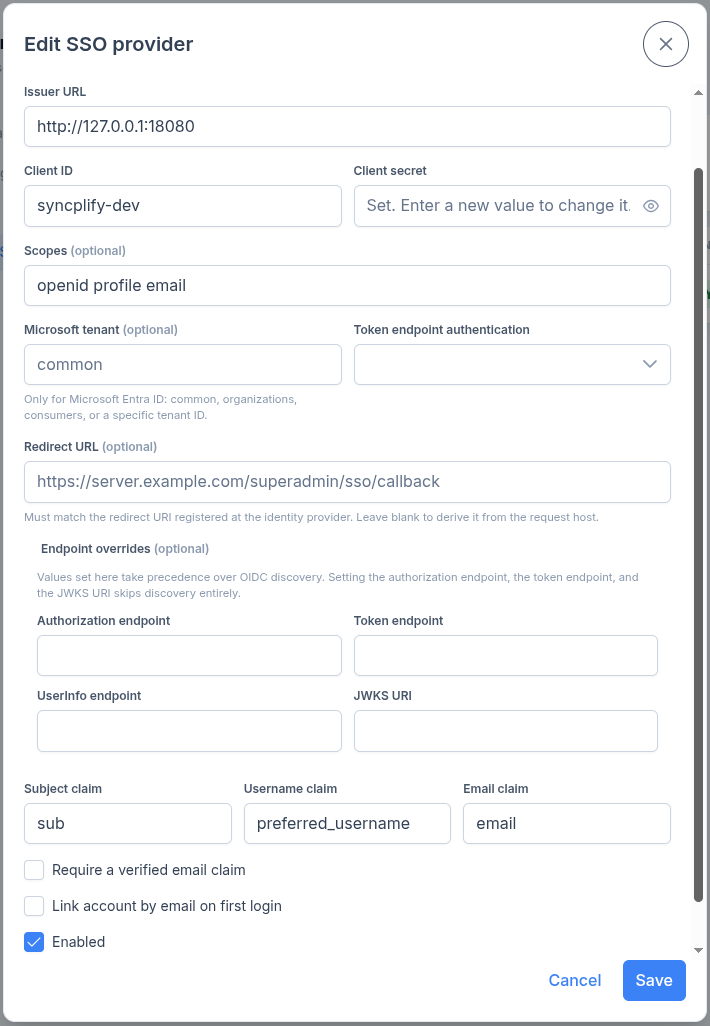
Basics
- Display name: the label shown on the sign in button. Required.
- Issuer URL: the provider's OIDC issuer, for example
https://accounts.google.com. The server appends/.well-known/openid-configurationto this URL to discover the provider's endpoints, and validates that ID tokens were issued by it. Required. - Client ID and Client secret: the OAuth client credentials issued by the provider when you registered the application. The secret is stored encrypted and is never shown again; when editing, leave it untouched to keep the current value.
- Scopes: the OAuth scopes requested during authorization, space separated. The default
openid profile emailis right for almost every provider. - Enabled: whether the provider appears on the sign in screen.
Microsoft tenant
Only meaningful for Microsoft Entra ID. Accepts common, organizations, consumers, or a specific tenant ID (a GUID). It controls which token issuers are accepted:
- With a specific tenant ID, only tokens issued by that tenant are accepted, even if the issuer URL points at the
commonendpoint. This is the recommended setting for a single organization. - With
common,organizations, orconsumers, tokens from any matching Entra ID tenant are accepted. Combine this with per account bindings (or a carefully considered account linking policy) because it means any Microsoft account of that class can complete the sign in flow at the provider.
Leave the field empty for every provider that is not Microsoft Entra ID.
Token endpoint authentication
How the server proves its client identity when exchanging the authorization code:
- Client secret in POST body (
client_secret_post): the default; works with Google, Microsoft, and most providers. - Client secret in Basic auth header (
client_secret_basic): select this for providers that require HTTP Basic authentication at the token endpoint.
Redirect URL
An explicit override of the callback URL, used verbatim in the flow. Leave it blank to derive the URL from the request host; set it when the derived value does not match what you registered at the provider (see the section above).
Endpoint overrides
Four optional fields: Authorization endpoint, Token endpoint, UserInfo endpoint, and JWKS URI. Values set here take precedence over whatever OIDC discovery returns, and when the authorization endpoint, the token endpoint, and the JWKS URI are all set, discovery is skipped entirely.
You do not need these for Google, Microsoft, or any provider with working discovery. They exist for providers that do not publish a discovery document, publish incorrect values in it, or are reachable only through special URLs.
The UserInfo endpoint is queried (with the access token) only when the ID token does not carry all the claims the provider is configured to use; the identity's subject always comes from the verified ID token.
Claims mapping
Subject claim: the claim used as the stable, unique identifier of the external identity. Default
sub, which is correct for virtually all providers, and which you should almost never change. Account bindings store and compare the value of this claim.If your reason for changing it is that you want to bind accounts to an identifier you can look up in the directory in advance, do not change it: use Link claim below instead. It gets you the same convenience without leaving every account bound to a mutable identifier for the rest of its life.
Link claim: the claim compared against an account the first time somebody signs in, when Link account on first login is enabled. Empty means the standard
emailclaim, which is what linking did before this setting existed.The comparison happens once. On a successful link the identity's subject is written to the account, and every later sign in matches by that subject instead, so a rename or a reissued username afterwards changes nothing. Choose the claim deliberately anyway, because it is what the account is matched by until that first sign in happens:
email(default) needs no per account configuration when the account's email address already matches the directory's.oidis the best choice on Microsoft Entra ID when email does not fit. It is the user's immutable object ID, an administrator can read it straight off the user's page in the Entra portal, and it is present in v2.0 ID tokens without configuring any optional claim. It is unique within a tenant rather than across tenants, which is one of the reasons the setting requires a pinned tenant.preferred_usernameandupnare the readable ones, and the ones to think twice about. OIDC states explicitly thatpreferred_usernamemust not be relied on as unique, and both change when a person is renamed. If the directory reassigns a username to a different person before the account it is waiting for has been signed into once, that person is who gets linked to it. After the first sign in, neither risk applies any more.
Any claim other than
emailrequires a provider pinned to a single tenant. The server refuses to save the provider otherwise, and refuses to link at sign in as well. The reason is thatemail_verified, together with the provider's own domain verification, is the only thing that makes a claim trustworthy when identities may arrive from a directory you do not control; nothing vouches foroidorpreferred_usernamethe same way, so on a multi tenant provider anyone able to create a tenant of their own could mint a token naming any value they liked and take the account waiting for it.A claim carried only by the UserInfo endpoint does not link. Linking rests on the ID token, whose signature the server verifies.
Username claim: the claim recorded as the username hint. Default
preferred_username.Email claim: the claim used as the account email candidate. Default
email. It is also the claim read when the link claim isemail.Groups claim: the claim that carries group membership, for example
groups. Optional.
Security options
- Require verified email: reject the sign in when the provider does not assert that the email address is verified (the
email_verifiedclaim). Turn it on for Google. Leave it off for Microsoft Entra ID, which never emits that claim, otherwise every sign in fails. - Link account on first login: bind an account to whichever identity presents the expected value for the provider's link claim, and pin it to that identity's subject from then on. See Mapping identities to accounts below.
- Allow insecure HTTP issuer: permit
http://URLs for the issuer and the endpoints. Only for test identity providers on isolated networks; leave it off in production.
NOTE
The Auto provision accounts option visible in the end user provider editor is reserved for a future release and has no effect yet: accounts are never created automatically.
Testing a provider
Every provider list offers a Test action that resolves the provider's effective endpoints (running OIDC discovery when applicable) and reports the result. Run it after saving a provider to catch unreachable issuers and issuer mismatches before anyone tries to sign in.
A successful test proves that the management service can reach the provider. End user sign ins run in the file transfer worker process, which is a different program and can sit on a different network path, with its own firewall rules, its own proxy environment, and in some deployments its own host. If the Test action succeeds but end users cannot sign in, check the worker's outbound path to the provider before anything else.
Mapping identities to accounts
An external identity is matched to a local account through the account's SSO binding: every SuperAdmin, administrator, and end user account can be bound to one provider, with an optional subject.
Match by subject: when the binding has a subject, the account matches only the external identity whose subject claim equals it exactly. This is the most precise binding, but providers like Google and Microsoft use opaque subject values that you cannot know before the first sign in.
The SSO subject field holds a subject value, not the name of a claim. Typing a claim name such as
sub,preferred_username,oid, orupninto it produces an account that can never match any identity, and every sign in is refused as unauthorized. Which claim is read as the subject is chosen by the provider's Subject claim setting, not here. If you do not know the subject value yet, leave this field empty and let the account be linked on first login instead.Link on first login: when the provider has Link account on first login enabled and a binding has no subject yet, the account is matched by comparing the provider's link claim with the value expected for the account, case insensitively. On the first successful sign in the identity's subject is captured and stored in the binding, and from then on the account matches by that subject and the link claim is never consulted again.
This is the practical way to onboard accounts, and the safe way to use a readable identifier: you get to pre provision against something you can look up in the directory, without leaving the account bound to it afterwards. Create the account, select the SSO provider, leave the subject empty, and make sure the account carries the value the link claim will present.
The value expected for an account is taken from the first of these that is set:
- the account's Link value, when you fill it in;
- the account's email address, when the link claim is
email; - the account's username, for any other link claim.
Rung 3 is what makes the common case need no per account configuration at all: where the account name in Syncplify Server! is the account name in the directory, set the provider's link claim to
preferred_usernameand there is nothing to fill in per account.Exactly one account may match an identity. If two accounts would both be linked by the same value, or two accounts are pinned to the same subject, the sign in is refused rather than resolved arbitrarily, and the server log names the accounts that collided so you can fix the duplicate.
Accounts also control how SSO combines with other authentication:
- SuperAdmins and administrators have an Authentication mode: local password, SSO, or both.
- Every binding offers Require local MFA after SSO, which asks for the account's local one time password on top of a successful SSO sign in.
- End user accounts of type OIDC authenticate exclusively through SSO in the WebClient. For file transfer protocols such as SFTP and FTPS, which cannot run an interactive browser flow, they use app passwords.
Configuring Google
- Open the Google Cloud Console, select or create a project, and go to APIs & Services, then Credentials.
- If prompted, configure the OAuth consent screen first (an app name and support email are enough; choose Internal if your organization uses Google Workspace and only your users should sign in).
- Select Create credentials, then OAuth client ID, and choose Web application as the application type.
- Under Authorized redirect URIs add your callback URL, for example
https://files.example.com/webclient/sso/callback(see the table above for the right path for each audience). - Create the client and copy the Client ID and Client secret.
Then create the provider in Syncplify Server! with these settings:
| Setting | Value |
|---|---|
| Issuer URL | https://accounts.google.com |
| Client ID | the client ID from step 5 |
| Client secret | the client secret from step 5 |
| Scopes | openid profile email (the default) |
| Microsoft tenant | leave empty |
| Token endpoint authentication | Client secret in POST body (the default) |
| Endpoint overrides | leave empty (discovery works) |
| Claims | leave the defaults |
| Require verified email | on |
| Link account on first login | on (recommended) |
Google does not send a username claim, so identification effectively happens through the email address; with linking on first login enabled, an account whose email matches the Google account's verified email signs straight in on first use.
Configuring Microsoft Entra ID
- Open the Azure portal, go to Microsoft Entra ID, then App registrations, and select New registration.
- Give it a name, and under Supported account types pick who may sign in; for a single organization choose Accounts in this organizational directory only.
- Under Redirect URI choose the Web platform and enter your callback URL, for example
https://files.example.com/webclient/sso/callback. - Register the application, then from its Overview page copy the Application (client) ID and the Directory (tenant) ID.
- Go to Certificates & secrets, create a New client secret, and copy its Value immediately (it is shown only once).
Then create the provider in Syncplify Server! with these settings:
| Setting | Value |
|---|---|
| Issuer URL | https://login.microsoftonline.com/common/v2.0 or https://login.microsoftonline.com/<tenant ID>/v2.0 |
| Client ID | the Application (client) ID from step 4 |
| Client secret | the secret value from step 5 |
| Scopes | openid profile email (the default) |
| Microsoft tenant | your Directory (tenant) ID (recommended), or common |
| Token endpoint authentication | Client secret in POST body (the default) |
| Endpoint overrides | leave empty (discovery works) |
| Claims | leave the defaults |
| Require verified email | off (see the warning below) |
| Link account on first login | on (recommended) |
WARNING
Microsoft Entra ID never sends the email_verified claim, so Require verified email must stay off for Entra ID providers or every sign in will be rejected. To keep the configuration safe, pin your tenant in the Microsoft tenant field instead: it guarantees that only identities from your own directory are accepted, even when the issuer URL points at the common endpoint.
IMPORTANT
Entra ID client secrets expire (24 months at most). When sign ins suddenly fail with an invalid client error, check the secret's expiry in Certificates & secrets and rotate it, then update the provider's client secret.
Other providers
Any OIDC provider with a standard discovery document works exactly like the examples above: set the issuer URL, the client credentials, and register the callback URL at the provider. For nonstandard providers:
- If discovery is unavailable or wrong, fill in the endpoint overrides.
- If the provider requires HTTP Basic authentication at the token endpoint, switch the token endpoint authentication accordingly.
- If your test provider only speaks plain HTTP, enable Allow insecure HTTP issuer (never in production).
Troubleshooting
- The provider shows an error like
redirect_uri_mismatchbefore asking for credentials. The callback URL the server sent does not match what is registered at the provider. Register the exact URL, or set the provider's Redirect URL setting to the registered value. Watch out forhttpvshttps, ports, and trailing characters. - "OIDC discovery issuer mismatch" when testing or signing in. The issuer in the provider's discovery document does not match the configured issuer URL. Copy the issuer exactly as the provider publishes it. For Entra ID, make sure the issuer ends in
/v2.0and the Microsoft tenant field is set consistently. - Sign in succeeds at the provider but Syncplify Server! rejects it as unauthorized. No local account matched the identity. Check that the account exists, is enabled, allows SSO in its authentication mode, is bound to the right provider, and either has the correct subject or qualifies for linking on first login (enabled on the provider, empty subject in the binding, and a link value the account actually presents).
- Every Entra ID sign in is rejected after the provider succeeds. Almost always Require verified email left on (Entra ID never asserts it), or an expired client secret.
- Sign ins fail only for some Microsoft users. If the Microsoft tenant is pinned, users from other tenants are rejected by design.
- "Cannot reach the identity provider", or a sign in that hangs for several seconds and then fails. The server could not complete a call to the provider: discovery, the token exchange, the signing keys, or UserInfo. Check DNS resolution, the outbound firewall, and any proxy configuration on the machine, and remember that a provider such as Entra ID answers on a rotating set of addresses, so an outbound rule written against fixed IP addresses lets some sign ins through and stalls others. Proxy settings are read from the environment of each service at start up, so a proxy added after a service started does not apply to it until it is restarted.
- One person cannot sign in, and the log says several accounts match. Exactly one account may match an identity. Two accounts carry the same SSO subject, or two unlinked accounts would both be linked by the same value of the link claim. The log line names them. Remove or correct the duplicate; the sign in is refused rather than resolved arbitrarily precisely so that nobody is signed into somebody else's account.
- Nothing links, and the provider is a multi tenant one. A link claim other than
emailis only accepted on a provider pinned to a single tenant. Pin the tenant, or link by a verified email address. - Token validation fails intermittently. Check the server clock; a skew of up to two minutes is tolerated, more is not.
- The provider is only reachable over HTTP. Enable Allow insecure HTTP issuer for test setups, or front the provider with TLS for production.
If a provider still misbehaves, run its Test action and read the reported endpoints: they show exactly what the server resolved through discovery and overrides.