
Virtual File Systems
A virtual file system (VFS) maps a mount point to a storage backend. Each VFS names a backend, a target locator, and the credentials needed to reach it. Once defined, a VFS can be mounted for users so its contents become part of their accessible storage.
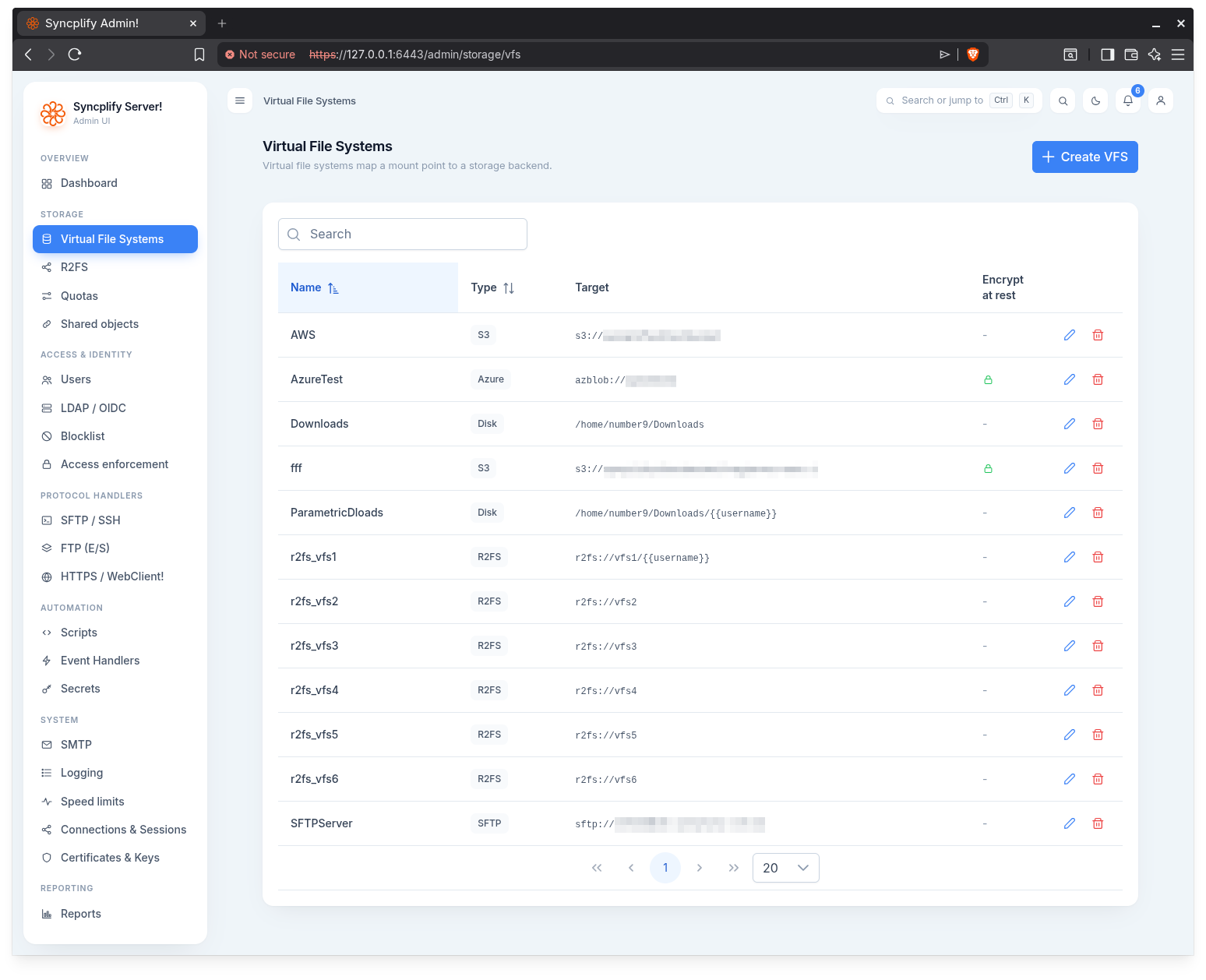
The VFS list
The list page shows every virtual file system configured on the virtual site. A search box above the table filters by name, target, and type. The table is paginated and sortable, with these columns:
- Name: the friendly name of the virtual file system.
- Type: the backend type, shown as a chip.
- Status: for R2FS! rows only, what the R2FS! nodes report about it: Linked by N nodes when at least one node serves it; Unreachable on X when the node X reports its storage withheld and no other node serves it (its users are told their storage is unreachable); Served, but unreachable on X when another node still serves it (redundancy is reduced, users are not affected); Degraded on X when the node X keeps serving it but its last storage probe failed; Not linked when no node serves it and none reports it. The R2FS! page has the details. Other backend types show a dash.
- Target: the canonical target locator, in monospace.
- Encrypt at rest: a lock icon when at rest encryption is enabled, otherwise a dash.
Each row offers an edit action and a delete action when you have permission to manage storage.
Creating a VFS
Click Create VFS in the page header to open the editor drawer. The drawer header reads Create virtual file system. To edit an existing VFS, use the edit action on its row; the header then reads Edit virtual file system.
Deleting a VFS
Use the delete action on a row. A confirmation dialog asks "Delete the virtual file system {name}?" before the VFS is removed.
The VFS editor
The editor drawer presents friendly, per backend fields rather than a raw connection string and JSON blob. From the fields you fill in, it composes the canonical target locator and the credential payload the backend expects.
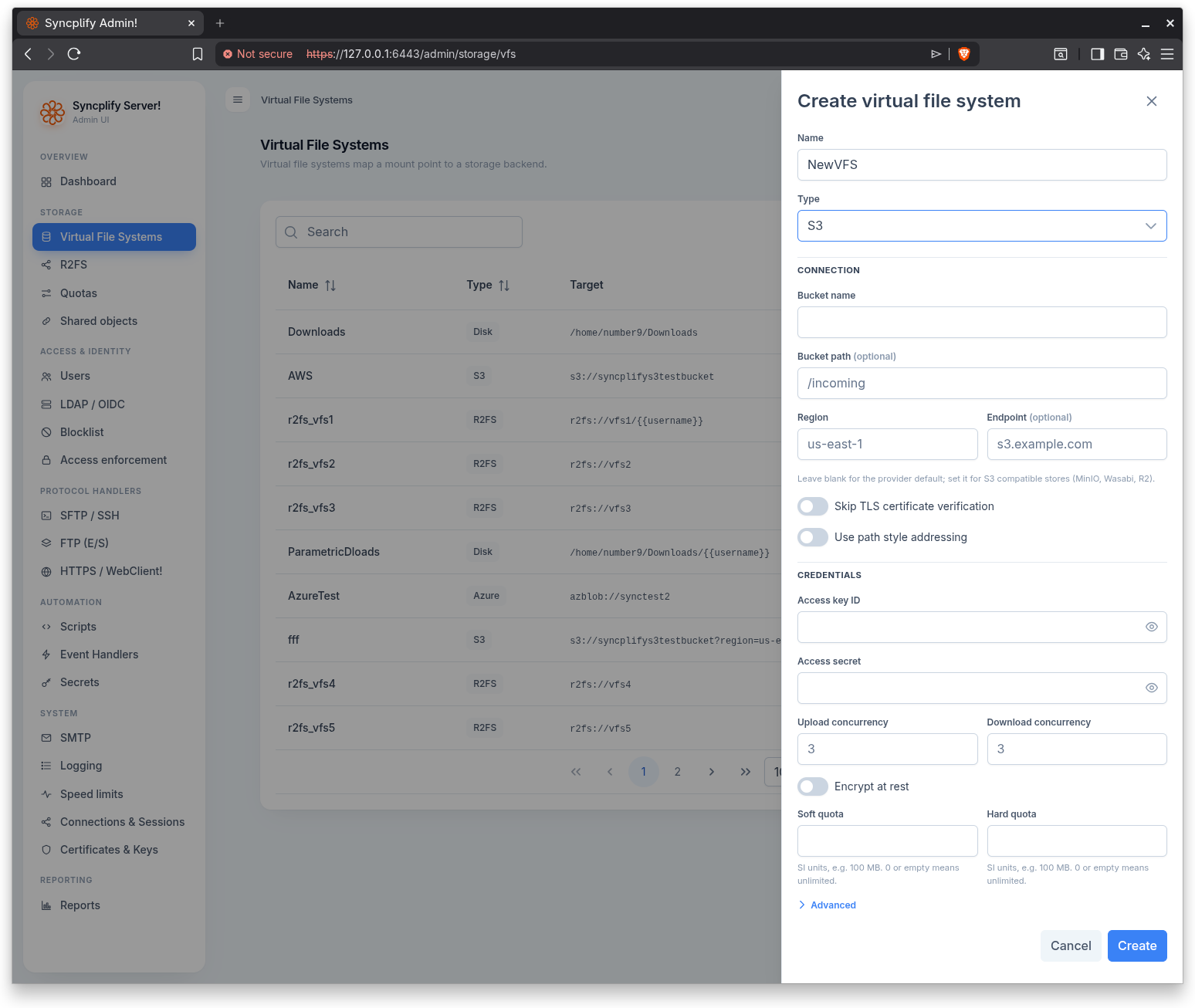
Name and type
Every VFS has a Name and a Type. When creating a VFS, the Type is a dropdown; once created, the type is fixed and shown as a chip. The supported backend types are Disk, SFTP, S3, Azure, GCP, and R2FS!.
Most backend fields are grouped into a Connection section (how to reach the backend) and a Credentials section (the secrets that authenticate to it).
Disk
A Disk VFS points at a local Filesystem path such as /srv/data. There is no separate credentials section.
SFTP
The Connection section holds Host, Port, Remote path, and Username. The remote path is the starting directory on the remote server; leave it blank for the server root.
The Credentials section holds:
- Password: the account password.
- Private key: PEM content, an alternative or complement to the password.
- Private key passphrase: the passphrase protecting the private key, if any.
- Host key fingerprint (optional): pin the server identity, for example
SHA256:abc.... Leave it blank to skip verification.
Two reconnection settings round out the form: Max reconnect retries and Retry interval.
S3
The Connection section holds Bucket name, Bucket path (optional), Region, and Endpoint (optional). Leave the endpoint blank for the provider default; set it for S3 compatible stores such as MinIO, Wasabi, or R2. Two toggles are available: Skip TLS certificate verification and Use path style addressing.
The Credentials section holds Access key ID and Access secret, plus Upload concurrency and Download concurrency.
Azure
The Connection section holds Container name and Endpoint (optional), plus the Skip TLS certificate verification toggle.
The Credentials section holds Account name and an Authentication method selector offering Account key or SAS token. Depending on the method chosen, you provide either an Account key or a SAS token. Upload concurrency and Download concurrency are also available.
GCP
The Connection section holds Bucket name, Bucket path (optional), and Project ID (optional).
The Credentials section holds Service account credentials (JSON). You can paste the service account JSON or upload it from a file. Leave it blank to use Application Default Credentials. Upload concurrency and Download concurrency are also available.
R2FS!
An R2FS! VFS targets a remote R2FS! storage node. It takes an R2FS! name and an optional Remote path. See the R2FS! page for configuring the identity keys and allow list that govern R2FS! connectivity.
At rest encryption
Backends that store data the server can encrypt (Disk, S3, Azure, GCP) offer an Encrypt at rest toggle. When enabled, you must supply an Encryption passphrase.
At rest encryption is set when the VFS is created and cannot be changed afterwards. On the editor for an existing VFS, encryption is shown read only as Encrypted at rest or Not encrypted, with a note that it cannot be changed.
Quotas
Backends that support quotas (Disk, S3, Azure, GCP) offer a Soft quota and a Hard quota. Both accept SI units, for example 100 MB. A value of 0 or empty means unlimited.
See the Quotas page for how often quota usage is recalculated across the virtual site.
Advanced
An Advanced section can be expanded to show the canonical target and credential payload generated from the fields above. This view is read only. Secret values are never shown here; each secret is masked or labelled by its state, so you can verify the assembled shape without exposing credentials.
License gating
Cloud backends (SFTP, S3, Azure, GCP) and at rest encryption are license gated where the UI gates them. When the license does not cover a cloud backend, the editor shows a license notice and the save action is disabled for that type. When the license does not cover at rest encryption, the Encrypt at rest toggle is disabled and a license notice is shown.