
Virtual Sites
A virtual site is an independent file transfer service with its own protocol bindings, administrators, and configuration. The Virtual Sites area lists every site on the server, lets you run and control each one, and is the entry point for creating new sites and editing existing ones.
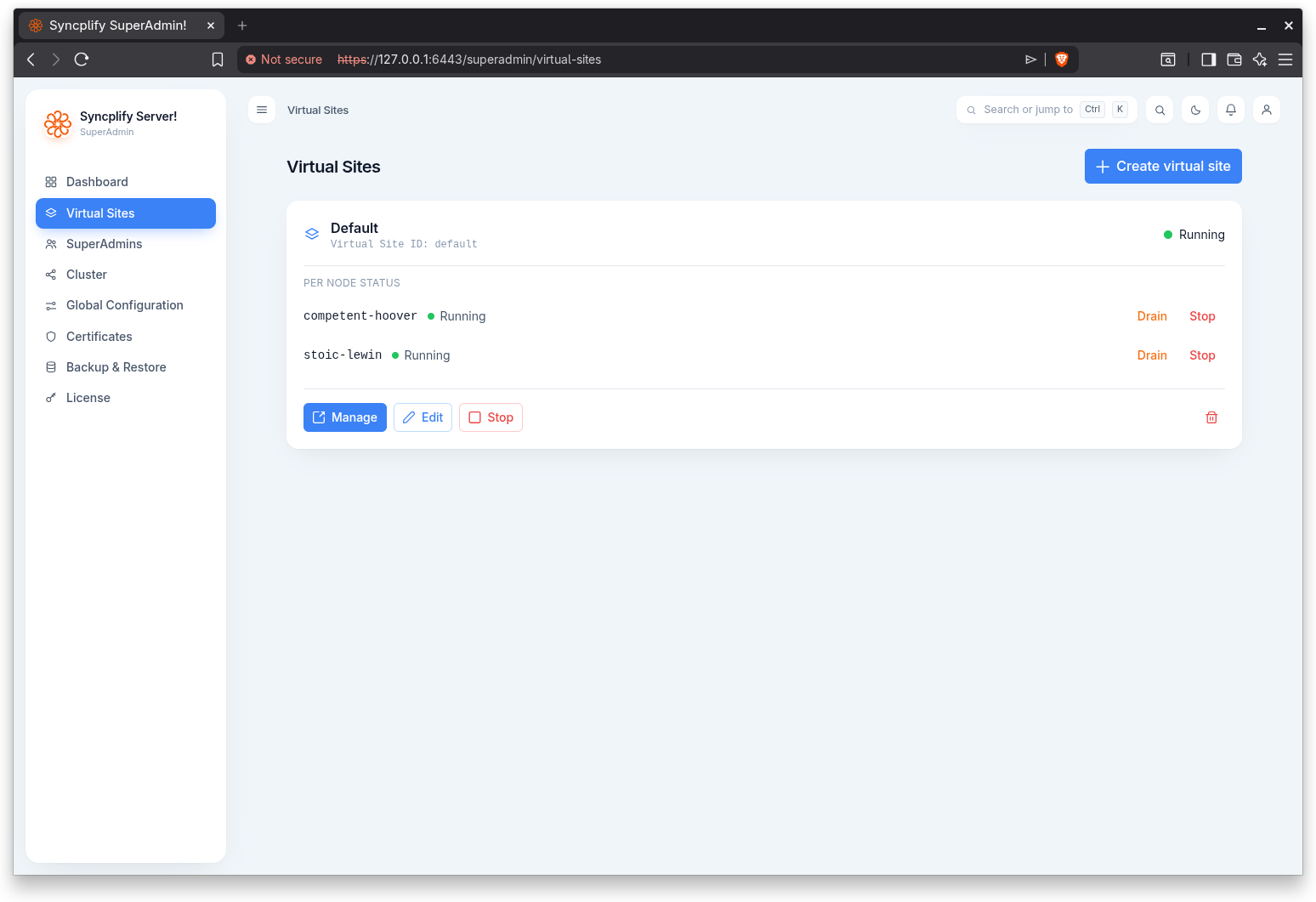
The list
Each virtual site is shown as a card with its friendly name and its derived Virtual Site ID, along with a status indicator (Running, Stopped, Draining, Warning, Not installed, or Unknown). The list refreshes automatically.
In a clustered deployment, a site that spans more than one node shows a per node status section so you can see and control the service on each node individually.
Actions
Each card offers the following actions:
- Manage: opens the Admin UI for that virtual site in a new tab so its administrators can manage users, VFS, and the rest of the site configuration.
- Edit: opens the tabbed editor for the site (see Editing a virtual site).
- Start: starts the site's services.
- Stop: stops all services and disconnects active sessions. This is a disruptive action and asks for confirmation.
- Drain: stops accepting new connections while existing sessions finish. This is a disruptive action and asks for confirmation.
- Undrain: resumes accepting new connections.
- Delete: stops all services and removes the site's configuration. This cannot be undone and asks for confirmation.
Restorative actions (Start, Undrain) run immediately; disruptive actions (Drain, Stop, Delete) confirm first.
NOTE
Your license may cap the number of virtual sites. When you reach the cap, the Create button is disabled and a notice explains the limit.
Creating a virtual site
Select Create virtual site. You are first asked how to create it:
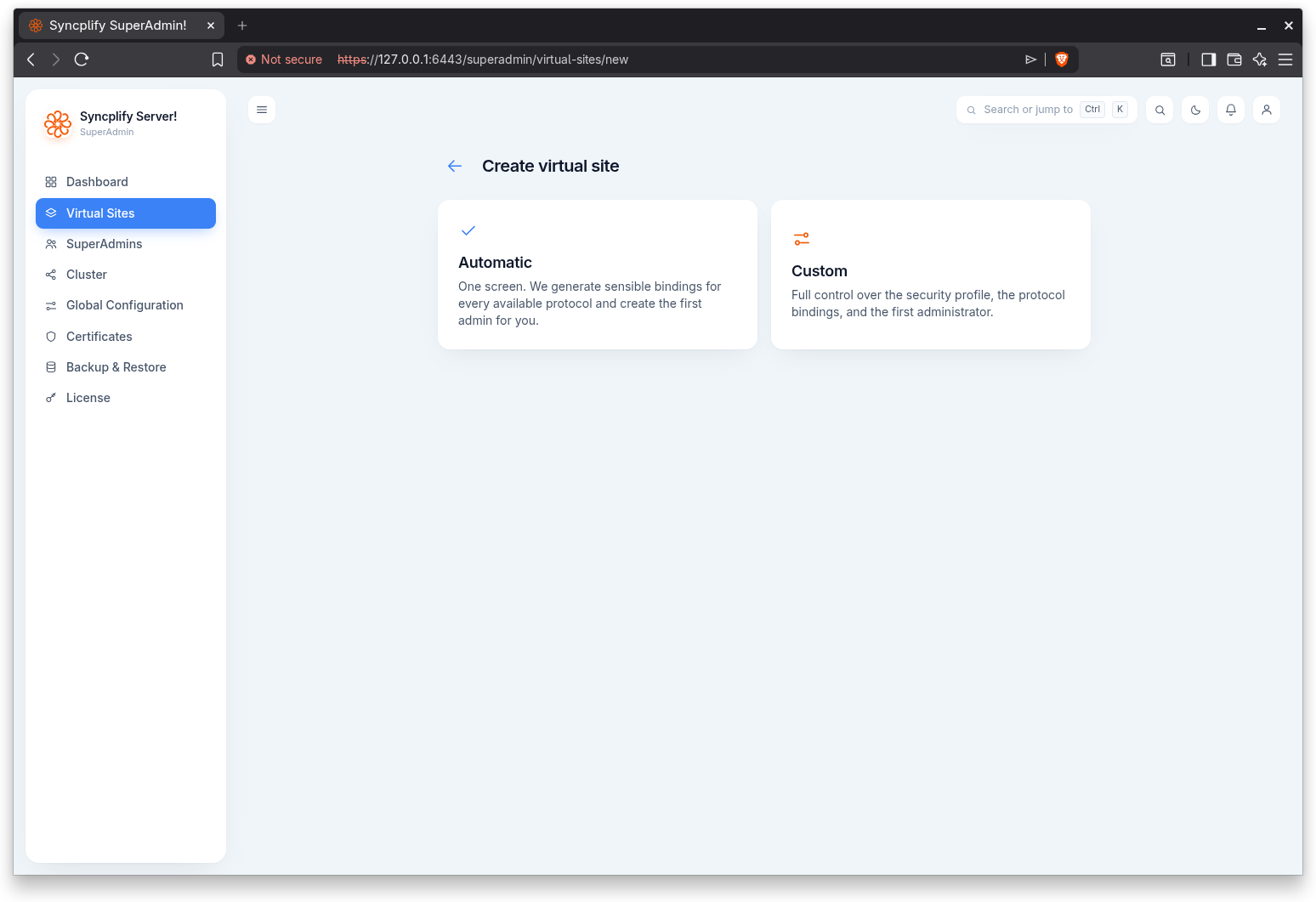
- Automatic: a single screen. The software generates sensible bindings for every available protocol and creates the first administrator for you. You provide a friendly name, a hostname, the first administrator's username, email, and password, and whether the site starts automatically at boot.
- Custom: full control through a short stepper.
The custom stepper
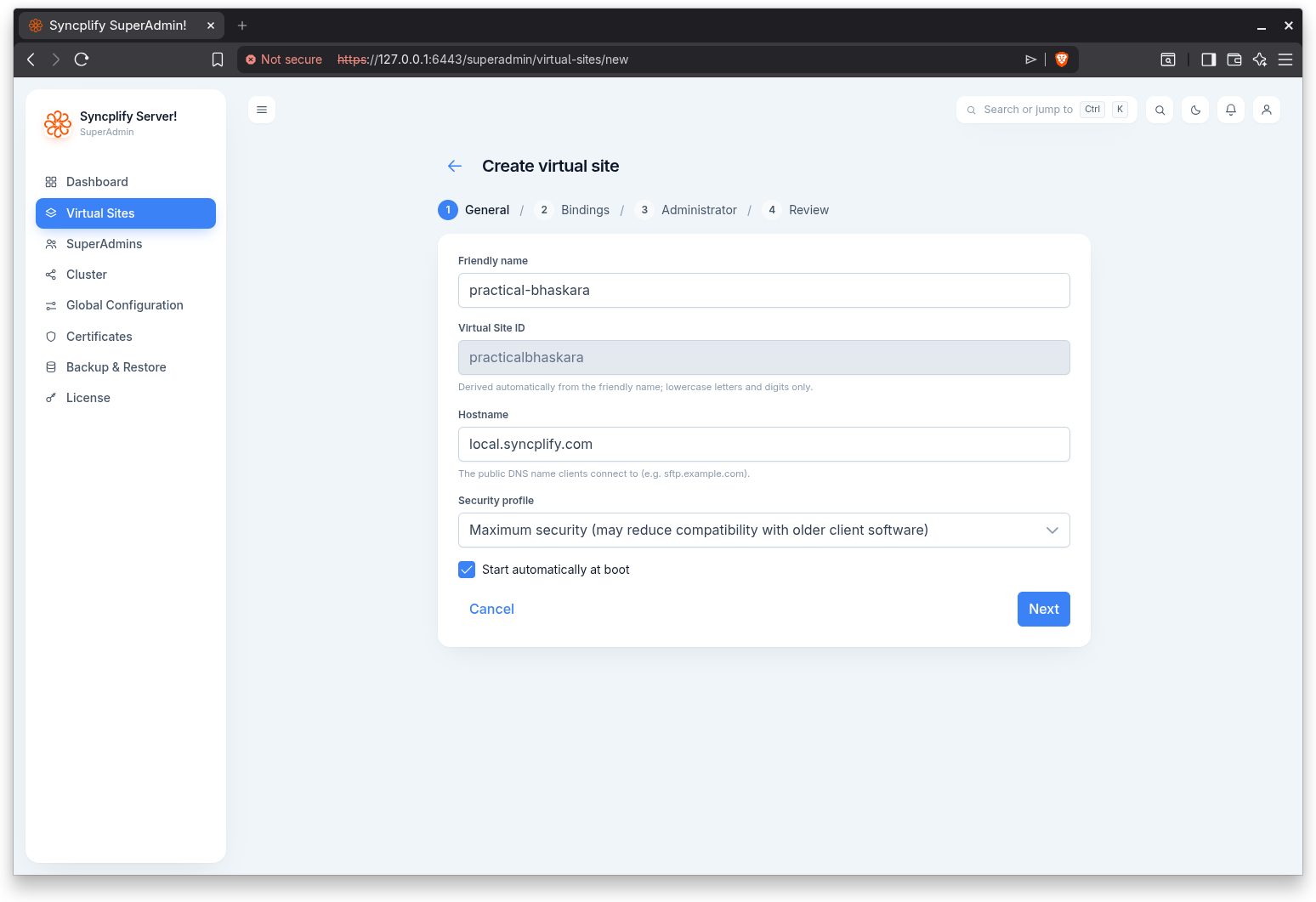
The custom flow walks through four steps:
- General: the friendly name (the Virtual Site ID is derived from it automatically, lowercase letters and digits only), the hostname clients connect to, the security profile, and whether the site starts automatically at boot.
- Bindings: the protocol bindings for the site. The hostname is stamped onto every non SSH2 binding so TLS, SNI, and the WebClient address resolve correctly.
- Administrator: the first administrator's username, email, password, and the view and manage permissions for that account.
- Review: a summary of the configuration and the bindings table before the site is created.
Security profiles
The security profile sets the cryptographic posture of the site:
- Base: sensible defaults for most use cases.
- Maximum security: stricter algorithms that may reduce compatibility with older client software.
- Maximum compatibility: broader algorithm support that may include lower security algorithms.
- Cisco compatible: ideal for Cisco UCM backups.
- PCI-DSS/HIPAA: tailored for regulatory compliance.
Protocol bindings
Each binding pairs a protocol with a network endpoint. Depending on the protocol you can set the IP address (or all interfaces), the port, and protocol specific options such as the data port and passive port range for FTP, additional ports, the host name, and whether the binding sits behind a HAProxy using the PROXY protocol. Only one R2FS! binding is allowed per virtual site.