
How to use WebClient!
WebClient! provides a modern, intuitive interface for secure file management directly from your web browser. Here’s a quick guide to its main features and how to use them effectively.
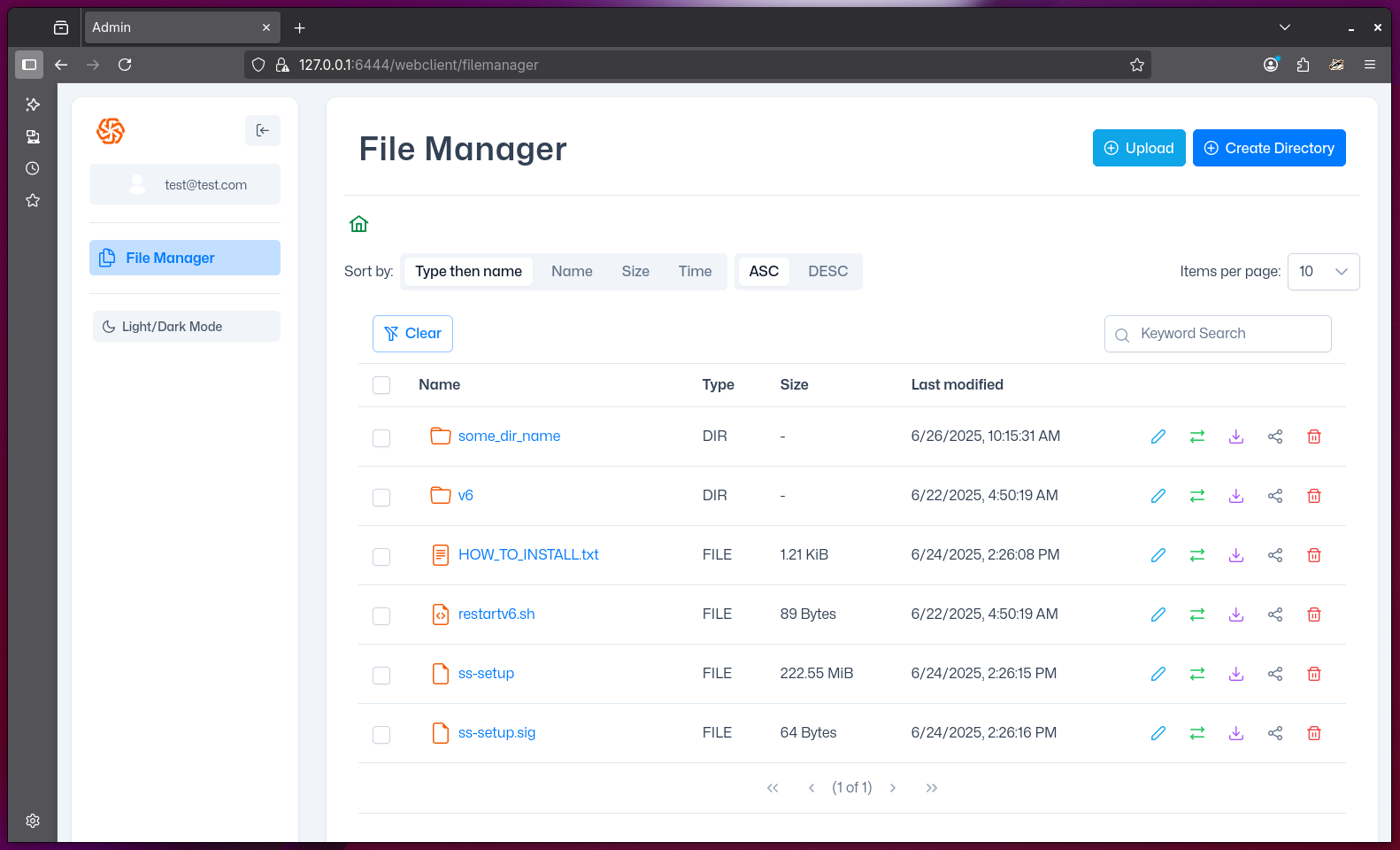
Main Interface Overview
- Sidebar Navigation: Access the File Manager and toggle between Light/Dark mode. Your user info and branding/logo are shown at the top.
- File Manager Panel: View, sort, and search your files and folders. Use the sort options to organize by type, name, size, or modification time.
- Toolbar: Use the "Upload" button to add files or folders, and "Create Directory" to make new folders.
- Search Bar: Quickly find files or folders by name.
- File List: See all files and folders in the current directory, with details like type, size, and last modified date.
- Action Icons: For each file/folder, you can rename, move, download, share, or delete using the icons on the right.
- Pagination: Navigate through multiple pages of files if your directory contains many items.
Key Features & How to Use Them
Uploading Files and Folders:
- Click "Upload" to select one or more files or entire folders for upload.
- Drag-and-drop is supported for file uploads.
- Uploads are asynchronous—continue using WebClient! while large files upload in the background.
- Multi-file and folder uploads are fully supported.
Creating Directories:
- Click "Create Directory" to add a new folder in the current location.
Multi-Select and Bulk Operations:
- Use the checkboxes to select multiple files or folders.
- Perform bulk actions (copy, move, delete, share, download) on all selected items.
- Downloading multiple files at once will create a single ZIP archive for convenience.
File and Folder Actions:
- Rename, move, download, share, or delete any item using the action icons.
- Sharing allows you to generate special links for external access (with optional password protection and expiration).
Sorting and Searching:
- Sort files by type, name, size, or modification time in ascending or descending order.
- Use the search bar to filter files and folders by keyword.
Custom Branding:
- The UI colors, logo, title, and disclaimer are fully customizable for a branded user experience.
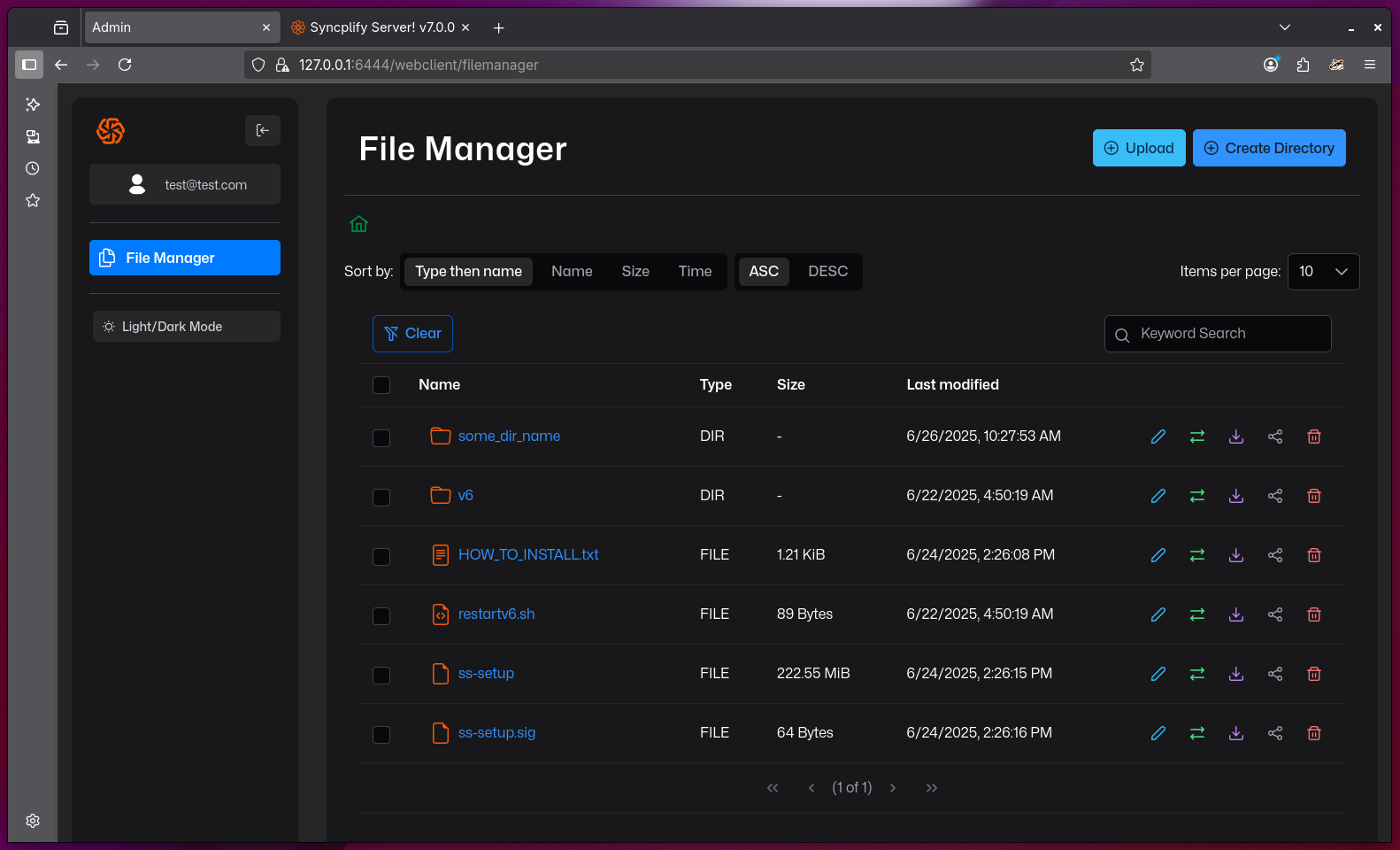
Light/Dark Mode:
- Toggle between light and dark themes for comfortable viewing.
TIP
WebClient! is designed for productivity: you can keep working while uploads complete, and manage large numbers of files with ease using multi-select and bulk actions.
NOTE
All operations are performed securely, and your access is governed by the permissions set by your Syncplify Server! administrator.