
Telegram Bot Settings
This page allows you to configure the built-in Telegram Bot support for Syncplify Server!.
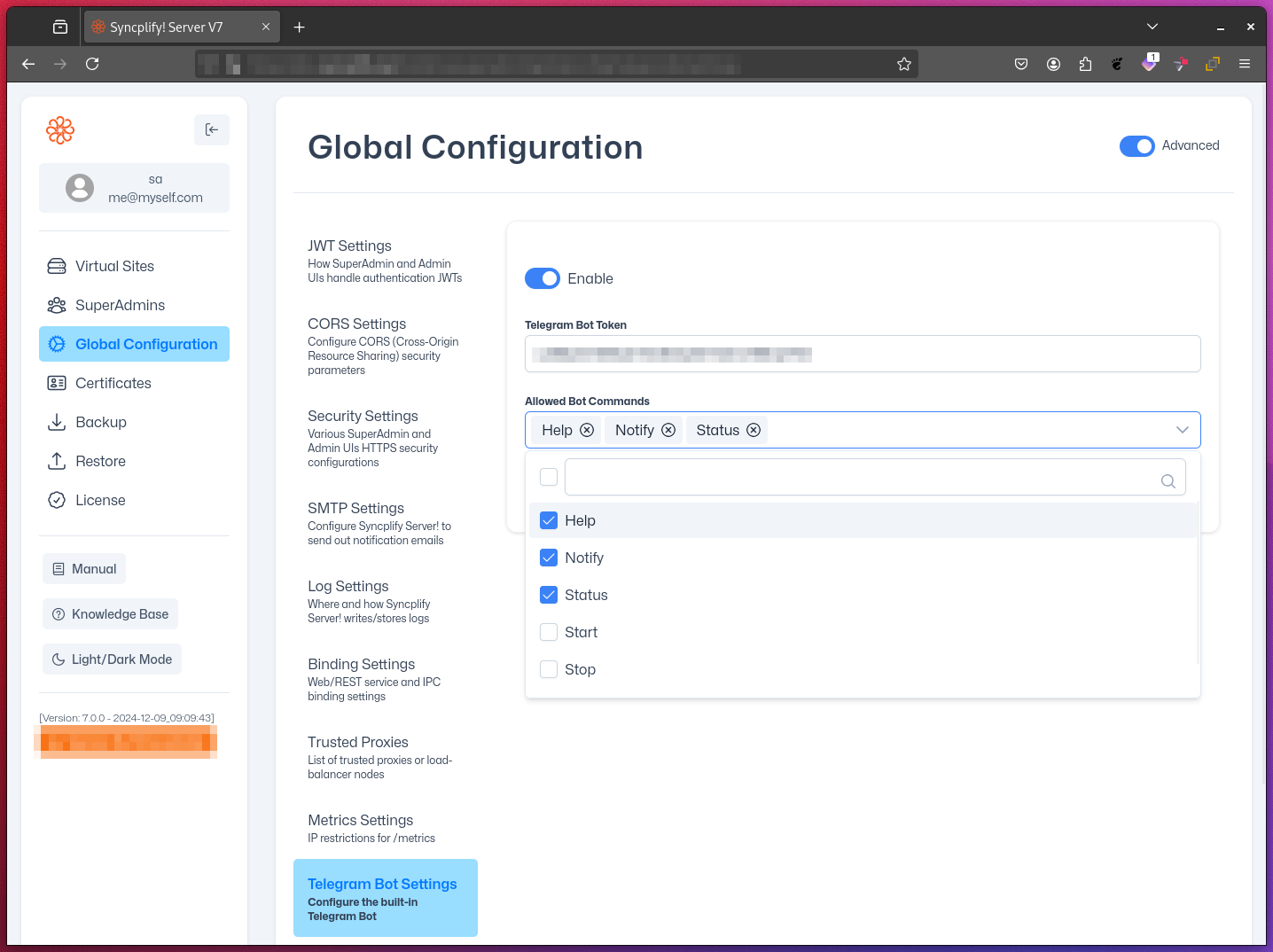
Configuration Options
Enable
- Toggle the Telegram Bot functionality on or off.
- When disabled, the bot will not respond to any commands.
Telegram Bot Token
- Enter the unique token provided by Telegram's @BotFather in the designated field in the UI.
- This token authenticates your bot with Telegram's servers.
Allowed Bot Commands
In the UI, you can enable or disable specific commands your bot can execute:
- Help: Provides assistance and command information.
- Notify: Enables (
/notify on) or disables (/notify off) notifications about server events for the current Telegram Group the Bot is part of. Sent notifications will only include the categories that the SuperAdmin or Admin have subscribed to. - Status: Reports the current status of all virtual sites. Can be called with a specific virtual site ID to only retrieve the status of that particular site (
/status vsite_id). - Start: Starts a virtual site by ID (
/start vsite_id). - Stop: Stops a virtual site by ID (
/stop vsite_id). - Restart: Restarts a virtual site by ID (
/restart vsite_id).
NOTE
The Telegram Bot requires outbound internet access from your Syncplify Server! instance to communicate with Telegram's servers.
Creating Your Own Telegram Bot
- Open Telegram and search for @BotFather.
- Start a chat and send the command
/newbot. - Follow the prompts to name your bot and choose a username.
- Save the API token provided by BotFather.
Giving Bot Access to a Telegram Group
- Add your bot to the desired Telegram group.
- In the group, send the command
/setprivacyto @BotFather. - Choose your bot and select "Disable" to allow it to access group messages.
- In the group settings, ensure the bot has permission to read messages.
WARNING
Carefully consider which commands to enable based on your security requirements and use case.
Troubleshooting
If your Telegram Bot is not working as expected, consider the following common issues:
- Bot does not respond to commands:
- Ensure the bot is enabled in the Syncplify Server! UI.
- Verify that the correct Telegram Bot Token is entered.
- Confirm that the bot has been added to the correct Telegram group and has permission to read messages.
- Check that the server has outbound internet access to Telegram's servers.
- Notifications are not received:
- Make sure the
/notify oncommand has been issued in the group. - Verify that the SuperAdmin or Admin has subscribed to the relevant notification categories.
- Make sure the
- Bot cannot start/stop/restart virtual sites:
- Ensure the bot has the necessary permissions in Syncplify Server! and that the virtual site IDs are correct.