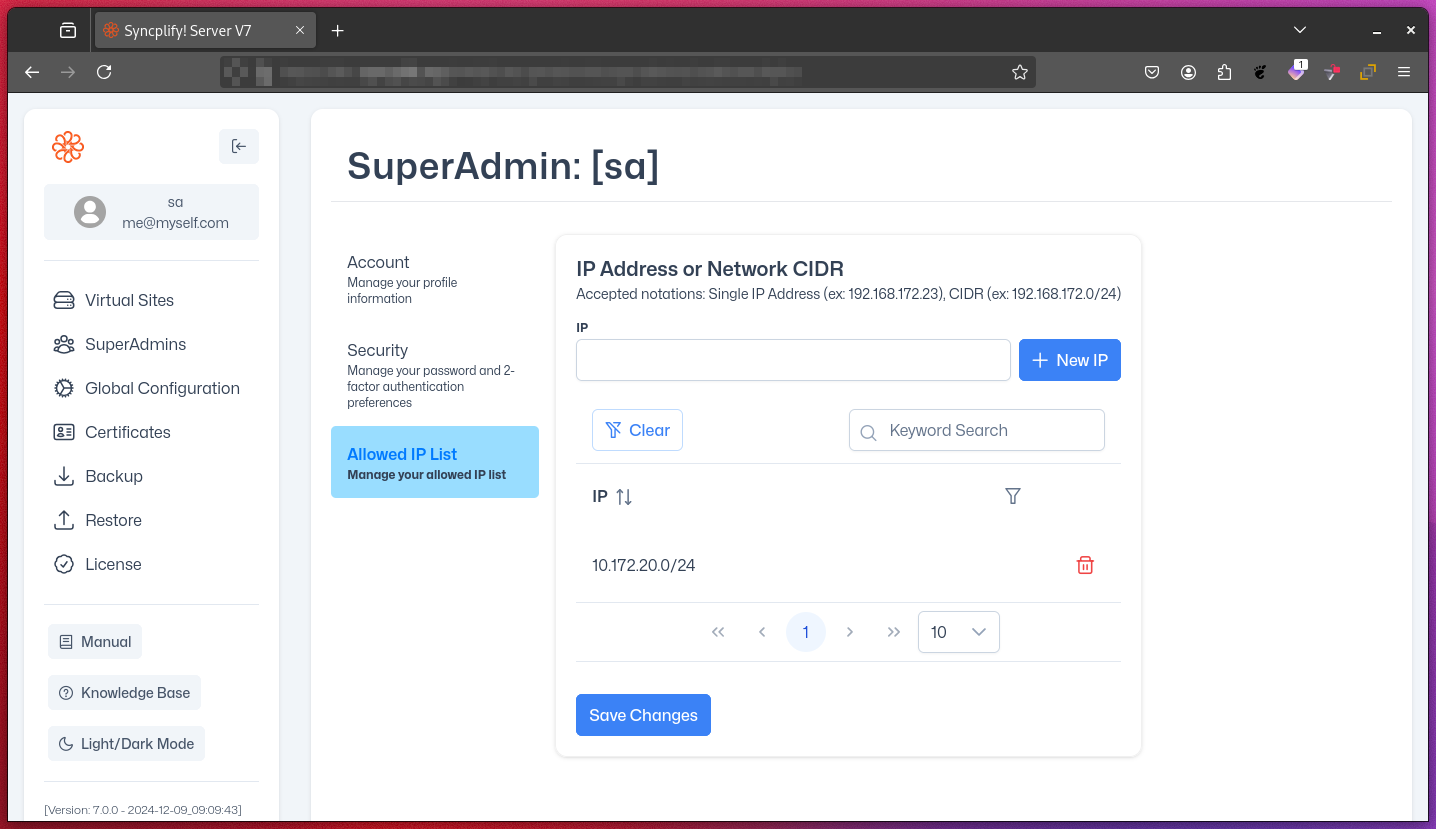
SuperAdmin Profiles
Overview
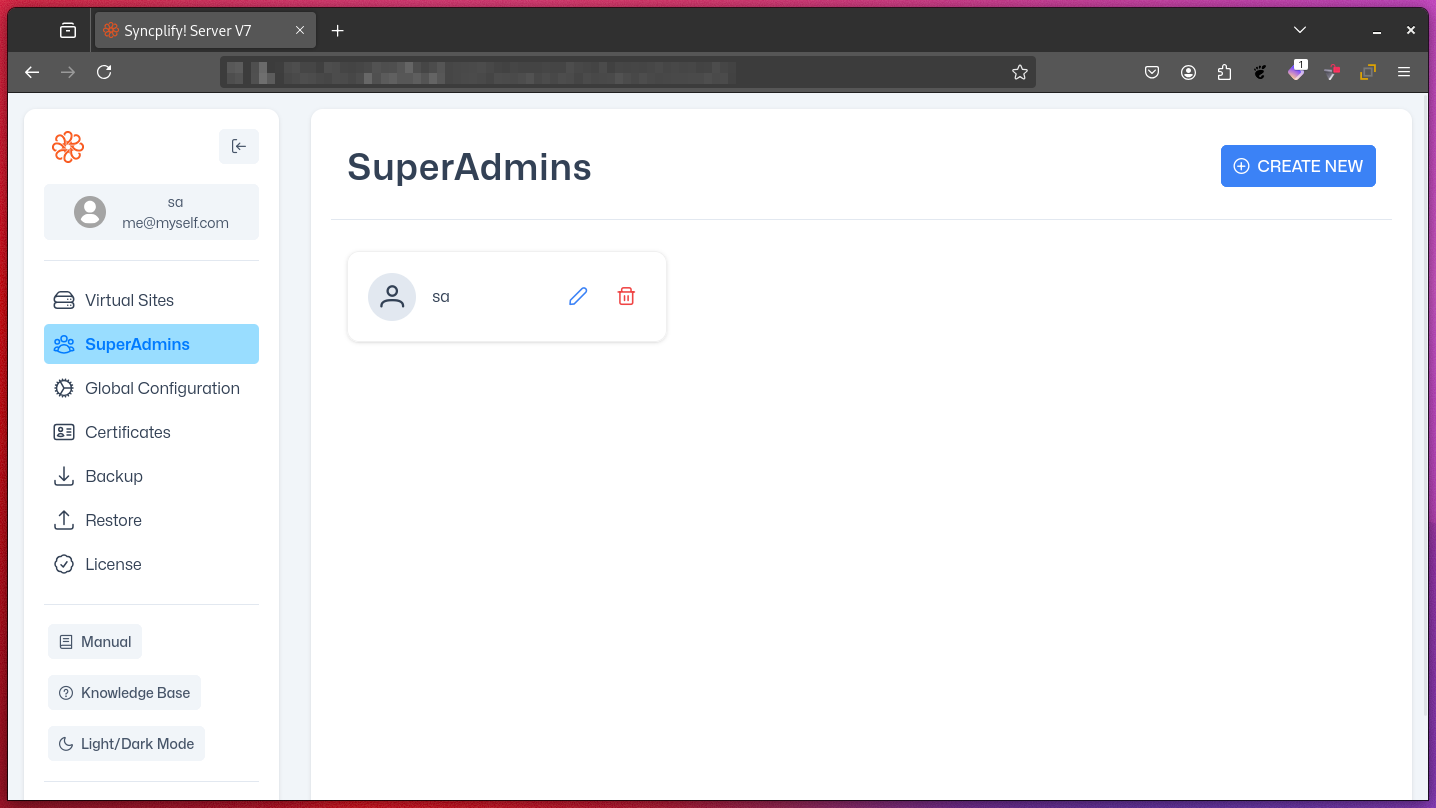
Syncplify Server! allows you to create and manage multiple SuperAdmin profiles. These profiles represent the highest level of administrative access within the system, granting users full control over global software operations.
NOTE
SuperAdmins cannot manage regular users or site-specific settings—these are handled by Admins for each Virtual Site. All SuperAdmin actions are logged for auditing purposes.
Creation and Initial Setup
- The first SuperAdmin profile (username:
sa) is automatically created during initial setup. - You can create additional SuperAdmin profiles as needed after installation.
Key Responsibilities
SuperAdmin profiles are specially designed to handle critical system-wide tasks, including:
Virtual Site Management
- Create new virtual sites
- Start and stop existing sites
- Drain sites in a controlled manner
- Remove sites when no longer needed
- Manage site-specific administrators
SuperAdmin Profile Administration
- Create new SuperAdmin accounts
- Modify existing SuperAdmin profiles
- Reset passwords for other SuperAdmins
- Deactivate or remove SuperAdmin accounts
Core Service Configuration
- Adjust settings for internal web services
- Configure REST API parameters
- Fine-tune Inter-Process Communication (IPC) settings
- Set up and manage email service integration
- Implement and update security protocols for all services
Service Integrity and Backup
- Initiate system-wide backups
- Restore configurations from backups
License Management
- Request a TRIAL license
- Enter and activate software licenses (online or offline)
Security Considerations
- Regularly rotate SuperAdmin passwords to maintain security.
- Use strong, unique passwords for each SuperAdmin account.
- Implement two-factor authentication (2FA) for SuperAdmin logins. Two-factor authentication is strongly recommended for all SuperAdmin accounts.
- Regularly audit SuperAdmin activities to ensure system integrity.
NOTE
It is highly recommended to create multiple SuperAdmin profiles for several reasons:
- Redundancy: If one SuperAdmin forgets their credentials, another can assist in recovery.
- Audit Trail: Multiple profiles allow for better tracking of administrative actions.
- Emergency Access: Ensures that critical system access is never completely lost.
Creating a new SuperAdmin
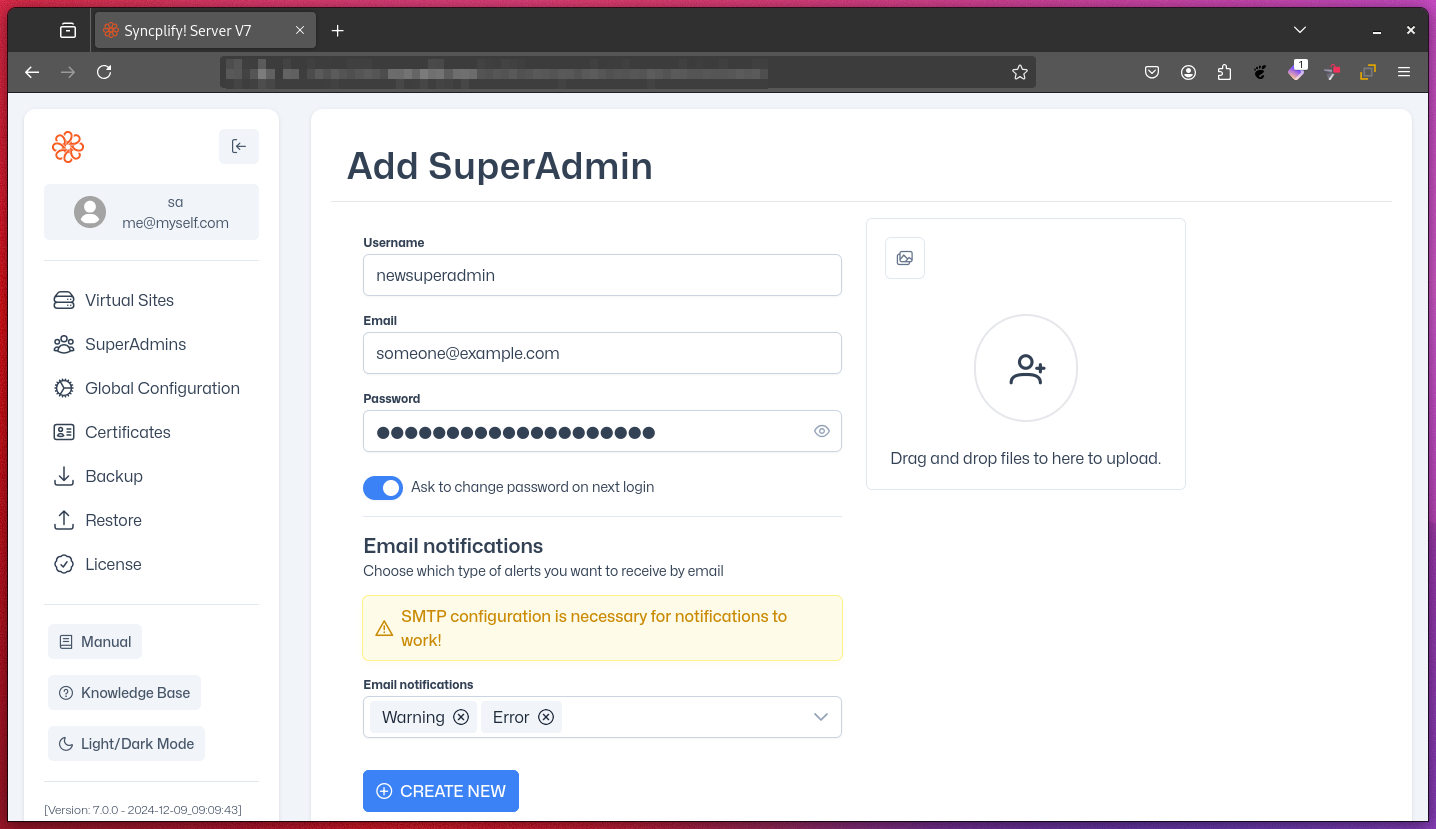
You can create a new SuperAdmin account by clicking on the Create New button in the top-right corner of the SuperAdmins page in the SuperAdmin UI. You will be presented with a form like this:
IMPORTANT
Please note that, regardless of the SuperAdmin account configuration, notifications via email will only be sent if the SMTP settings under the Global Configuration section are correctly configured.
Editing a SuperAdmin account
Any SuperAdmin can edit all settings of any other SuperAdmin account. A SuperAdmin may delete any other SuperAdmin account, but cannot delete its own account.
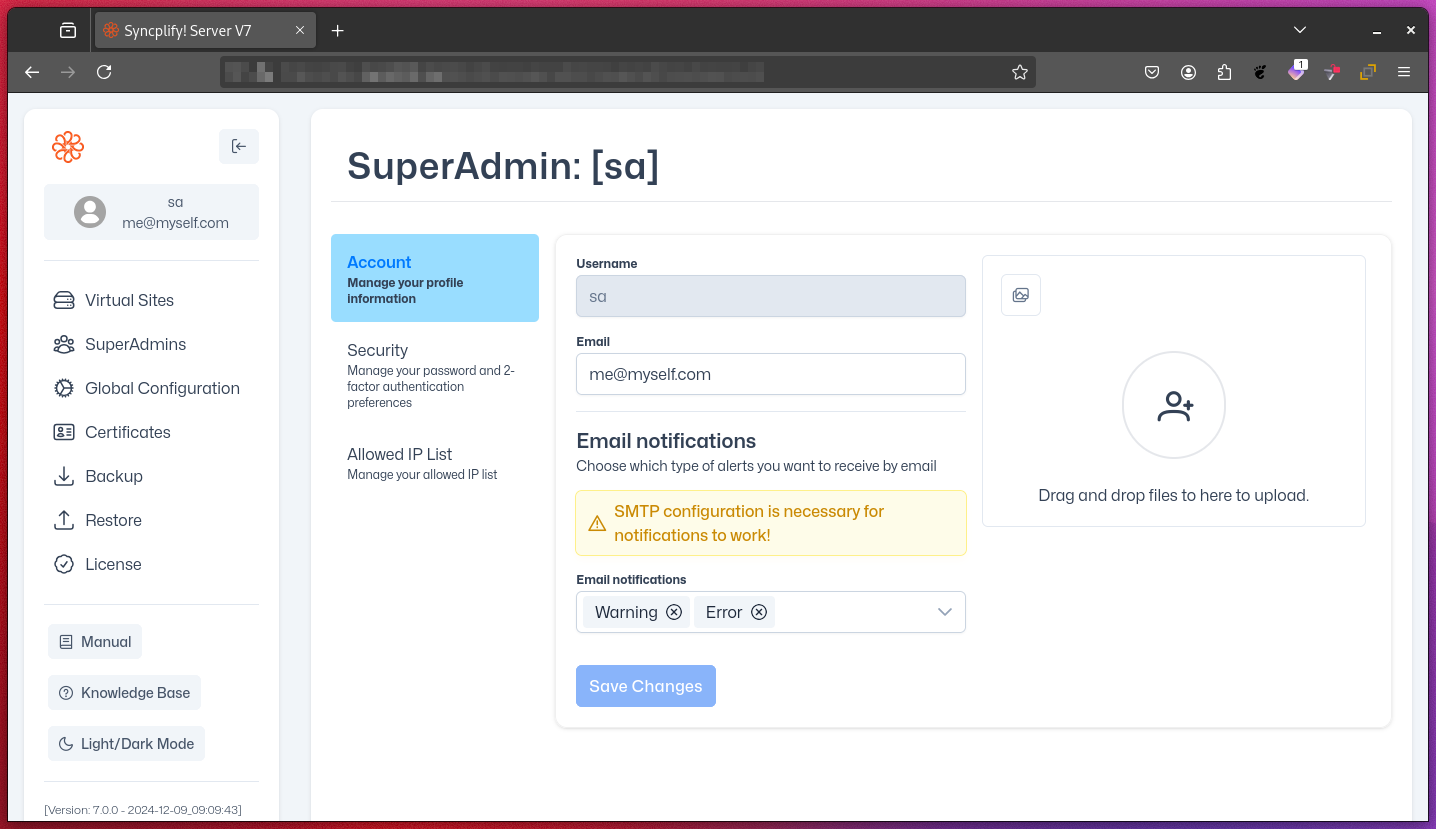
Besides the main settings, you can also edit the account's authentication settings (including password and 2FA).
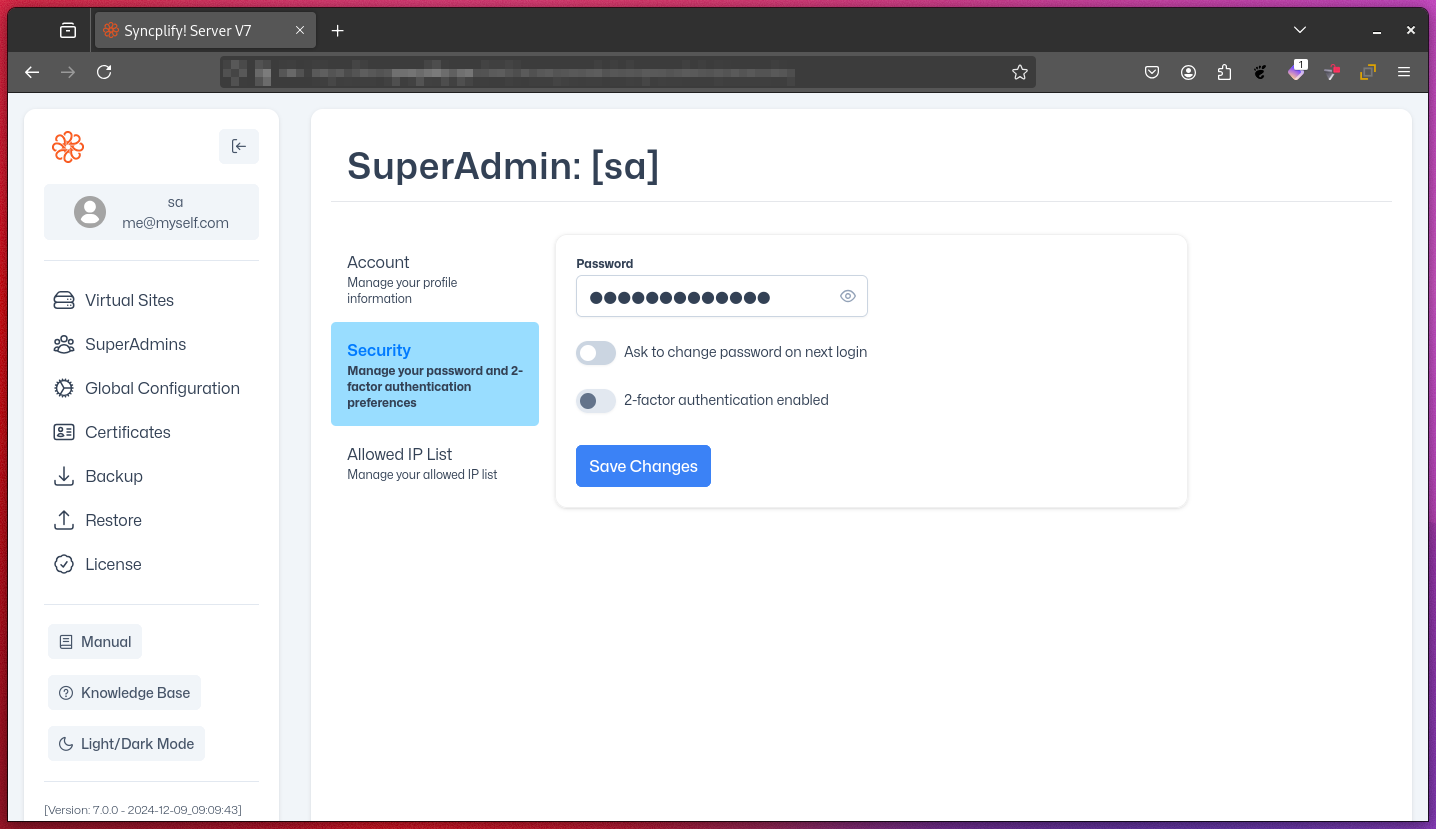
You can also apply IP-based restrictions (by individual IP address or entire networks) to limit the source addresses from which a SuperAdmin can log in.