
Secrets
The Secrets page provides a secure store for sensitive values, like API keys, passwords, encryption passphrases, and any other credentials that your SyncJS scripts need at runtime.
IMPORTANT
The Secrets feature is available as of Syncplify Server! v7.0.16. Users running an older version do not have access to this feature.
Why use the secret store?
Hard-coding sensitive values directly inside scripts is a security risk: scripts are stored in the database and remain visible to anyone with Admin access. The secret store keeps values encrypted at rest and completely hidden from the Admin UI.
Secret values are write-only from the UI perspective: once saved, their plaintext is never sent to the browser or shown on screen. Only scripts running inside the worker process can retrieve them by name using GetSecret("name").
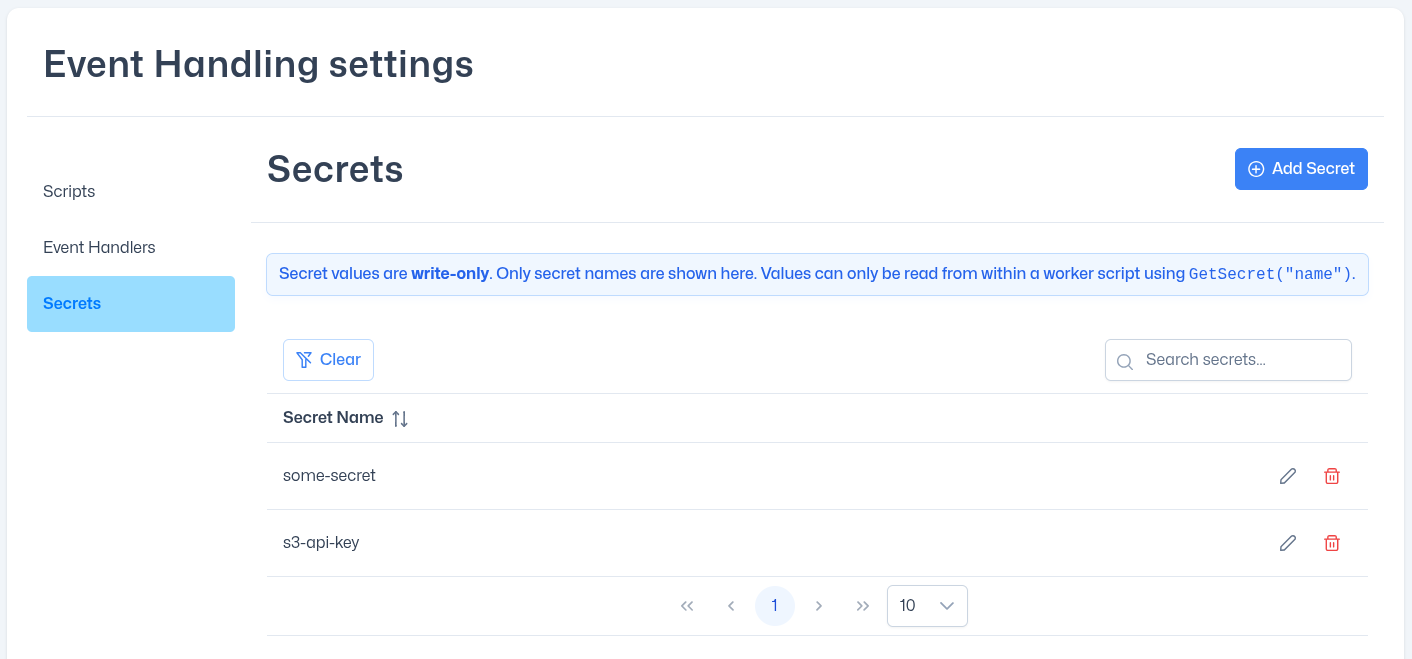
The secrets list
The page shows all secret names defined for the current virtual site in a searchable, sortable table. Values are never displayed.
Each row provides two actions:
| Action | Description |
|---|---|
| Update value (pencil icon) | Overwrites the secret's stored value with a new one. The name remains unchanged. |
| Delete (trash icon) | Permanently removes the secret. Any script that calls GetSecret("name") will receive an empty string after deletion. |
Adding a secret
Click Add Secret to open the dialog. Fill in:
- Name: a concise, unique identifier (e.g.
my-api-key,sftp-passphrase). Names are case-sensitive and cannot be changed after creation. If you need to rename a secret, delete it and create a new one. - Value: the sensitive string to store. The field is masked by default but can be toggled visible with the eye icon.
Click SAVE to encrypt and persist the secret.
Updating a secret
Click the pencil icon next to a secret's name. The dialog shows the secret name as read-only and prompts for a new Value. Enter the replacement value and click UPDATE.
NOTE
Updating a secret overwrites the previous value immediately and permanently. There is no undo or version history.
Deleting a secret
Click the trash icon next to a secret's name and confirm the operation when prompted. The secret is permanently removed.
WARNING
Deleting a secret that is actively referenced by a script will cause GetSecret("name") to return an empty string, which may cause unexpected script behaviour. Review and update all scripts that reference the secret before deleting it.
Using secrets in scripts
After defining a secret on this page, reference it from any SyncJS script using GetSecret:
var apiKey = GetSecret("my-api-key");
if (apiKey == "") {
  Log("ERROR: secret not found, aborting.");
} else {
  var hc = new HttpCli();
  var res = hc.Url("https://api.example.com/notify")
               .Header("Authorization", "Bearer " + apiKey)
               .Timeout(15)
               .Get();
  Log("Response status: " + res.StatusCode());
}
Secrets are especially useful when combined with the OTFE feature of remote client objects, to keep encryption keys out of script source code:
var cli = new SftpClient();
cli.Options.OTFE    = true;
cli.Options.OTFEKey = GetSecret("transfer-encryption-key");
See the GetSecret reference for full details, and the remote client objects section for more on OTFE and transfer options.