
Managing users
User management is a core function of Syncplify Server! and is essential for controlling access, permissions, and security. The Users section, together with the VFS section, is one of the most frequently used areas in the Admin UI. Here, you can manage all users (and, depending on your edition/license, also groups) for your Syncplify Server! instance.
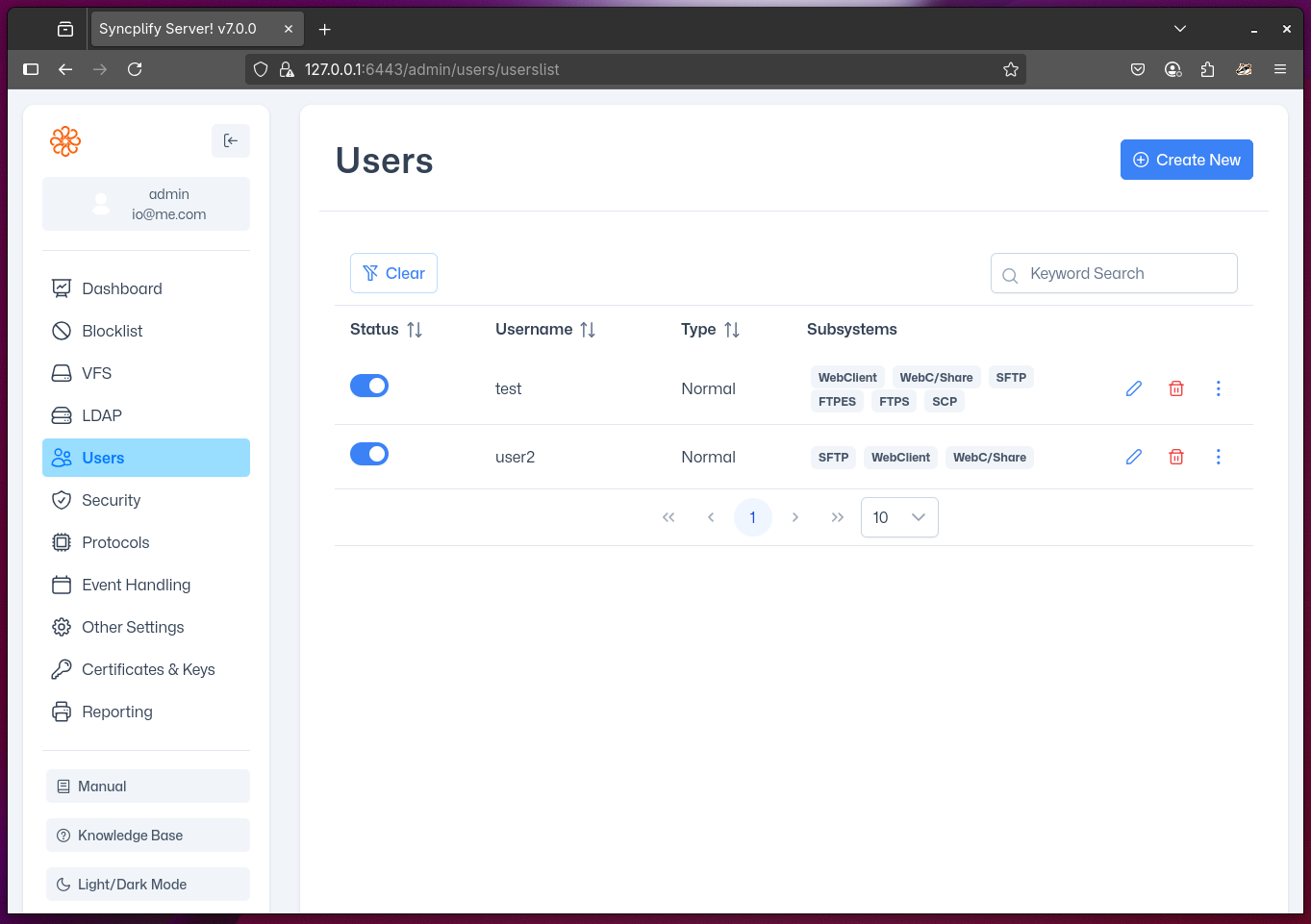
Syncplify Server! provides highly granular user profile configuration. You can define each user's home VFS (the starting point for their file access), add virtual folders, set permissions (and permission overrides), and configure many other settings as described below.
User settings are grouped into sub-sections. When you click a username in the list, you enter edit mode for that user profile. Each sub-section controls a specific aspect of the user's information and configuration:
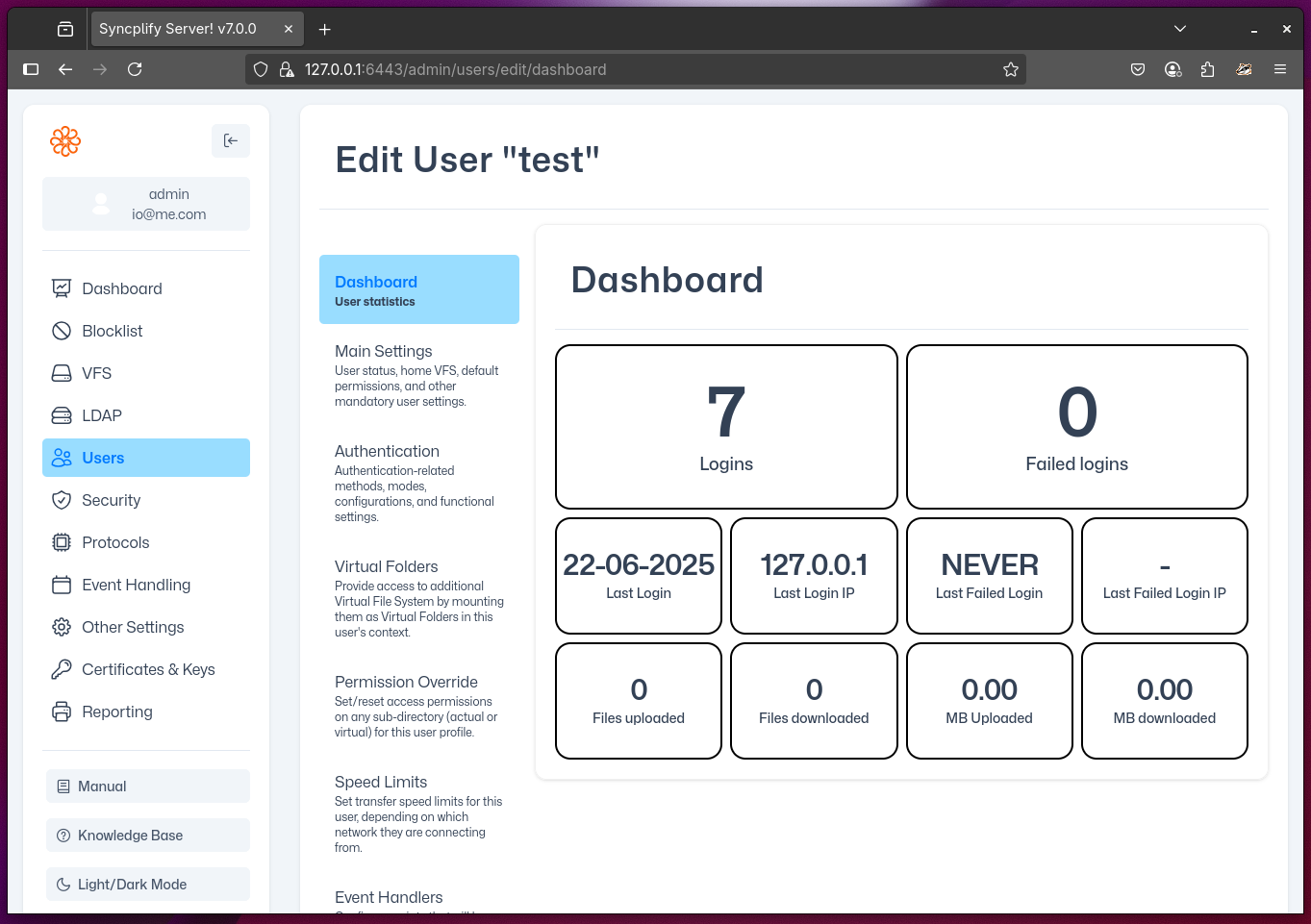
Main settings
This section allows you to configure the account status (including auto-enable/disable) and, most importantly, the user's home VFS—the virtual file system the user will start in when they connect to the server.
You can also define the base set of permissions for the user's home VFS, as well as which protocol handlers this user is allowed to use.
Directory and File Permissions
| Permission | Explanation |
|---|---|
List | Permission to list a directory |
Make | Permission to make/create a directory |
Rename | Permission to rename a directory or a file |
Delete | Permission to delete a directory or a file |
Edit_Metadata | Permission to edit a directory or a file's metadata (like ACL, chmod, chown, etc.) |
Get | Permission to download a file from the server to a client |
Put | Permission to upload a file from a client to the server |
Modify | Permission to modify a file (e.g., upload a file, or portions of it, from a client to the server, over an existing file) |
Symlink | Permission to create and resolve symlinks (symbolic links) |
Protocol Handlers
| Protocol | Explanation |
|---|---|
SSH2_Shell | Allows the user to run a remote shell on the server in the context of the system service (or systemd) with unlimited/unrestricted administration privileges |
SSH2_Command | Similar to SSH2_Shell but allows running individual commands without opening a full shell |
SFTP | The official SSH2-based secure file transfer subsystem; allows file transfer and management without giving shell access to the client |
SCP | Alternative SSH2-based file transfer subsystem, more lightweight and limited than SFTP |
FTP | File Transfer Protocol, a well-known but unencrypted/insecure file transfer protocol |
FTPS | Same as FTP but implicitly encrypted via SSL/TLS (encryption layer is negotiated upon connection) |
FTPES | Same as FTP but explicitly encrypted via SSL/TLS (encryption layer is negotiated after a plain connection has already been established, and when the client sends the StartTLS command to the server) |
HTTPS | Enables the WebClient! subsystem (a full-featured, web-based file transfer and sharing UI) of your Syncplify Server! |
HTTPS_Sharing | Enables the WebClient! subsystem's "sharing" functionality which adds the ability to create links to files/folders that can be shared externally with various access restrictions |
Authentication
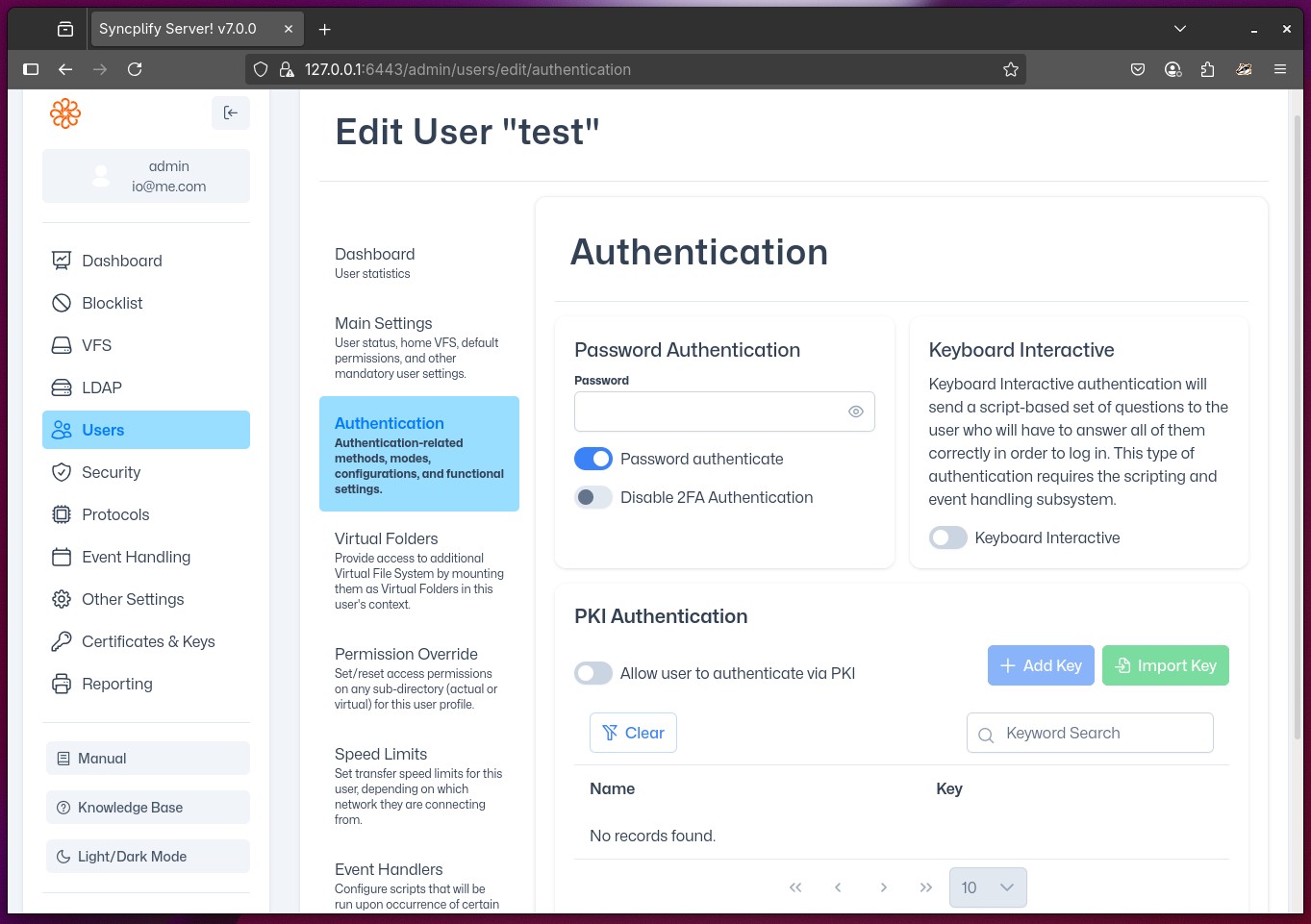
This sub-section includes all the settings necessary for user authentication.
NOTE
Authentication Phases and PKI Authentication only apply to SSH2 and its subsystems (SFTP, SCP, etc.). All other protocol handlers (FTP, HTTPS, etc.) only support password authentication.
Virtual folders
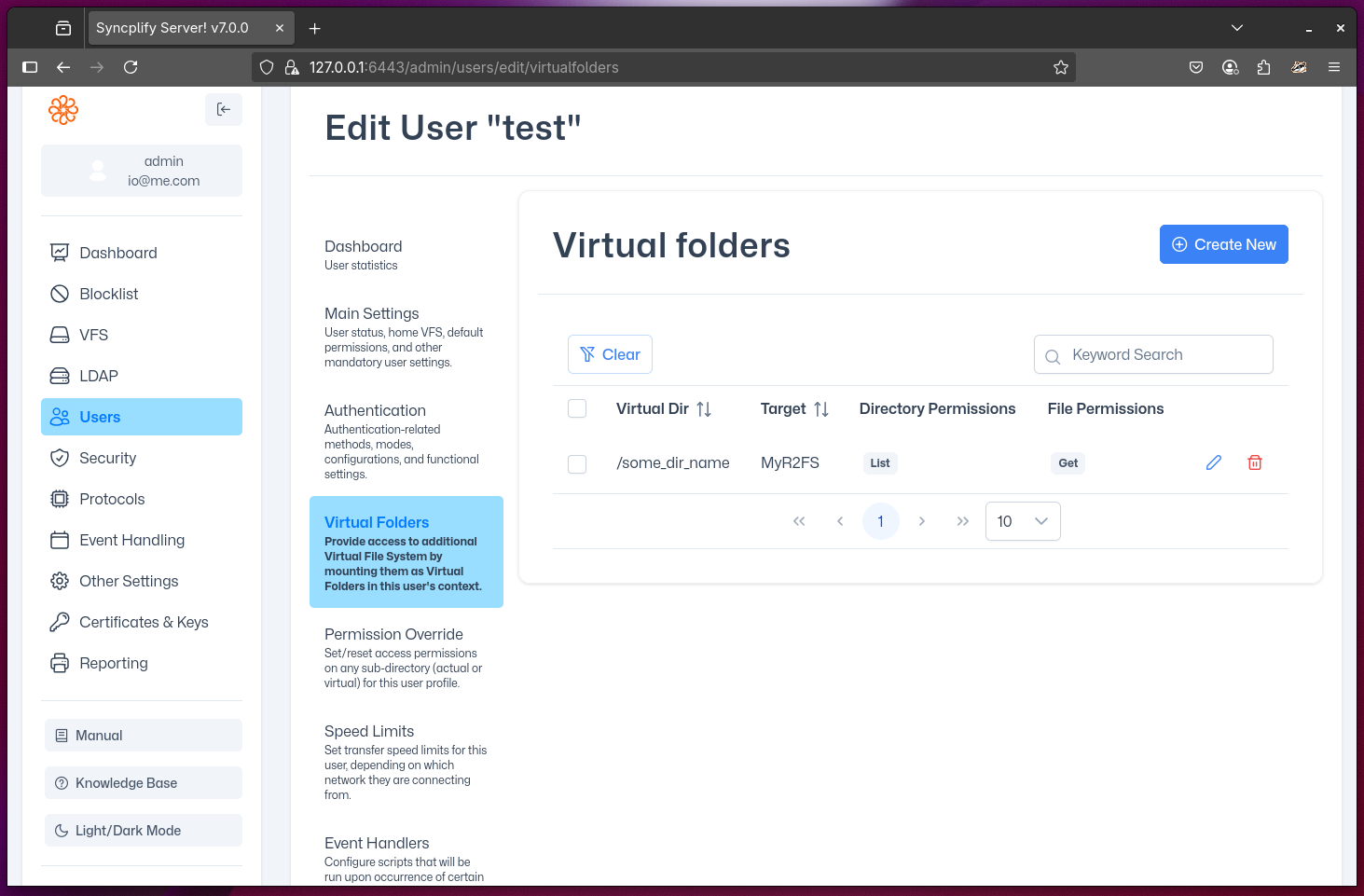
This section allows you to mount other virtual file systems (VFS) as virtual folders/directories under a user's home. Each virtual folder can use a different VFS as its back-end and can define its own permissions and visibility rules.
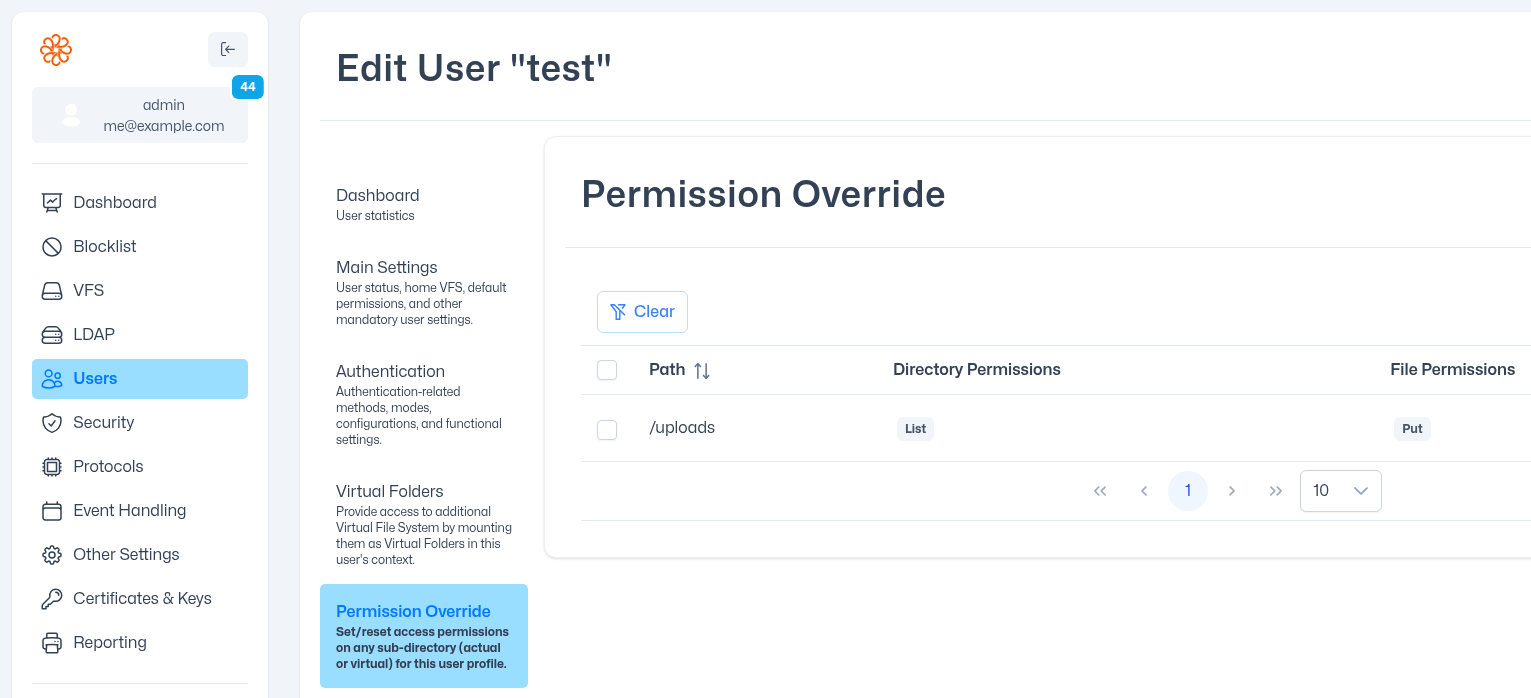
Permission override
This section allows you to configure specific permissions on actual sub-folders (sub-directories) that exist under the user's home VFS.
WARNING
Do not use this section to override permissions on Virtual Folders, as they already come with their own set of permissions. Use this section only to modify permissions on actual folders that exist inside the home VFS.
Speed limits
This section allows you to define speed limits that apply when this particular user account connects from certain pre-defined IP addresses or networks (CIDR).
Event handlers
Depending on the edition (license) of Syncplify Server! you're running, you may or may not have this section. If present, you can write scripts to customize your Server!'s behavior and trigger them when certain events occur during a session for the individual user account you're editing.
For example, you can trigger a script when this user connects or uploads a file. Such a script may send a notification email to an administrator or perform more complex operations.
Network access limits
Syncplify Server! allows you to define (optional) specific network access limits for each user account. When defined, these limits only allow this particular user profile to connect to your Syncplify Server! from these specific network sources.
Troubleshooting & Tips
- If a user cannot access their expected folders, double-check the home VFS, virtual folder mappings, and permission overrides.
- Remember: permission overrides do not apply to virtual folders—set permissions directly on the virtual folder instead.
- For authentication issues, verify the protocol handler and authentication method match the user's intended access.
- Use the event handler section to automate notifications or custom actions for specific users.
- Always review user permissions and protocol access to ensure security and compliance with your organization's policies.