
Managing your own SuperAdmin account
A very important, though sometimes overlooked, part of the SuperAdmin UI is the menu that allows a logged-in SuperAdmin to manage several aspects of their own account.
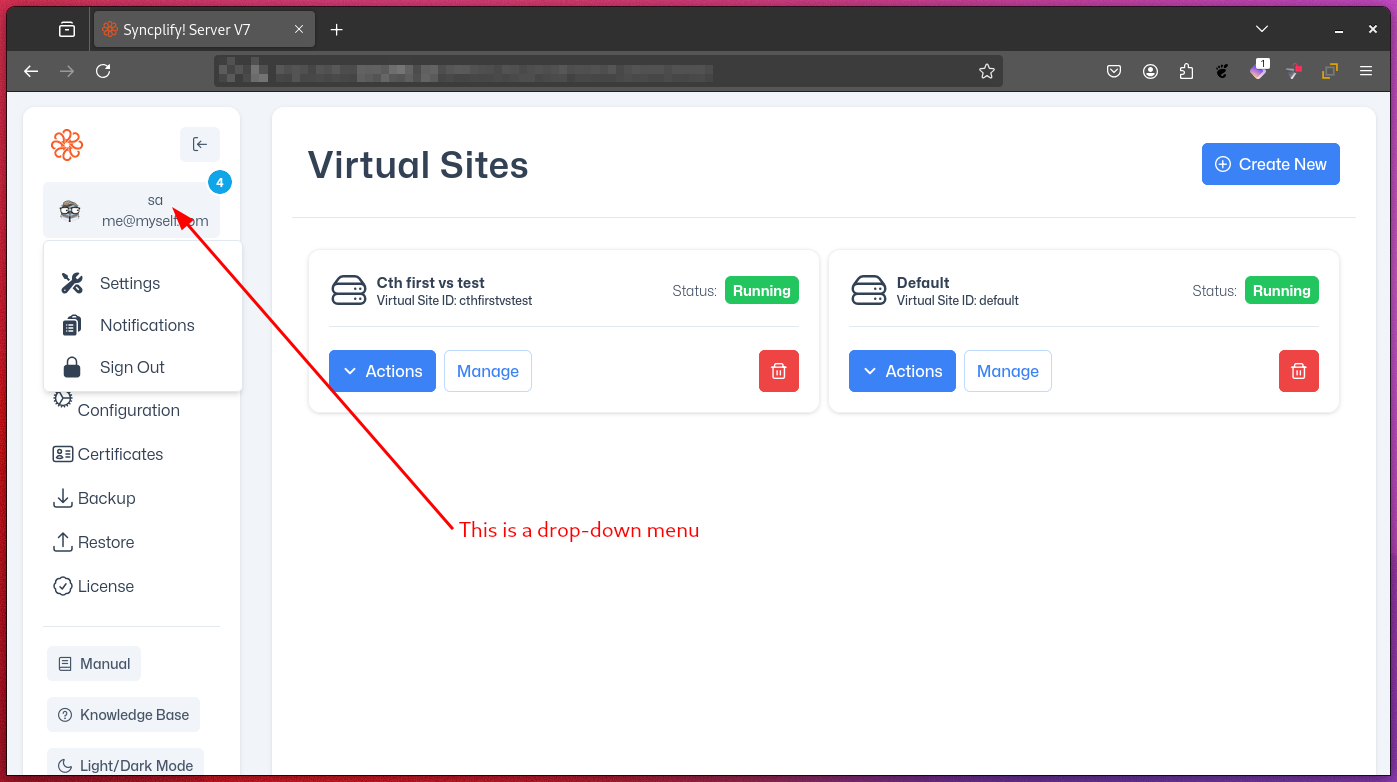
By clicking the button shown above, you can access a drop-down menu with the following options:
- Notification area (a small badge appears in the top-right corner when you have unread notifications)
- An area to modify certain aspects of your account
- The
Sign Out(Logout) function: always remember to sign out at the end of your SuperAdmin session for security reasons
Notifications
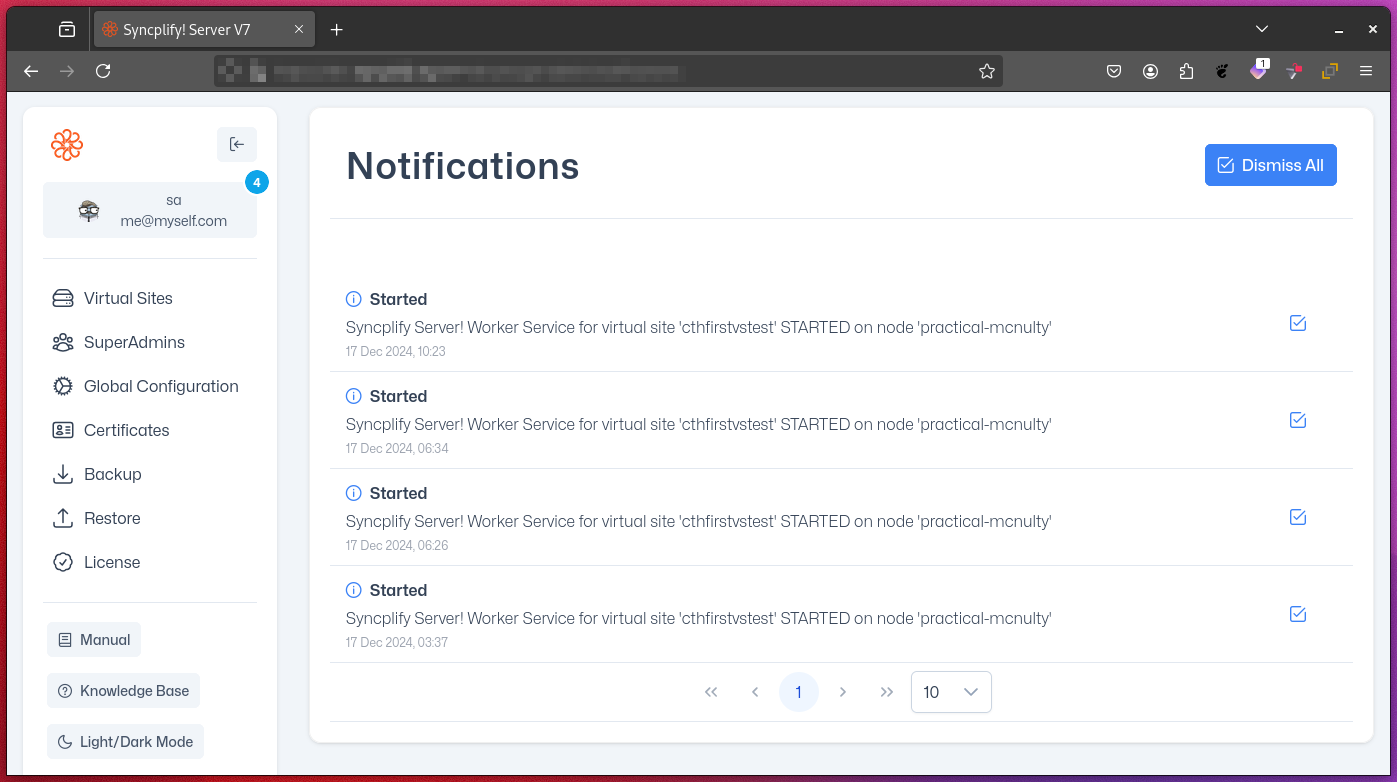
When certain events occur (such as start/stop, certificate expiration, and more), Syncplify Server! notifies relevant accounts in several ways. Even if SMTP (email) and the Telegram Bot are not configured, any notifications for you will always be available in this UI section.
After reading notifications, you can dismiss them individually or dismiss all at once using the button in the top-right corner.
Manage your account details
This area is divided into three sub-sections:
Account
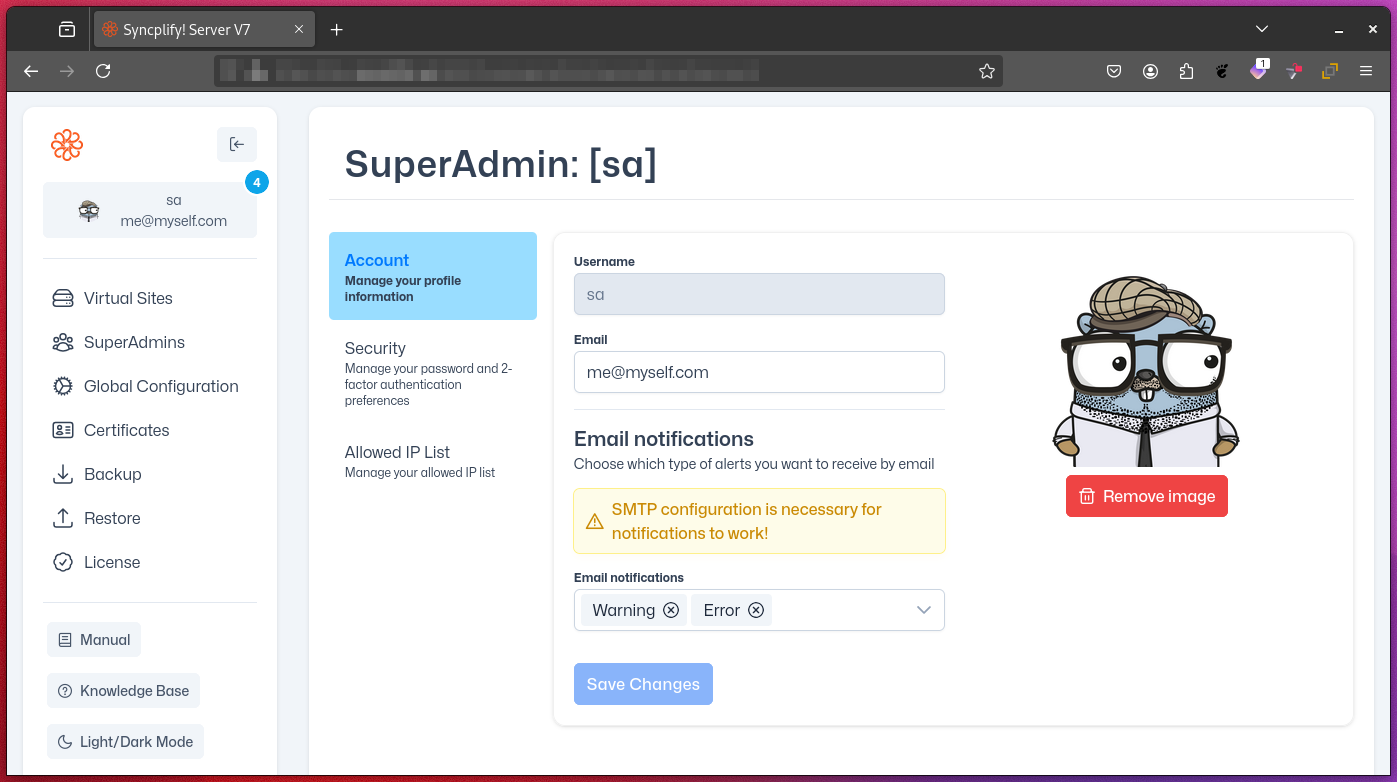
Edit details of your own account, such as your picture, email address, and the types of notifications you wish to receive via email (when the SMTP settings are properly configured).
Security
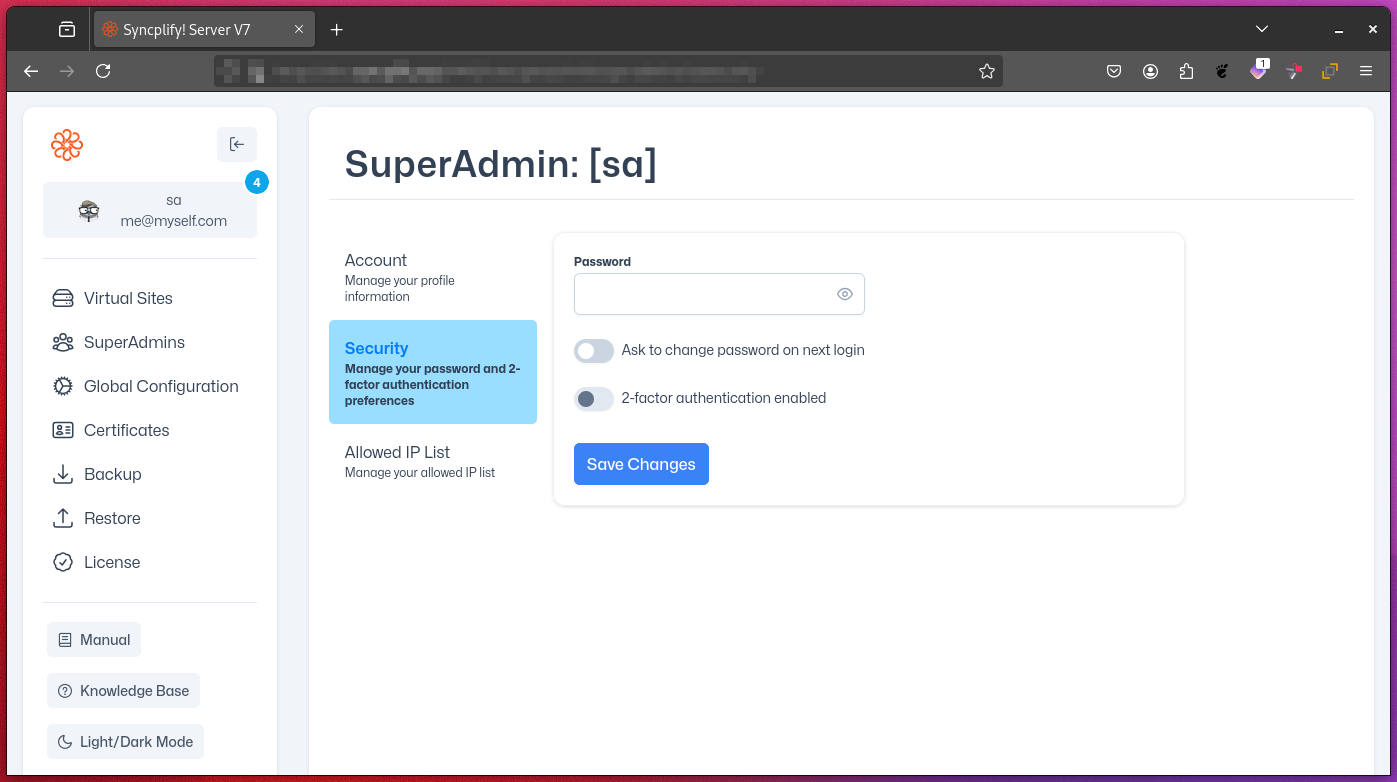
Change your password, require a password change at your next login, and enable or disable two-factor authentication for your account.
Allowed IP List
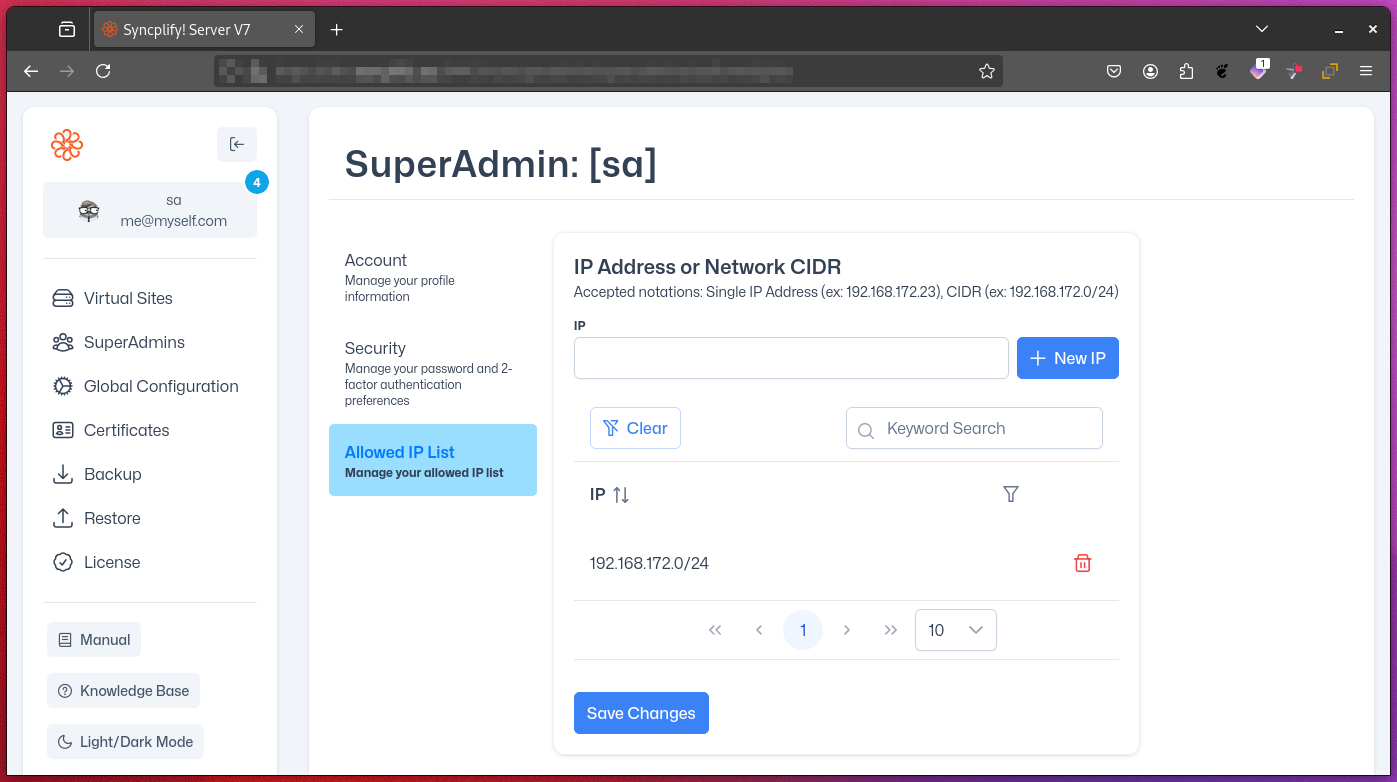
To further improve security, you may want to configure IP restrictions on your own SuperAdmin account. If the list is empty, you can log in from anywhere. Once it contains at least one item, access is restricted to only those IP addresses and/or networks.
This list supports both IPv4 and IPv6. Items in this list can be individual IP addresses or networks/subnets in CIDR notation.