
Editing a Virtual Site
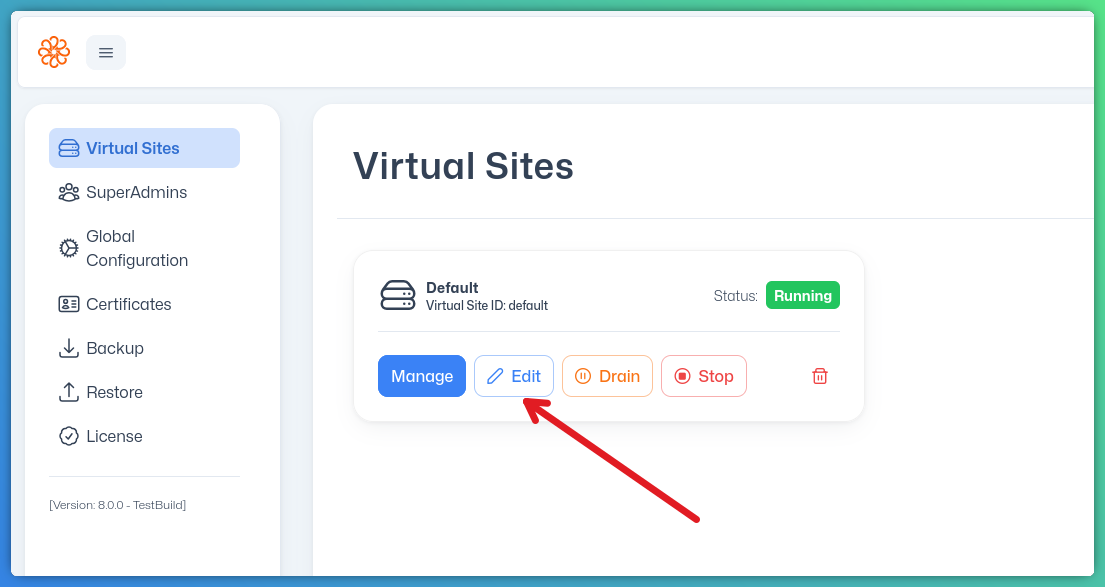
Once a virtual site has been created, its configuration can be modified at any time from the SuperAdmin UI. To open a virtual site for editing, click the Edit button in the Virtual Site's card.
NOTE
Editing a running virtual site does not interrupt active client sessions. Most configuration changes take effect immediately without requiring a restart. Changes to protocol bindings (IP addresses and ports) do require the virtual site to be restarted before they take effect.
General Information
The first tab allows you to update the virtual site's basic settings:
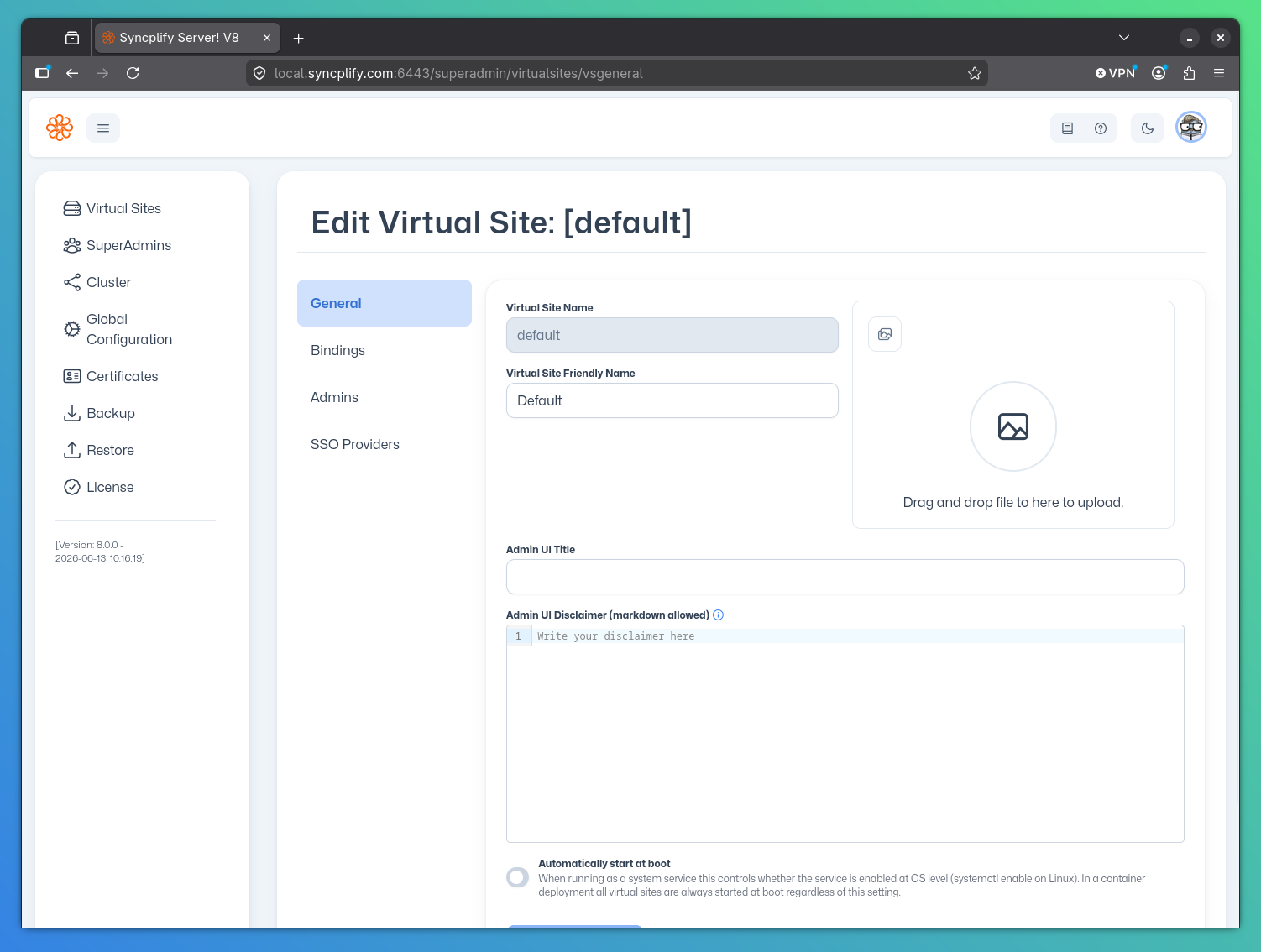
- Name: The friendly display name for the virtual site.
- ID: The alphanumeric identifier. The ID cannot be changed after the virtual site is created.
- Admin UI Customizations: Certain aspects of the Admin UI can be customized on a per-virtual site basis. These settings include:
- Custom Logo: Upload a custom logo image to be shown in the Admin UI when managing this virtual site.
- Custom Title and Disclaimer: Set a custom title and disclaimer for this virtual site. The disclaimer supports Markdown formatting.
Protocol Bindings
The bindings tab lets you update which IP addresses and ports each protocol handler listens on:
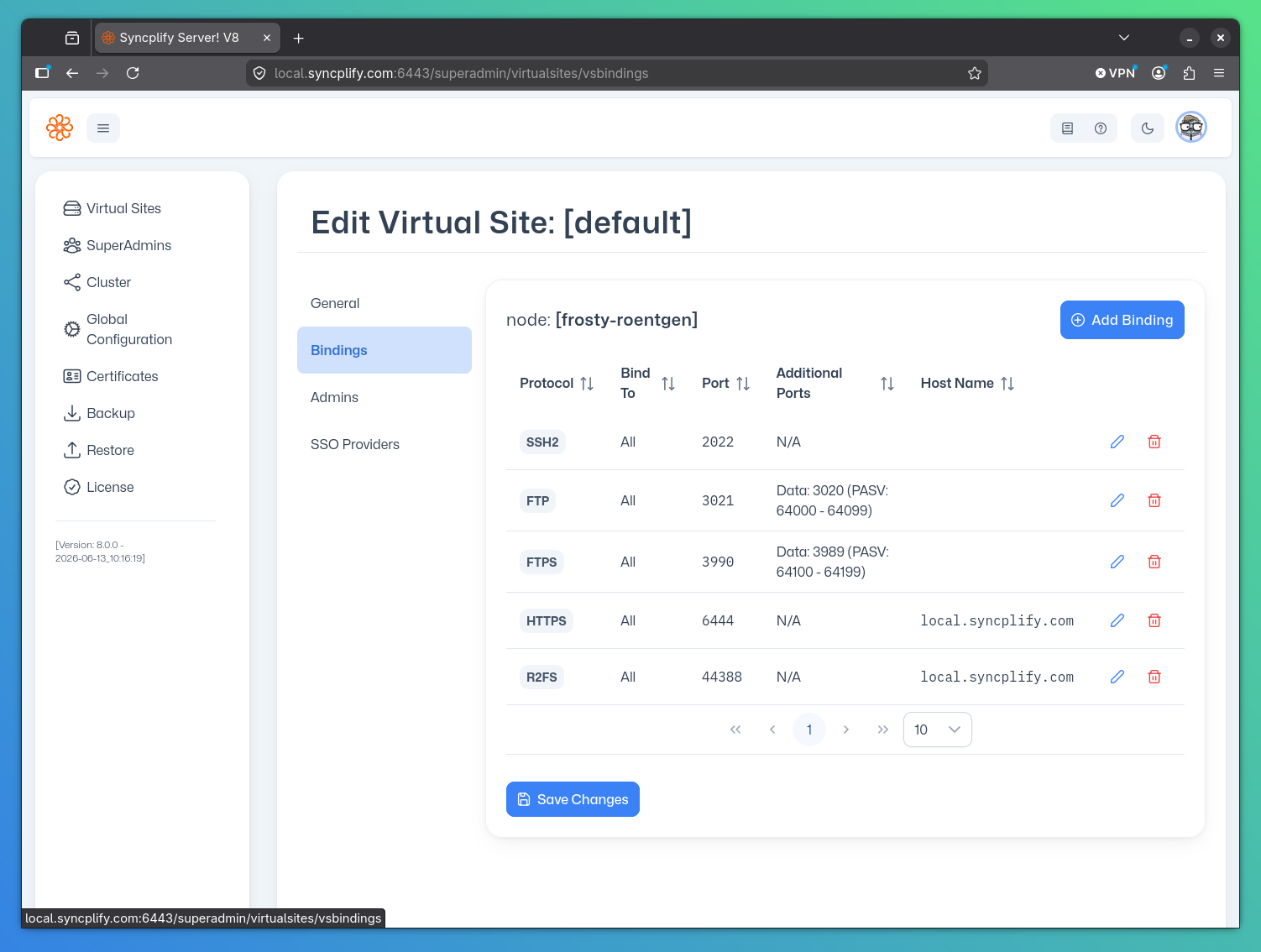
- SSH/SCP/SFTP: The port (typically 22 or 2022) on which SSH-based protocols are served.
- FTP(E/S): The control port, data port, and passive port range for FTP family protocols.
- HTTPS (WebClient!): The port and host name for the WebClient! web interface.
- R2FS: The port and host name for Syncplify's Reverse Remote File System binding.
NOTE
Leaving the IP address empty or using 0.0.0.0 means "all IP addresses available on any network interface attached to the system."
Small warning icons appear next to a binding until all required parameters are correctly filled in. For TLS-enabled protocols, a host name is required for SNI to function correctly. Warning icons disappear once the binding is fully configured.
IMPORTANT
Changes to protocol bindings require a virtual site restart to take effect.
Admin Profiles
The admins tab lists all administrative profiles associated with this virtual site. Here you can:
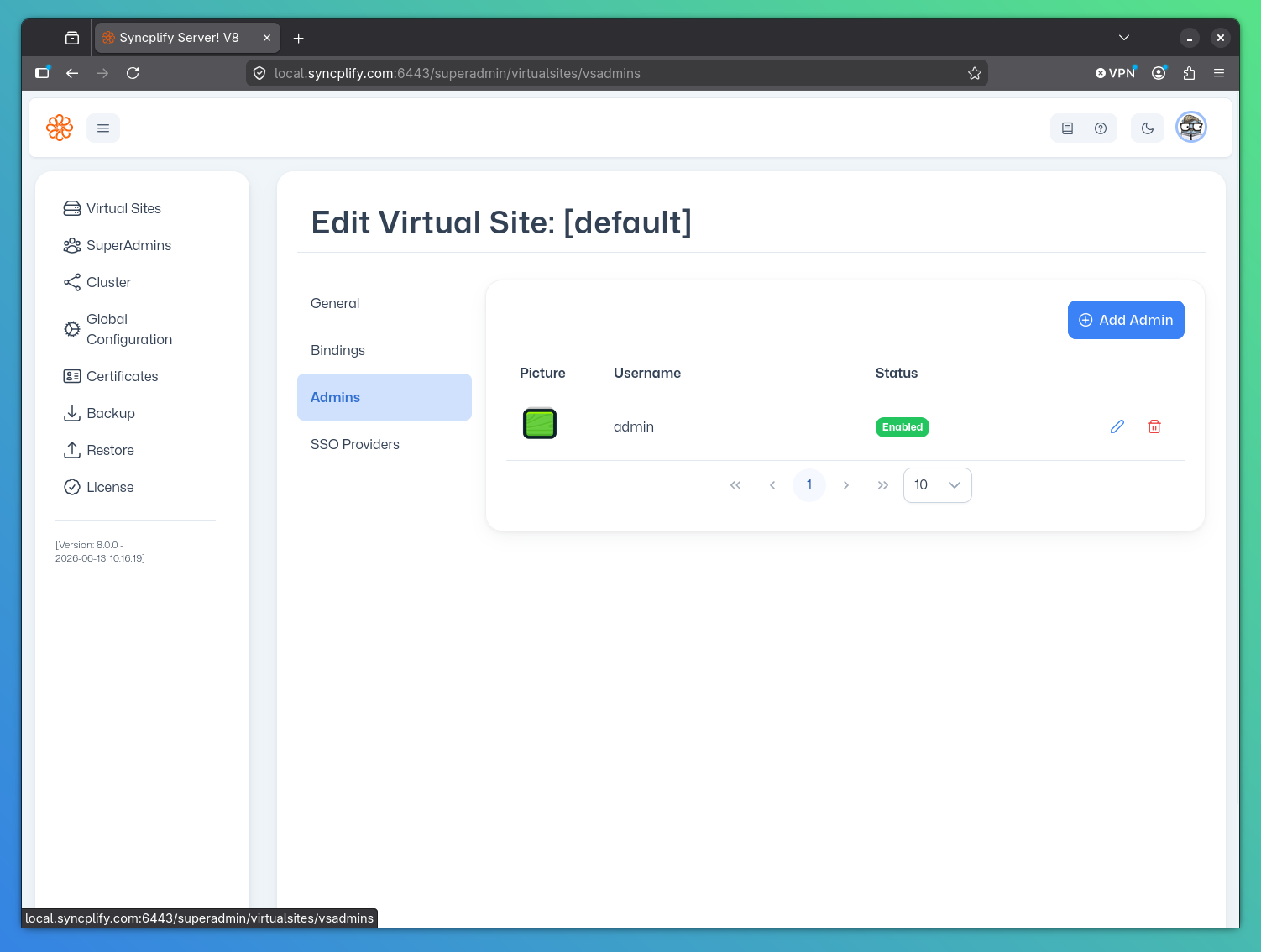
- Add new Admin profiles
- Edit existing Admin profiles (username, email, password, picture, permissions)
- Remove Admin profiles
CAUTION
Removing an Admin profile is permanent. If you remove the last Admin profile for a virtual site, you will need to create a new one before that virtual site can be managed via the Admin UI.
SSO Providers (OIDC)
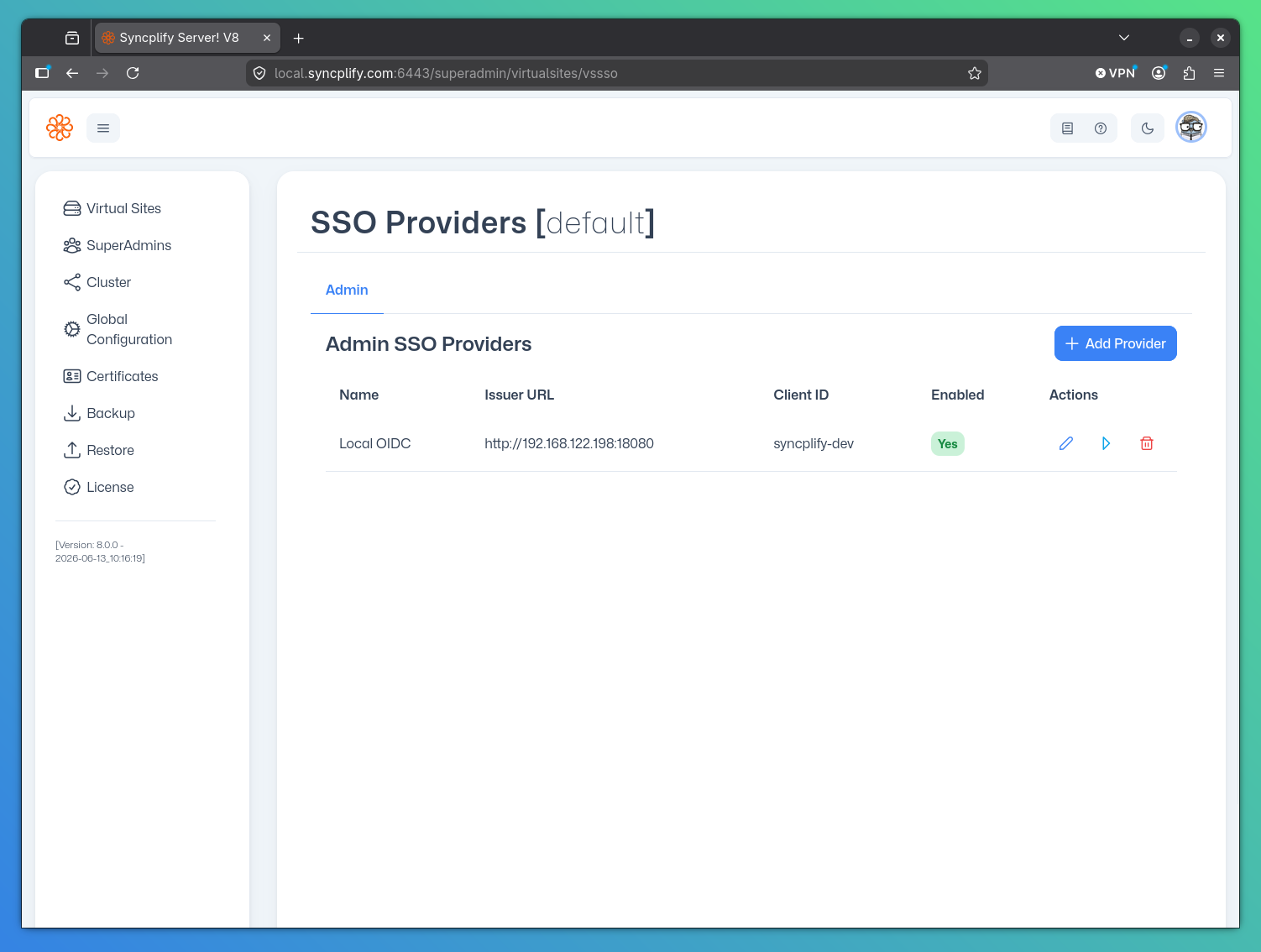
The SSO Providers tab allows you to configure OpenID Connect (OIDC) settings for this virtual site, including client ID, client secret, and discovery URL. Changes to these settings take effect immediately after saving.
NOTE
These OIDC settings only apply to the Virtual Site's administrators. If your license tier supports OIDC for file-transfer users, you will need to configure that OIDC endpoint separately in the individual Virtual Site's Admin UI.
Saving Changes
After making any edits, click the Save button at the bottom of the relevant tab. Each tab saves independently: changes made on the Bindings tab do not require saving the Basic Information tab, and vice versa.